

This tutorial will get you started as quickly as possible while explaining the core concepts of Apache Airflow. You will explore galaxies 🌌 while extending an existing workflow with modern Airflow features, setting you up for diving into the world of data orchestration with Apache Airflow.Documentation Index
Fetch the complete documentation index at: https://astronomer-preview.mintlify.app/llms.txt
Use this file to discover all available pages before exploring further.
Set up in minutes
Get a fully functional Airflow environment running in your browser with zero local setup using Astro IDE.
Build your first pipeline
Create and run an ETL pipeline that processes galaxy data with extraction, transformation, and loading steps.
Master core concepts
Learn Dags, tasks, operators, dependencies, and asset-aware scheduling through hands-on practice.
Step 1: Astro trial and Astro IDE setup
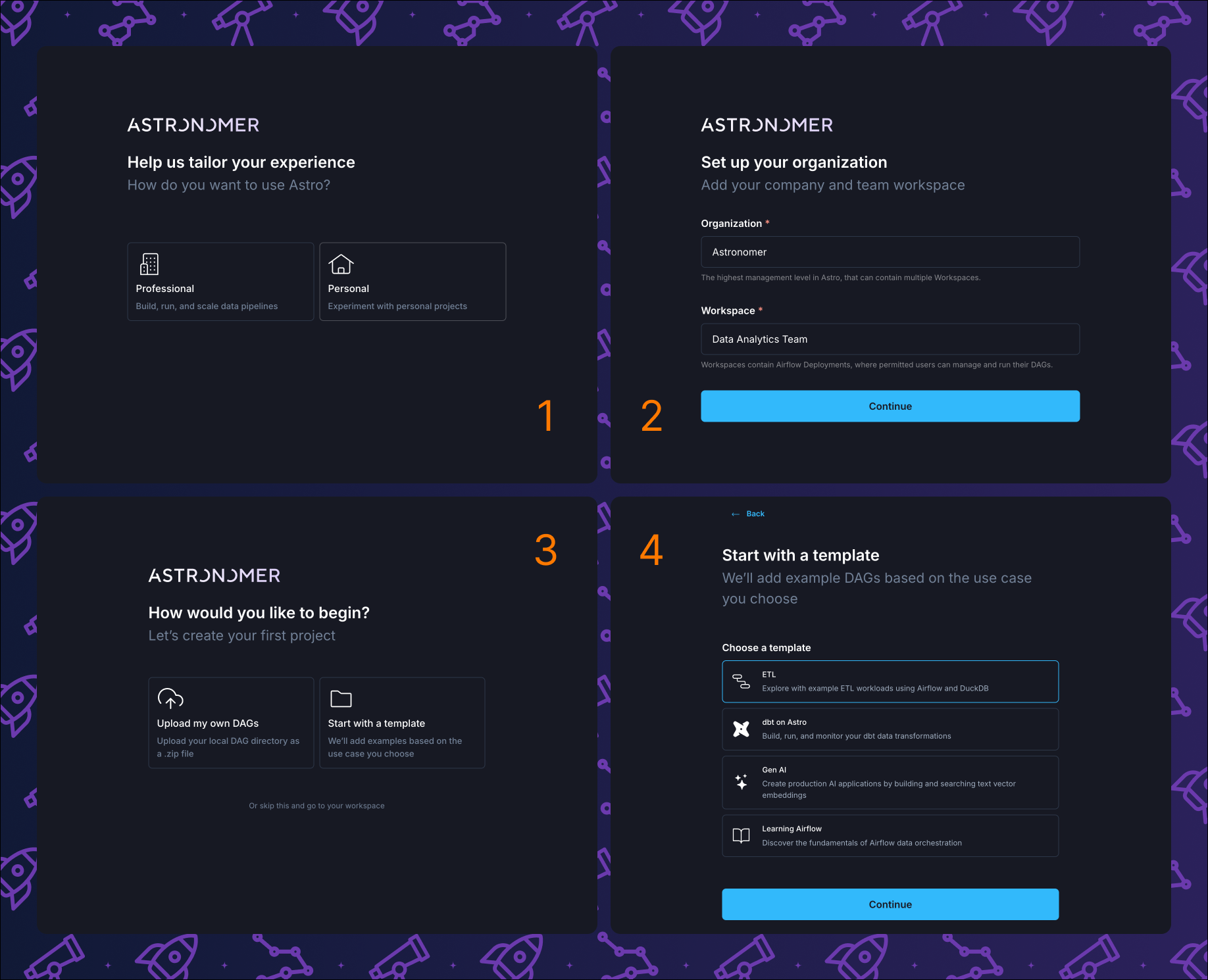
- The first step is to start a free Astro trial. All Astro accounts have access to the Astro IDE, which is the easiest way to develop Airflow Dags right in your browser. You can directly deploy your Dags from the Astro IDE to an Astro Deployment, an Airflow environment running in the cloud. After entering your email address, starting the trial includes 4 steps:
- Choose between professional and personal. The choice has no impact on this tutorial.
- Enter an organization and workspace name. Each customer has a dedicated organization on Astro. Each team or project has a workspace, which is a collection of deployments. A deployment is an Airflow environment hosted on Astro. For this tutorial, you can use any names.
- You can choose to upload Dags, use a template, or start with an empty workspace. For this tutorial, choose start with a template.
-
Choose the ETL template.
Astro Concepts
- Astro: Fully-managed platform that helps teams write and run data pipelines with Airflow at any scale.
- Astro IDE: In-browser IDE with context-aware AI and zero local setup.
- Organization: Each customer has a dedicated org on Astro.
- Workspace: Each team or project has a dedicated workspace, containing a collection of deployments.
- Deployment: Airflow environment hosted on Astro.
- Summary: 1 Organization -> n Workspace -> n Deployment -> 1 Airflow instance.
-
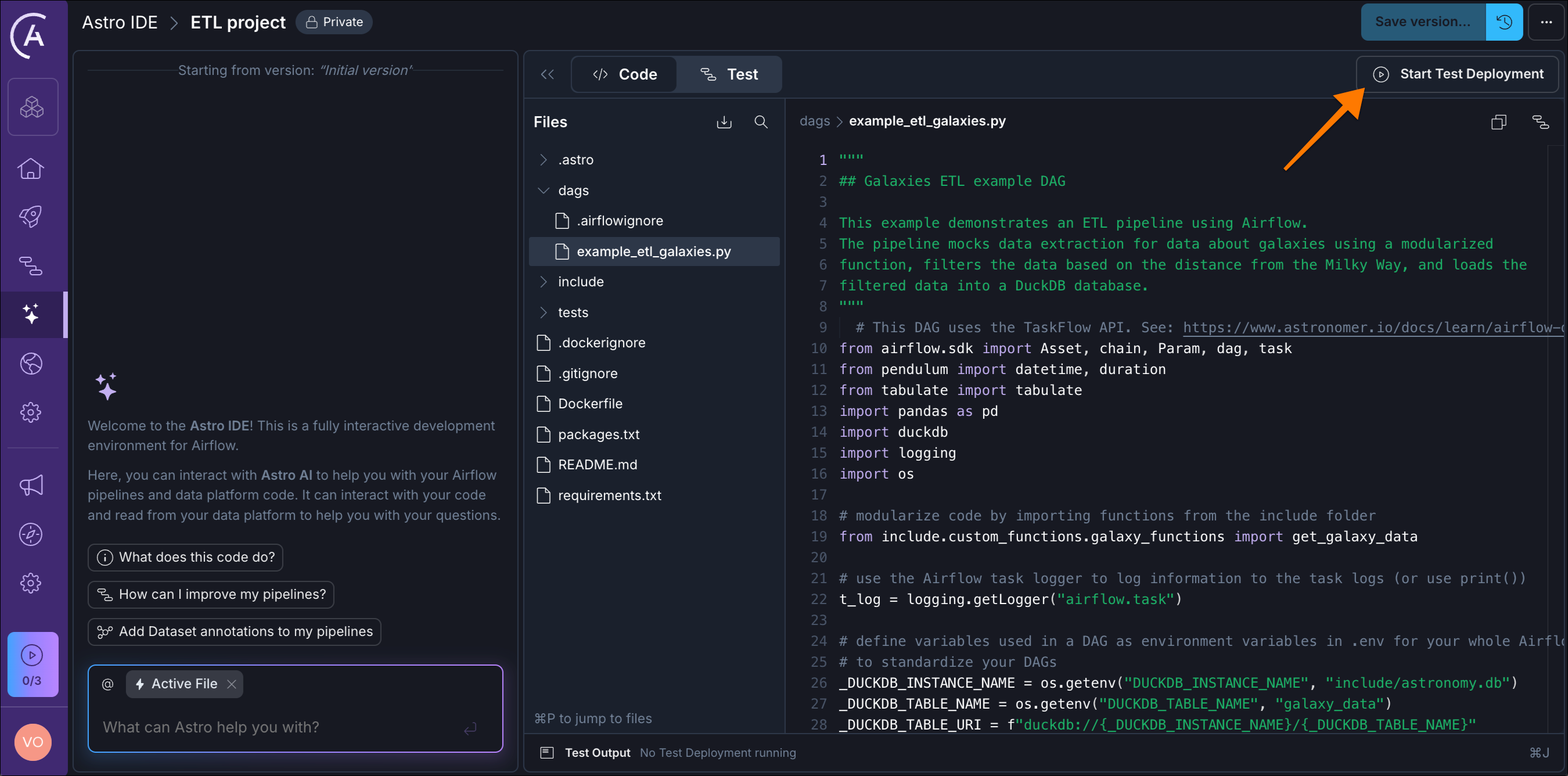
Click the Start Test Deployment button and wait for the deployment to finish.
-
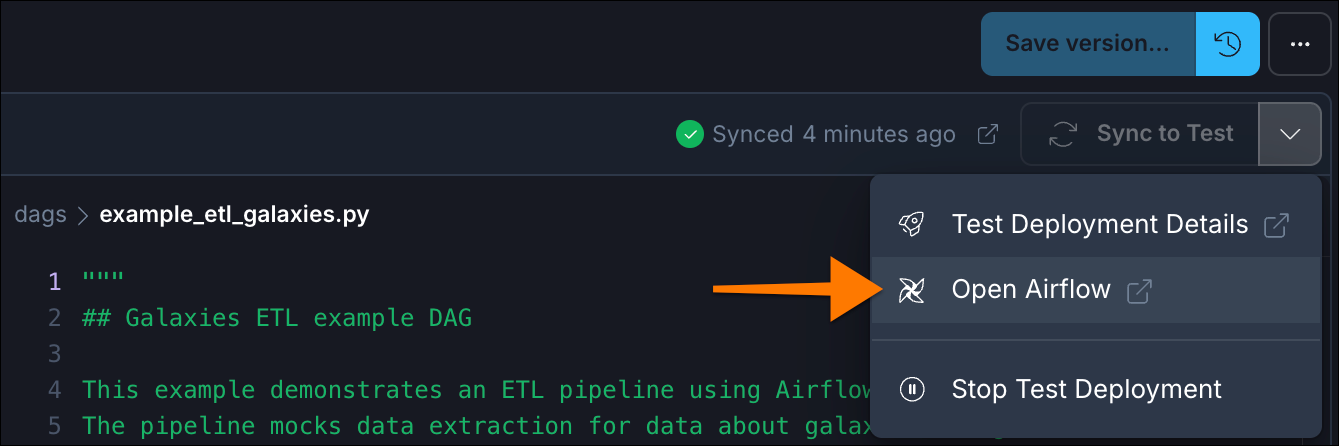
Your first Airflow Dag is deployed and ready to be executed. Click on the dropdown next to Sync to Test and select Open Airflow.
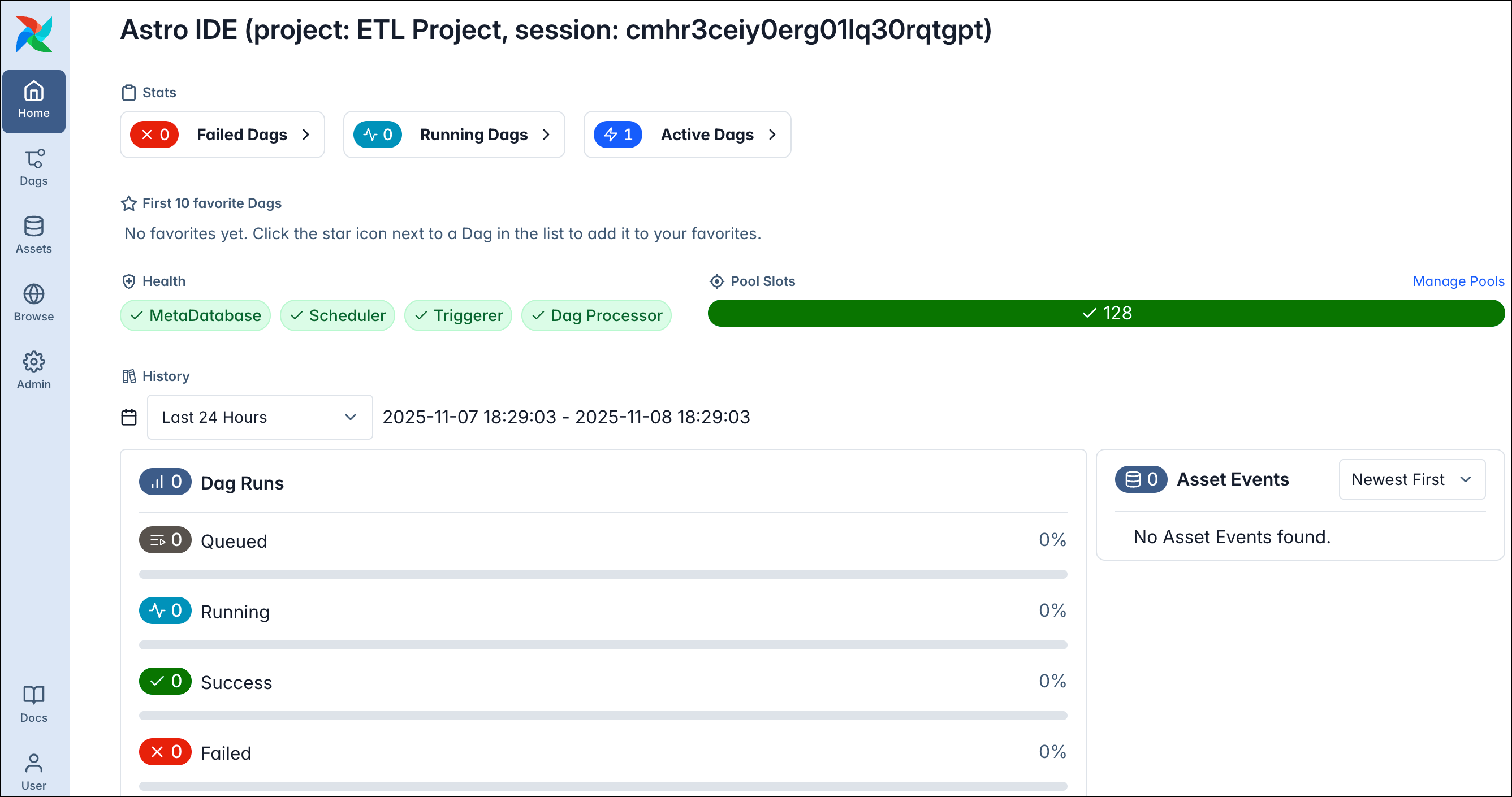
 The Airflow UI home dashboard of your Airflow instance will open in a new browser tab.
Step 2: Run your first Dag
-
Within the navbar on the left, click on Dags.
This view shows all your Dags defined in your Python code. The ETL template comes with one Dag named
example_etl_galaxies.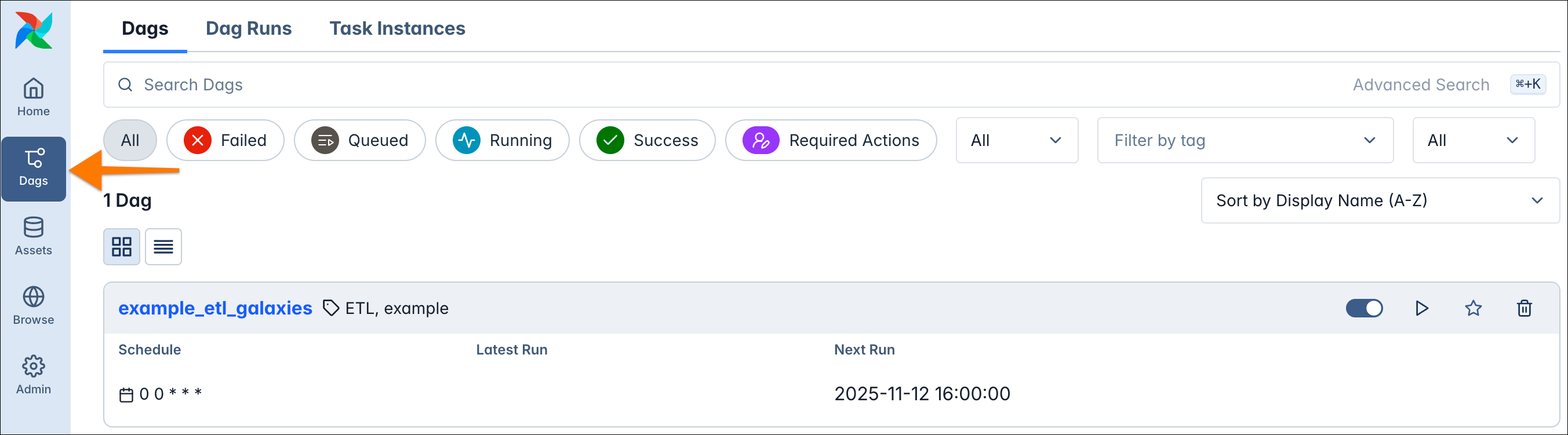 This ETL (Extract, Transform, Load) pipeline retrieves data about galaxies, filters them based on their distance from the Milky Way, and stores the results in a DuckDB database.
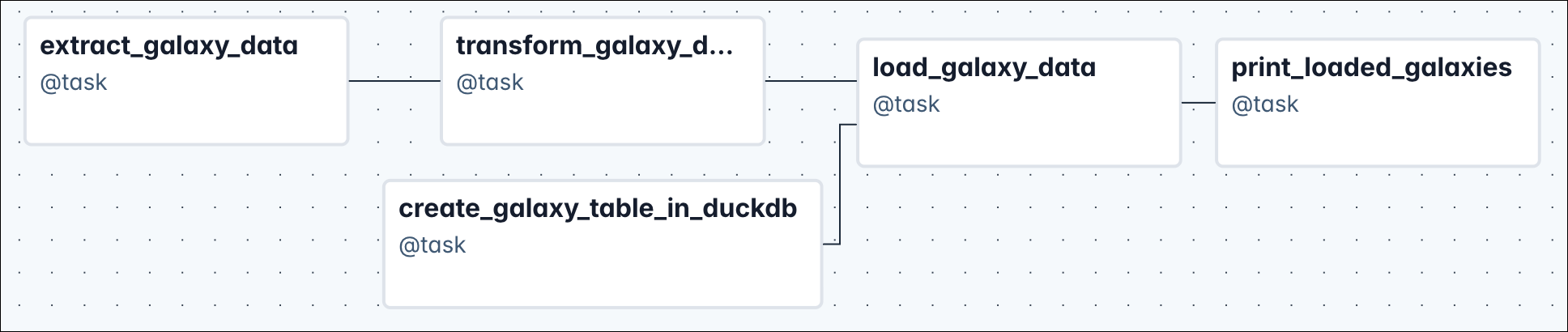 Tasks breakdown
create_galaxy_table_in_duckdb: Creates a table in DuckDB with columns for galaxy name, distances, type, and characteristics.extract_galaxy_data: Retrieves raw data about 20 galaxies and returns it as a pandas DataFrame.transform_galaxy_data: Filters the galaxy data to keep only galaxies within a specified distance from the Milky Way (default: 500,000 light years).load_galaxy_data: Inserts the filtered galaxy data into the DuckDB table and produces an Airflow Asset update.print_loaded_galaxies: Queries and prints all stored galaxies from DuckDB, sorted by distance from the Milky Way.
create_galaxy_table_in_duckdb→load_galaxy_data(table must exist before loading)extract_galaxy_data→transform_galaxy_data(raw data is needed for filtering)transform_galaxy_data→load_galaxy_data(filtered data is needed for loading)load_galaxy_data→print_loaded_galaxies(data must be loaded before printing)
-
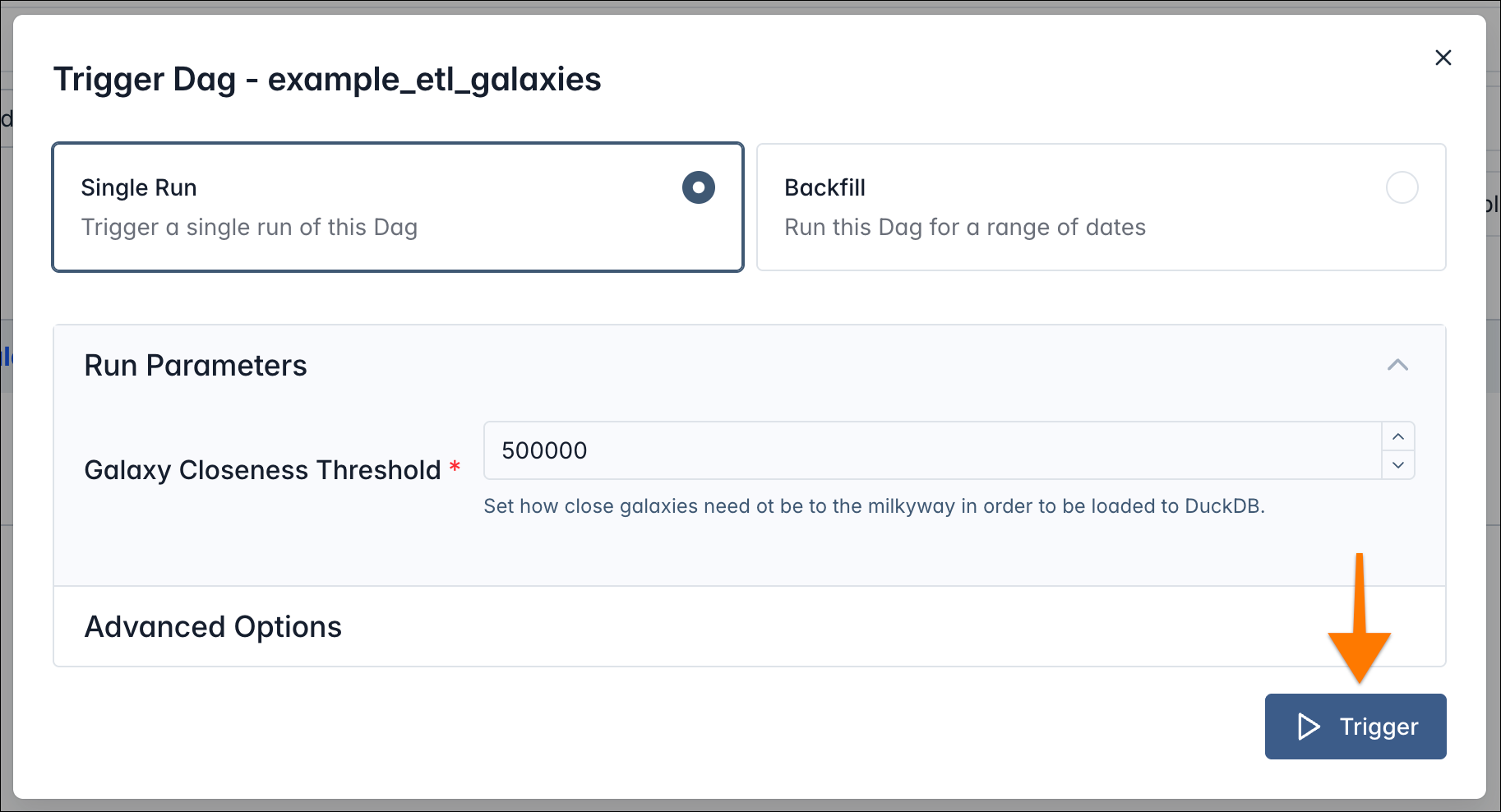
Let’s run the pipeline! Click the play button next to the Dag.
 The button will open a trigger dialog, allowing you to trigger a single run or a backfill to process a range of dates right from the UI. Dags can also have parameters that can be used within the implementation to keep certain parts of your pipeline configurable.
-
Select Single Run, keep the parameters at their defaults, and click the Trigger button.
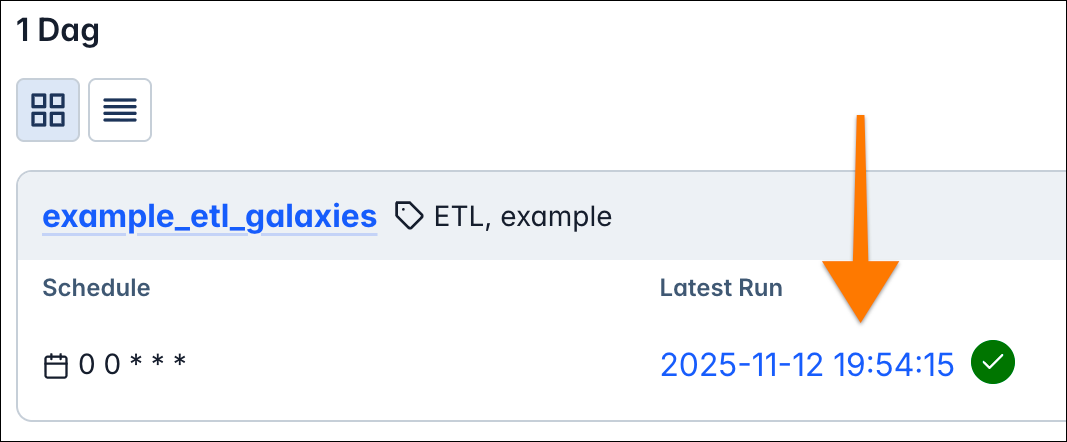
 Your Dag will start, and under Latest Run in the Dags view it will show the current running instance of it.
-
Click that run date to got to the individual Dag run view.
 Watch how the Dag run finishes and explore the grid and graph views (buttons on the top left), two different representation of your pipeline.
-
Once all tasks have finished successfully, open the grid view and click the
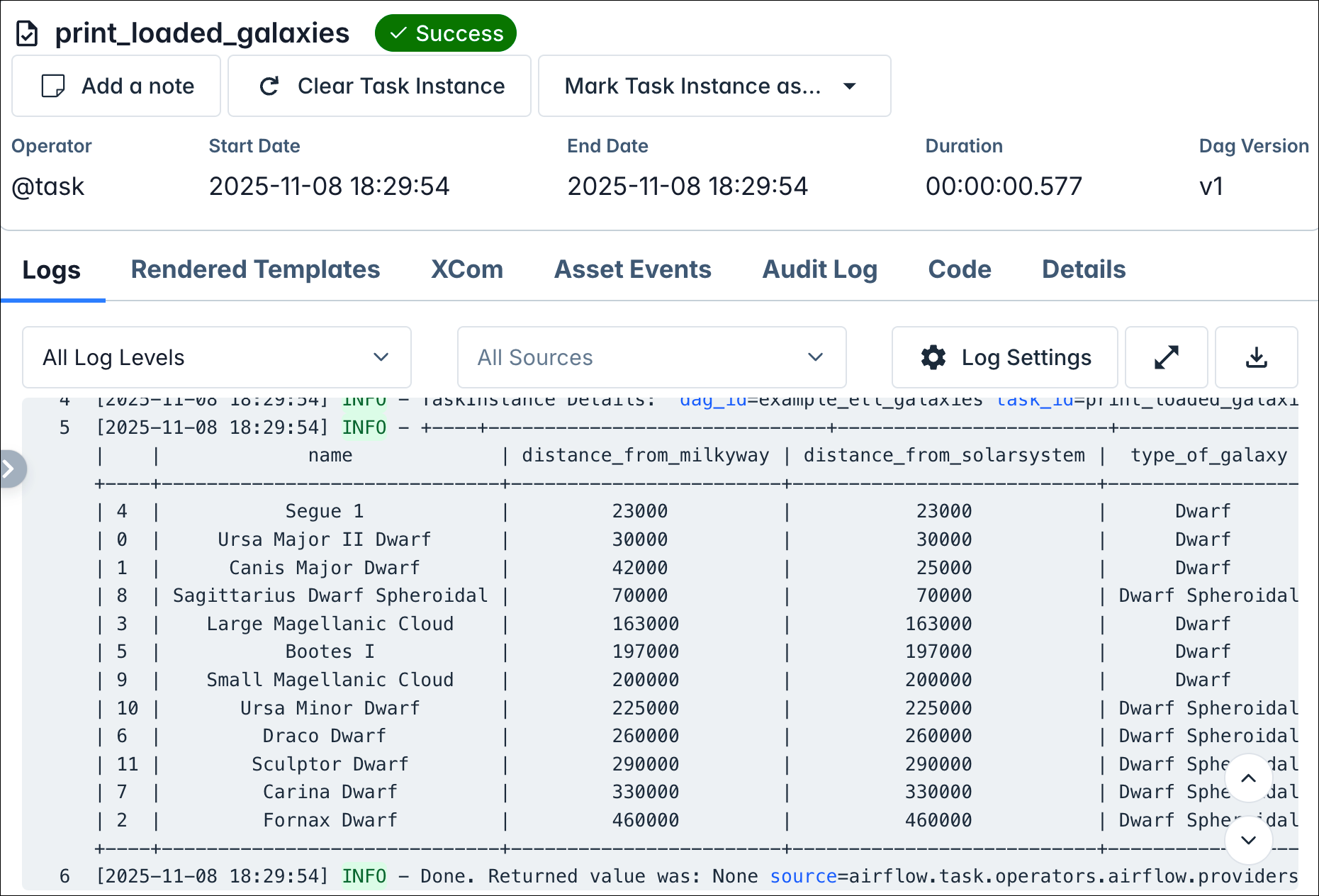
print_loaded_galaxiestask, the last step in your pipeline graph.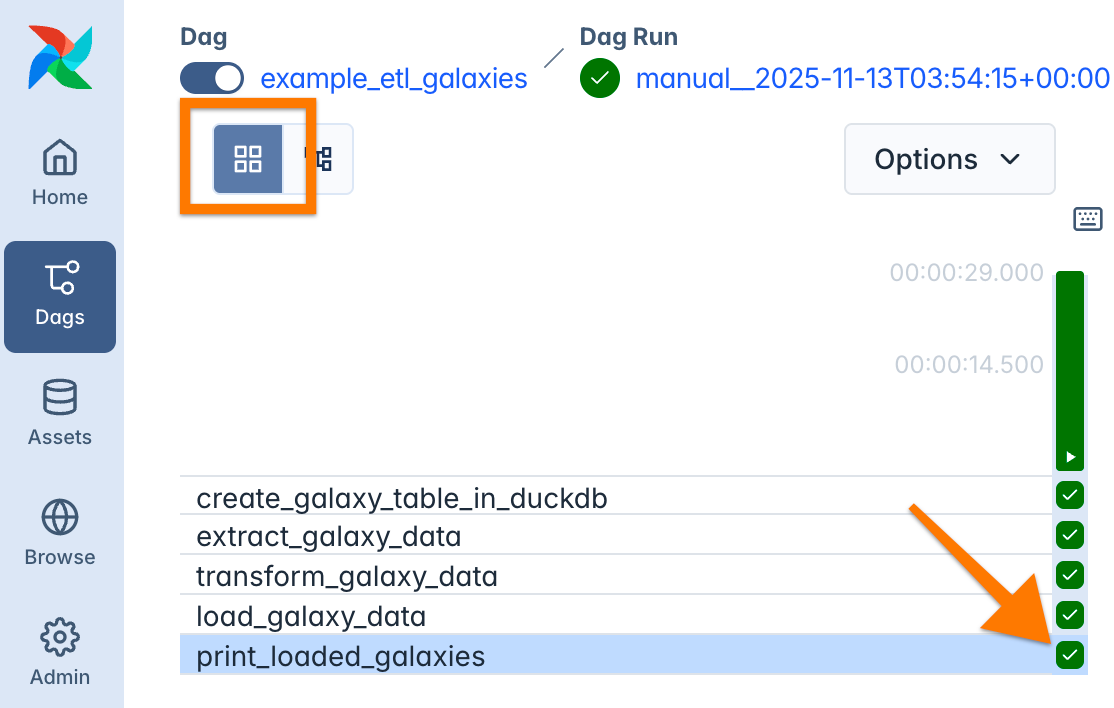 It will open the logs of this task instance and we see the output: a table of galaxies with their distance from the Milky Way and from our solar system, as well as the type of galaxy.
Step 3: Understand the basic concepts
Once you’ve finished your exploration, switch back to the Astro IDE and have a look at the Python code insideexample_etl_galaxies.py. The code contains a lot of comments explaining each step in detail. However, let’s get an overview before you dive into details.
The Python file contains the following key elements:
- Imports: All modules, classes, and functions needed for your implementation. Always use the Airflow Task SDK by importing from
airflow.sdk, as this is the user-facing SDK. - Constants: Any constants like, in our case, the connection string for our DuckDB instance.
- Dag definition: The data pipeline together with settings like its
schedule. - Tasks: The units of work. Tasks should be atomic and idempotent (producing the same result when run multiple times with the same inputs).
- Dependencies: We define how the tasks are connected, so Airflow knows how to construct the graph.
Step 4: Extend the demo project
Let’s level up! Now that you’ve run your first Dag, we’ll extend the project by adding a second Dag that builds on top of the first one. We’ll create agalaxy_maintenance Dag that allows you to manually enter new galaxy data through an interactive form. The data will be automatically added to the database and validated with automated quality checks.
What you’ll learn:
Extend functionality
Add provider packages to extend Airflow with new operators and integrations for databases and external systems.
Connect to databases
Set up proper Airflow connections to manage credentials and configurations for external tools.
Human-in-the-loop (HITL)
Implement human-in-the-loop workflows that pause for manual data entry and human decision-making.
SQL operations
Use common SQL operators to run parameterized queries across different database systems.
Data quality
Add automated data quality checks to ensure data integrity throughout your pipelines.
Asset-aware scheduling
Trigger Dags based on asset-aware scheduling rather than time schedules for data-driven workflows.
Step 4.1: Add provider packages
Theexample_etl_galaxies Dag currently connects directly to the DuckDB database using:
-
Open the
requirements.txtfile in the Astro IDE. -
Add the following lines at the bottom:
- Since we added new dependencies, we need to sync the changes. Click on Sync to Test and wait for the changes to be deployed.
Step 4.2: Setup a connection
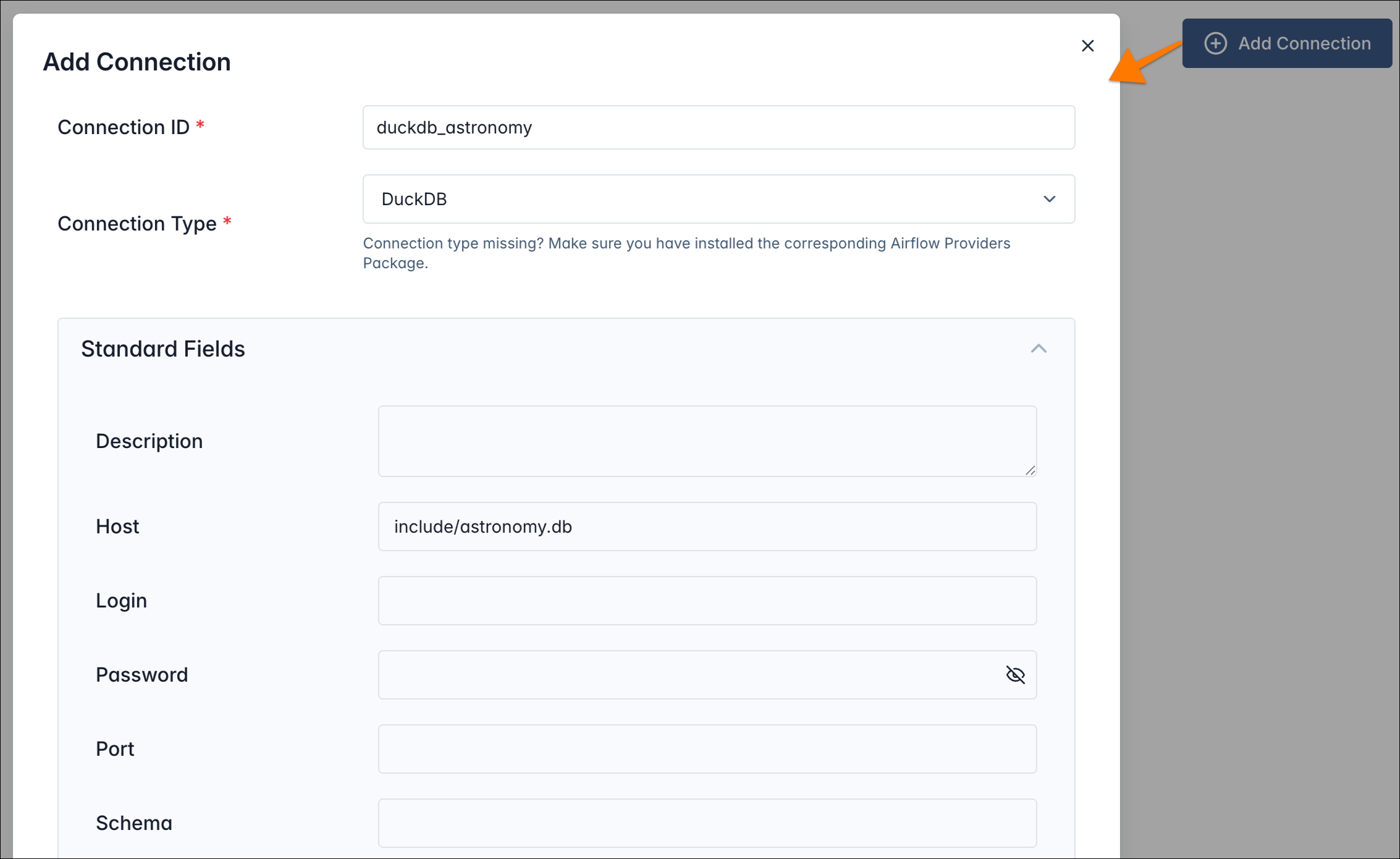
An Airflow connection stores configuration details for connecting to external tools in your data ecosystem. Most hooks (what is a hook?) and operators that interact with external systems require a connection. To create the connection:- Open Airflow and click Admin in the left navbar
- Select Connections
- Click Add Connection (top right)
-
Enter the following details:
- Connection ID:
duckdb_astronomy - Connection Type: DuckDB
- Host:
include/astronomy.db - keep the rest empty
- Connection ID:
- Save the connection and you’re now ready to connect! You can find the Airflow task that uses this connection in the example code in Step 4.3.
Astro ConceptsWe just added a connection to our deployment (a single Airflow instance). If we deployed our Dags to another environment or recreated the test deployment, we’d need to add the connection again. Astro offers a helpful solution: under Environment → Connections in the Astro platform, you can set up workspace-wide connections that are available across all your Airflow instances. See Manage Airflow connections and variables in the Astro documentation.
Step 4.3: Prepare test deployment for advanced usage
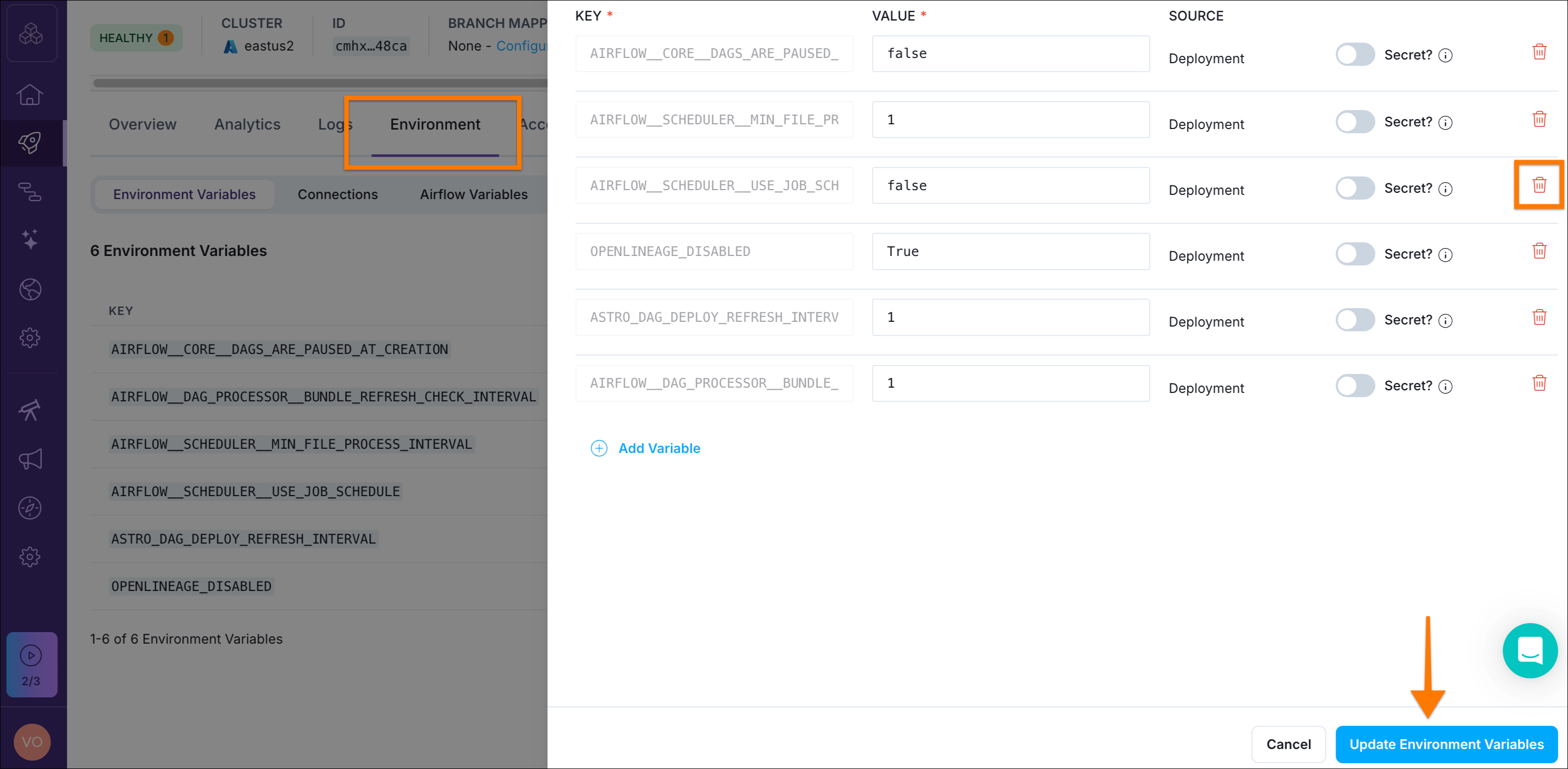
The test deployment is a fully functional but minimal Airflow setup. To enable advanced features like asset-aware scheduling (explained later), we need to apply a quick configuration change.- In the Astro IDE, click the dropdown next to Sync to Test (top right).
- Select Test Deployment Details.
- Navigate to the Environment tab, click Edit Deployment Variables, and remove
AIRFLOW__SCHEDULER__USE_JOB_SCHEDULEby clicking the trash bin icon next to it. - Click Update Environment Variables (bottom right) and you’re ready to go! Head back to the Astro IDE.
Step 4.4: Implement Dag with human-in-the-loop
-
Within the Astro IDE, create a new file by right-clicking on the
dagsfolder → New File… and name itgalaxy_maintenance.py. -
Paste the following content:
This maintenance pipeline is triggered automatically whenever the galaxy data table is updated. It allows manual entry of new galaxy data through a human-in-the-loop interface, inserts the data into DuckDB, and runs data quality checks to ensure the values are within acceptable ranges.
 Tasks Breakdown
enter_galaxy_details: Pauses the pipeline and prompts a user to manually enter galaxy information (name, distances, type, and characteristics) through a form interface.insert_galaxy_details: Inserts the user-provided galaxy data into the DuckDB table using the values collected from the previous task.dq_checks: Validates the data quality by checking that distance values are within acceptable ranges (between 10,000 and 900,000 light years).
enter_galaxy_details→insert_galaxy_details(user input needed before insertion)insert_galaxy_details→dq_checks(data must be inserted before validation)
- Click Sync to Test (top right) to sync your changes to the test deployment.
- Once the sync process finishes, head back to the Airflow UI.
- Open the Dags view, and a new Dag should appear in the list.
duckdb://include/astronomy.db/galaxy_data is updated.
 Our first Dag updates this asset when data is loaded to DuckDB by using the
 outlets parameter:
Step 4.5: Try your advanced Dag
Time to see asset-aware scheduling and your new Dag in action!-
Trigger
example_etl_galaxiesand observe what happens. You’ll notice thatgalaxy_maintenancestarts whenexample_etl_galaxiesfinishes. More precisely, when it updates the asset that triggers the other Dag. -
Once
galaxy_maintenanceis running, open the latest run and you’ll notice there’s a required action. This is part of the human-in-the-loop feature: your task is waiting for user input.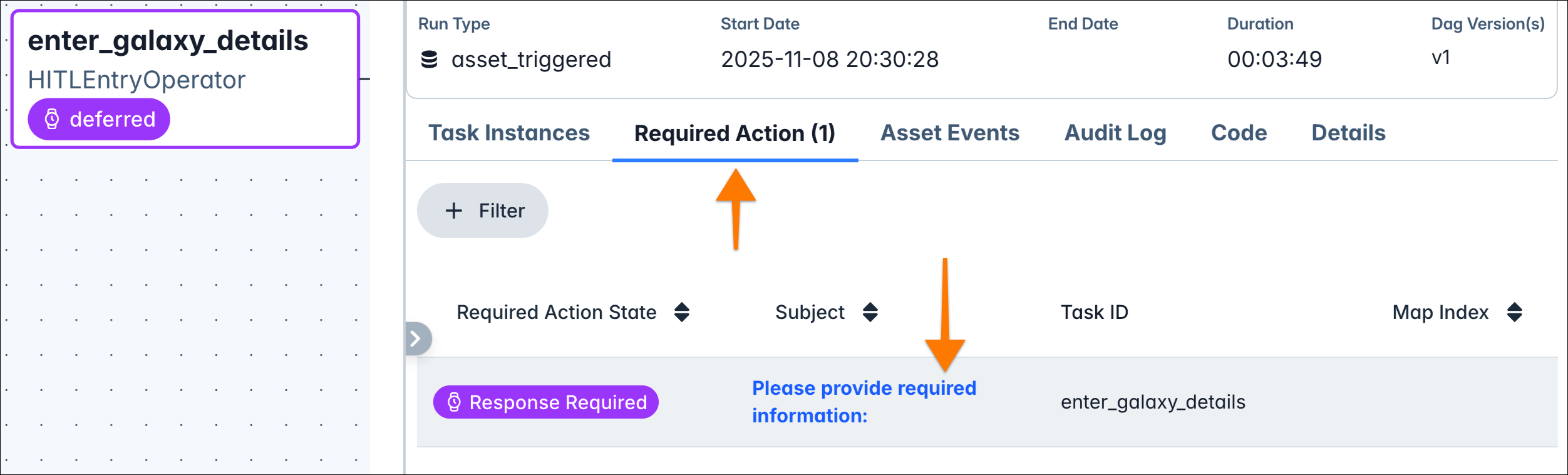
- Take time to explore the Airflow UI and see where these required actions are visible!
-
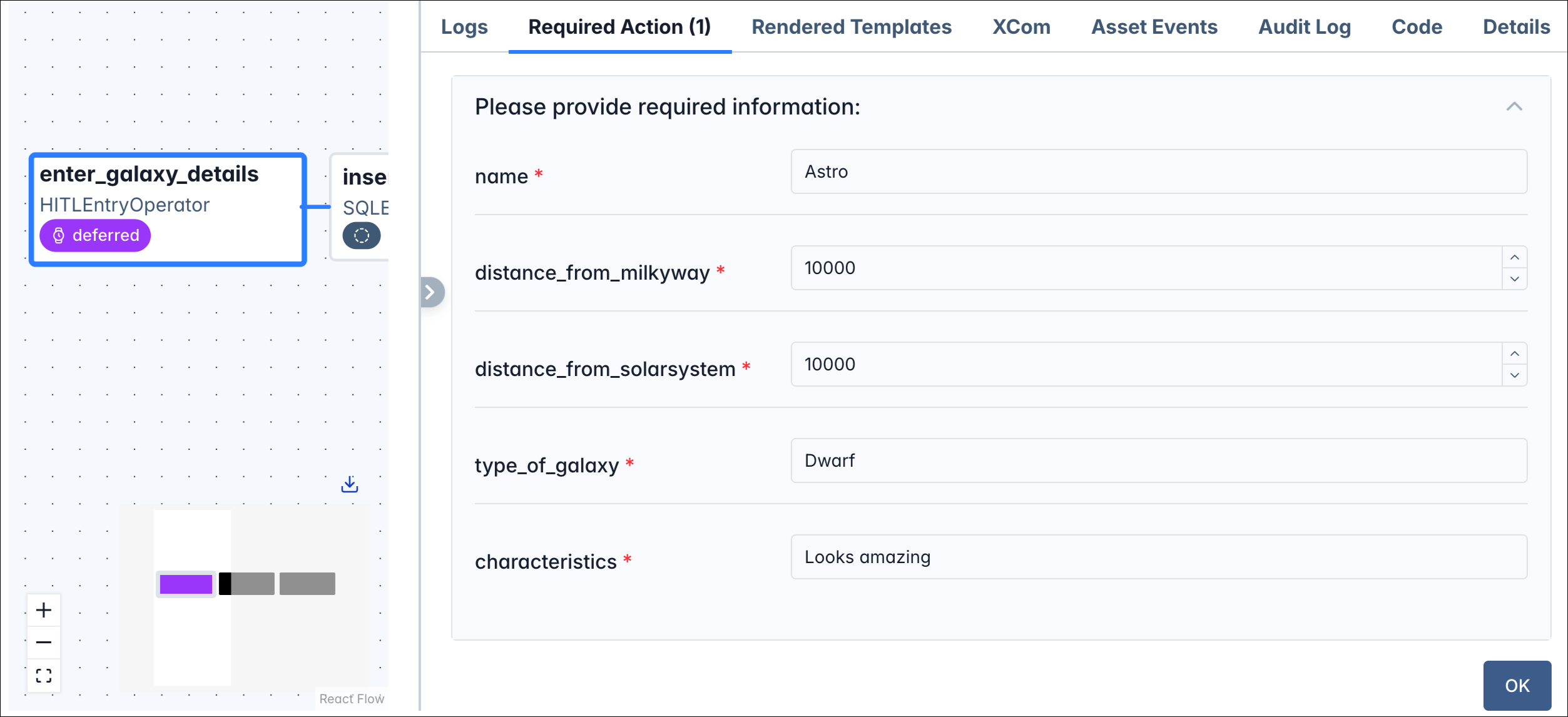
Open the required action to see the form we defined in the code, and enter the following details:
- name: Astro
- distance_from_milkyway: 10000
- distance_from_solarsystem: 10000
- type_of_galaxy: Dwarf
- characteristics: Looks amazing
-
Click OK and observe how the pipeline proceeds. Pay close attention to the
dq_checkstask, which successfully validates the data. -
Try it again by running
galaxy_maintenanceonce more. This time, enter 42 as the distance and observe how thedq_checkstask fails because the data quality check detected an issue with your galaxy data.
Conclusion and next steps
Congratulations 🎉! You’ve just built two interconnected data pipelines using Apache Airflow, and along the way you’ve learned the fundamental concepts that power modern data orchestration. In this tutorial, you:- Set up a complete Airflow development environment in minutes using Astro IDE.
- Built and ran your first ETL pipeline with extraction, transformation, and loading steps
- Mastered core Airflow concepts: Dags, tasks, operators, and dependencies
- Extended your project with provider packages and database connections
- Implemented human-in-the-loop workflows for manual data entry
- Added automated data quality checks to ensure data integrity
- Used asset-aware scheduling to create a dependency between two Dags
- An introduction to Apache Airflow®
- Introduction to Dags
- An introduction to the Airflow UI
- Using Airflow to Execute SQL
- Assets and data-aware scheduling in Airflow
- Get started with Airflow using the Astro CLI
- Apache Airflow® GenAI Quickstart