

Apache Airflow®‘s Datasets and dynamic task mapping features make it easy to incorporate data-awareness and enhanced automation into your ETL pipelines. This tutorial is for Apache Airflow users who want to leverage some of Airflow’s powerful features supporting enhanced ETL development: data-awareness and dynamic task generation. As you explore Airflow’s modern ETL feature set, you’ll create a complete Airflow pipeline that ingests data from an API and a local file, loads and transforms the data in an in-memory database, and visualizes the data in a dashboard. You can run and modify the pipeline in GitHub Codespaces or locally using the Astro CLI. After you complete this tutorial, you’ll be able to:Documentation Index
Fetch the complete documentation index at: https://astronomer-preview.mintlify.app/llms.txt
Use this file to discover all available pages before exploring further.
- Create an ETL pipeline following best practices.
- Write tasks that extract, transform, and load data from a JSON API and CSV file into an in-memory database.
- Configure DAGs to trigger using data-aware scheduling with Airflow Datasets.
- Use dynamic task mapping to automate parallel task creation at runtime.
- Visualize data in a responsive dashboard.
Time to complete
This tutorial takes approximately 1 hour to complete.Assumed knowledge
To get the most out of this tutorial, make sure you have an understanding of:- Basic Airflow concepts. See Introduction to Apache Airflow.
- Basic Python. See the Python Documentation.
Prerequisites
- A GitHub account OR the Astro CLI.
Overview
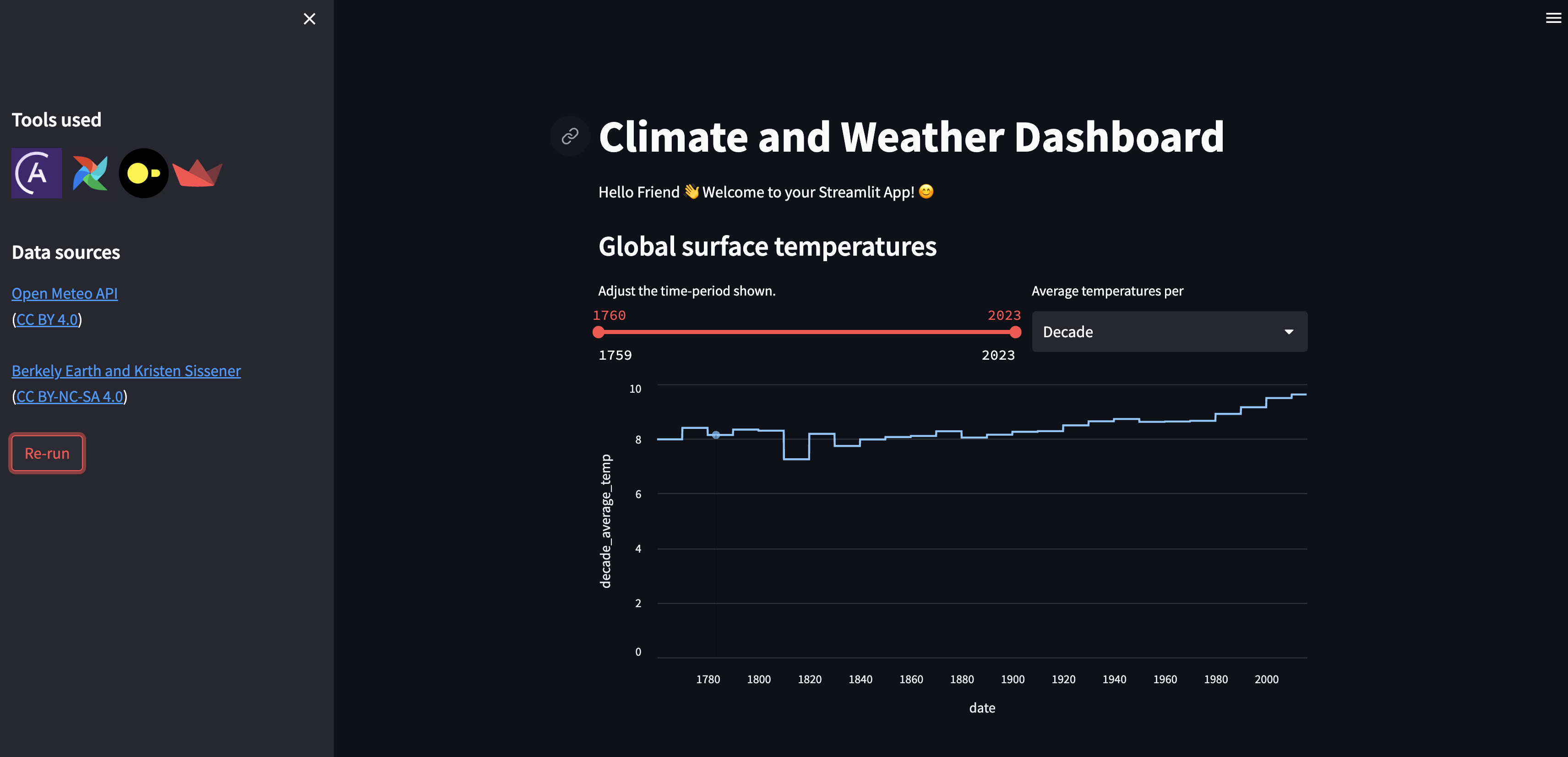
Your pipeline will employ six Airflow DAGs and the following tools:- DuckDB, an in-memory relational database, for storing tables of the ingested data as well as the resulting tables after transformations.
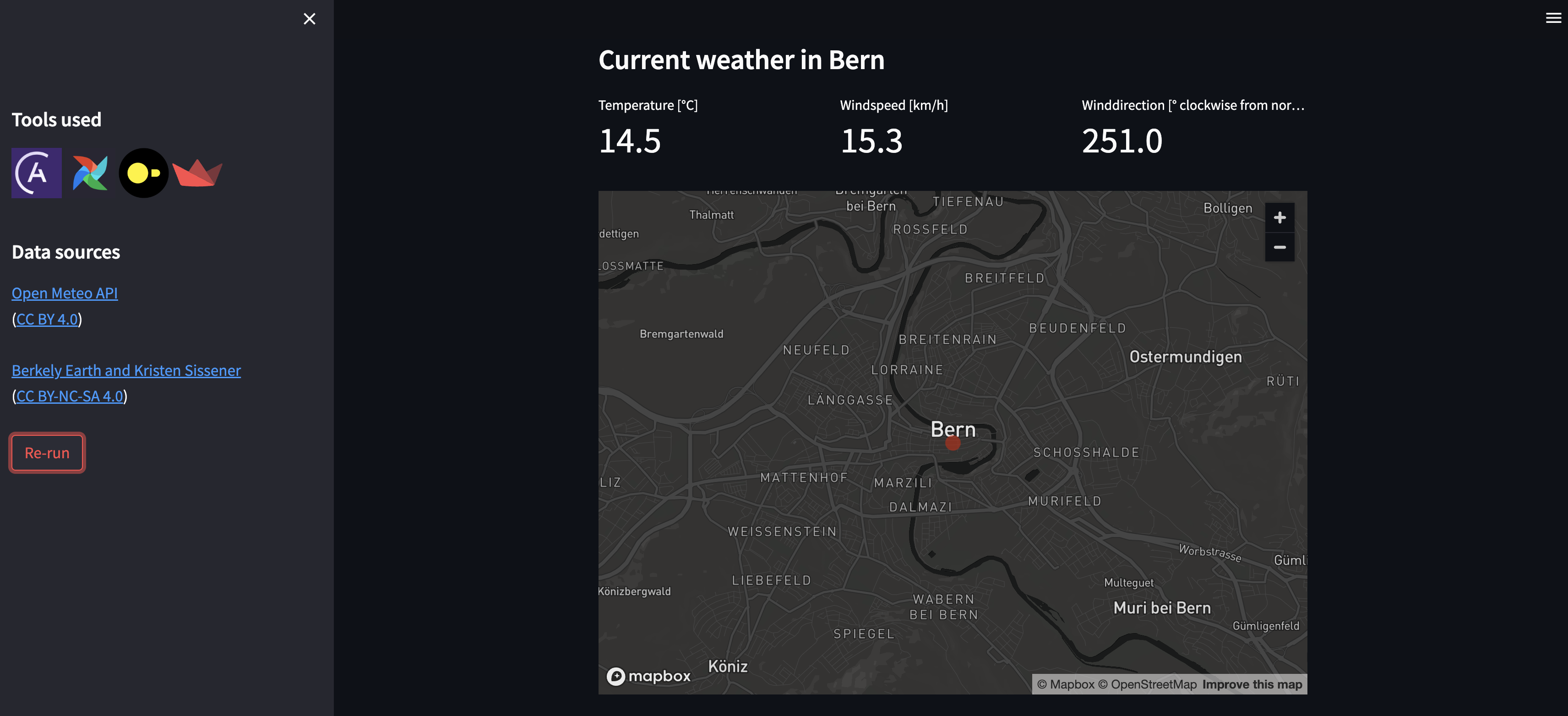
- Streamlit, a Python package for creating interactive apps, for displaying the data in a dashboard. The Streamlit app will retrieve its data from tables in the DuckDB database.
Step 1: Set up your project
You have two options for running the project. If you do not want to install any tools locally, you can use GitHub Codespaces. If you prefer to work locally or already have the Astro CLI installed, you can easily run the pipeline locally.Step 2: Run the project
All DAGs tagged withpart_1 are part of a pre-built, fully functional Airflow pipeline. To run them:
-
Go to
include/global_variables/user_input_variables.pyand enter your own info forMY_NAMEandMY_CITY. -
Trigger the
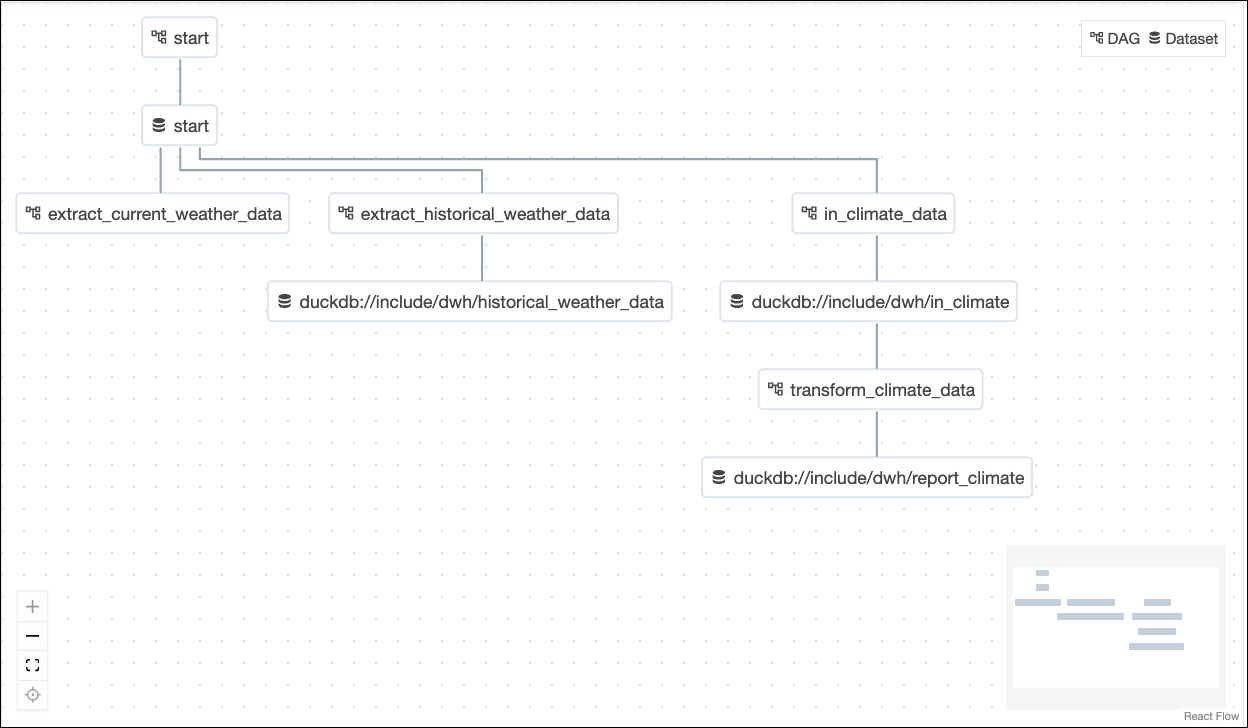
startDAG and unpause all DAGs that are tagged withpart_1by clicking on the toggle on their lefthand side. Once thestartDAG is unpaused, it will run once, starting the pipeline. You can also run this DAG manually to trigger further pipeline runs by clicking on the play button on the right side of the DAG. The DAGs that will run are:startextract_current_weather_datain_climate_datatransform_climate_data.
-
Watch the DAGs run according to their dependencies, which have been set using Datasets.
-
Open the Streamlit app. If you are using Codespaces, go to the Ports tab and open the URL of the forwarded port
8501. If you are running locally, go tolocalhost:8501. -
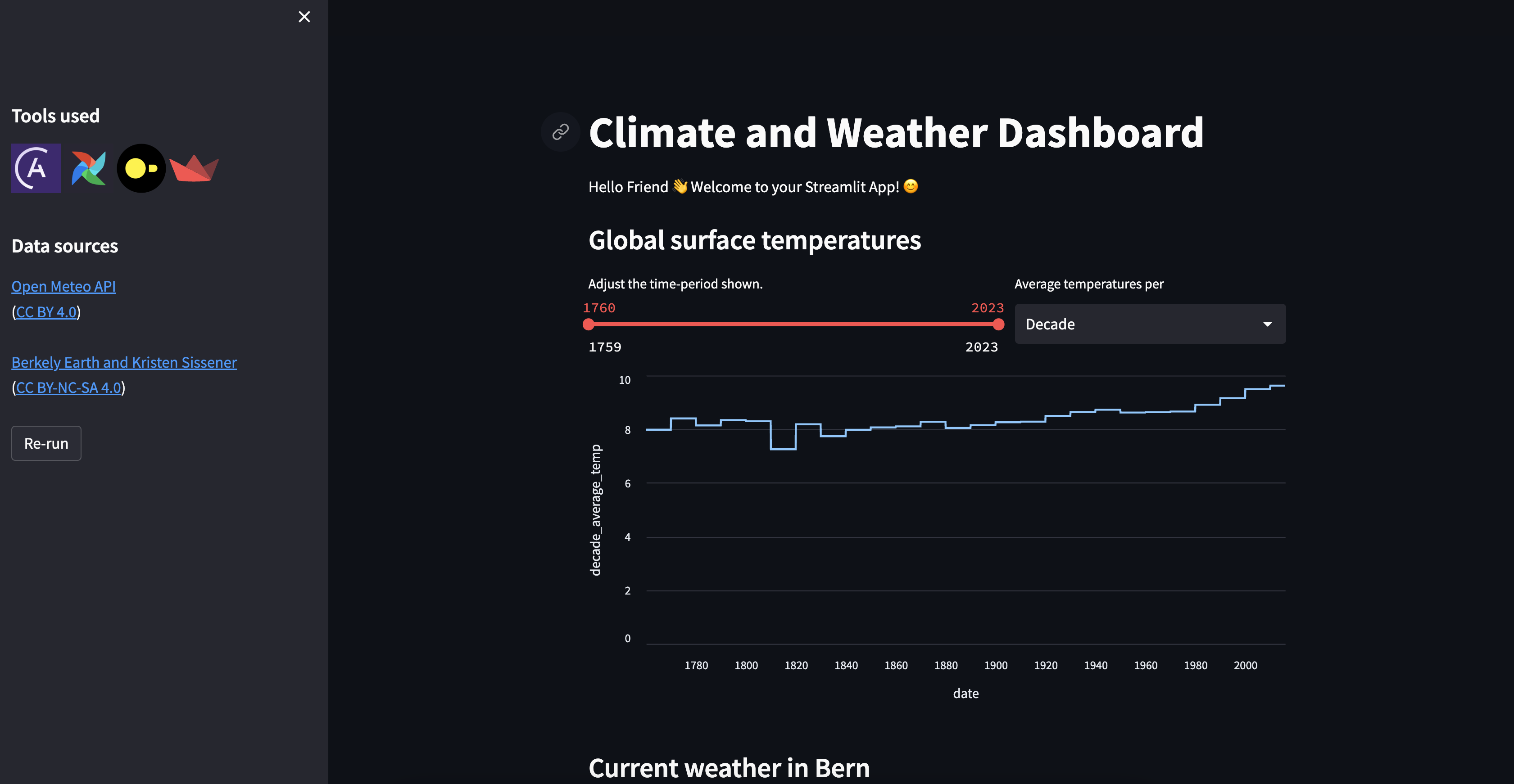
View the Streamlit app, now showing global climate data and the current weather for your city.
Step 3: Update the pipelines
The two DAGs tagged withpart_2 are part of a partially built Airflow pipeline that handles historical weather data. Complete the following steps to finish building the pipeline.
Leverage Airflow Datasets for data-aware scheduling
Datasets allow you to schedule DAGs on the completion of tasks that create or update data assets in your pipelines. Instead of using time-based scheduling, you’ll use Datasets to make:extract_historical_weather_datarun after completion of a task with an outlet Dataset in thestartDAG.transform_historical_weatherrun after completion of a task with an outlet Dataset in theextract_historical_weather_dataDAG.
-
In
include/global_variables/user_input_variables.py, enter your own info forHOT_DAYandBIRTHYEARif you wish. -
Schedule the
extract_historical_weather_dataDAG on thestart_datasetDataset defined in thestartDAG. -
Schedule the
transform_historical_weather_dataDAG on theextract_datasetoutlet Dataset of theturn_json_into_tabletask, which you will find in theextract_historical_weather_dataDAG. As in the previous case, the latter DAG’s schedule is currently set toNone, and this is the DAG parameter you need to modify.For more help with using Datasets, see: Datasets and data-aware scheduling in Airflow. -
Trigger the
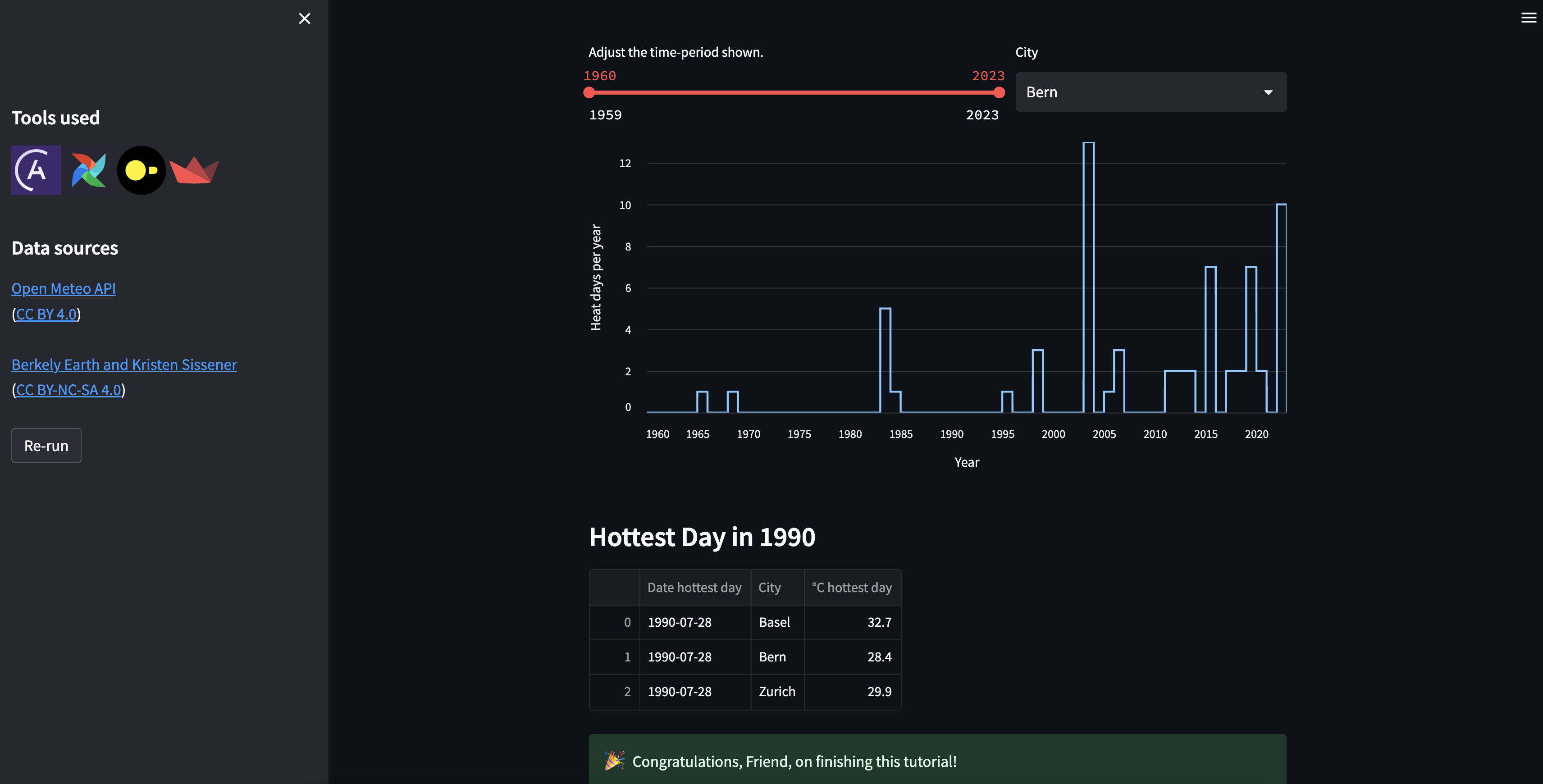
startDAG. You should seeextract_historical_weather_datarun automatically after thestartDAG run completes and thetransform_historical_weatherDAG run automatically afterextract_historical_weather_data. Once all DAGs have run, view your Streamlit app to view a graph with hot days per year and a table containing historical weather data.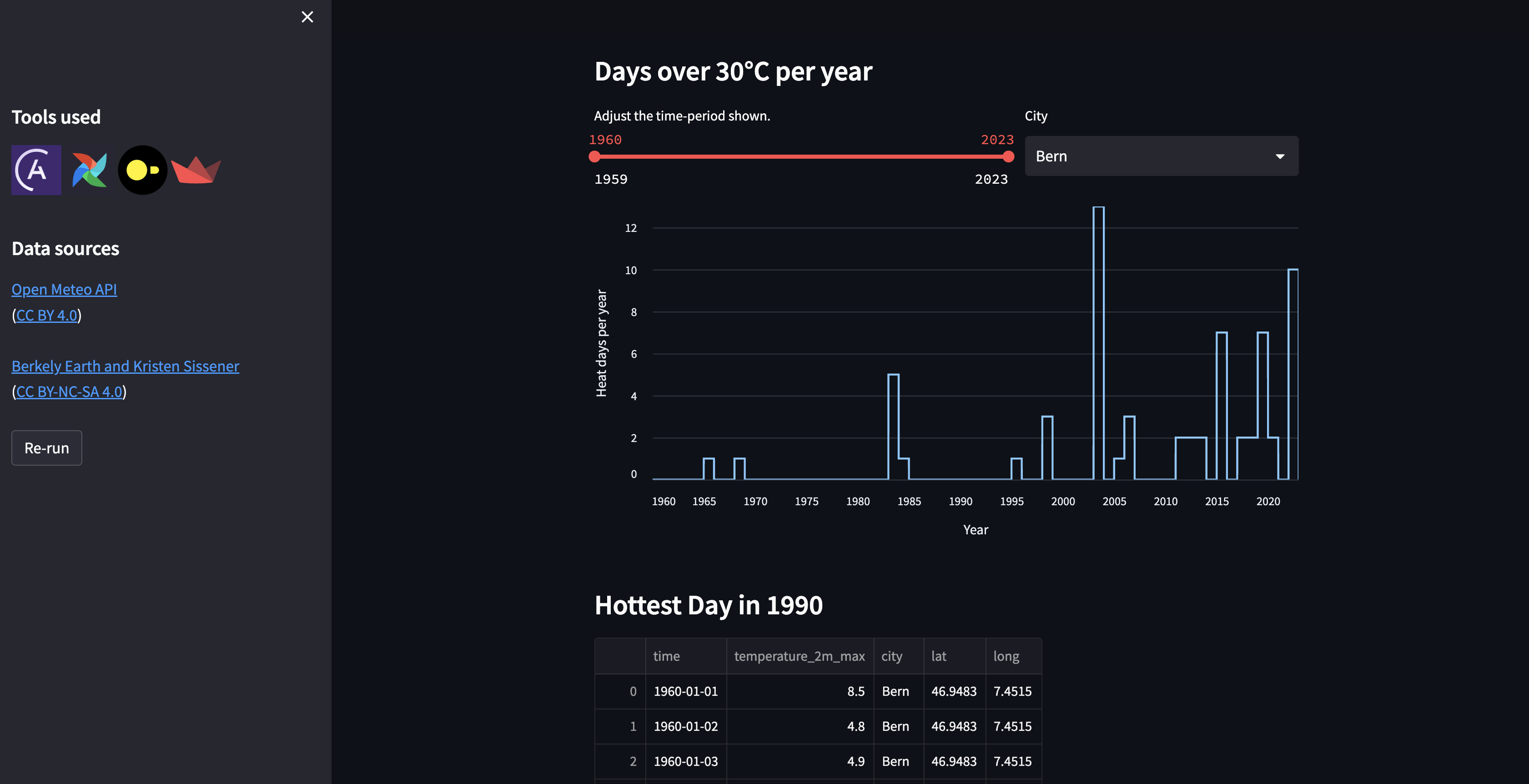
Add dynamic task mapping for automated generation of parallel tasks
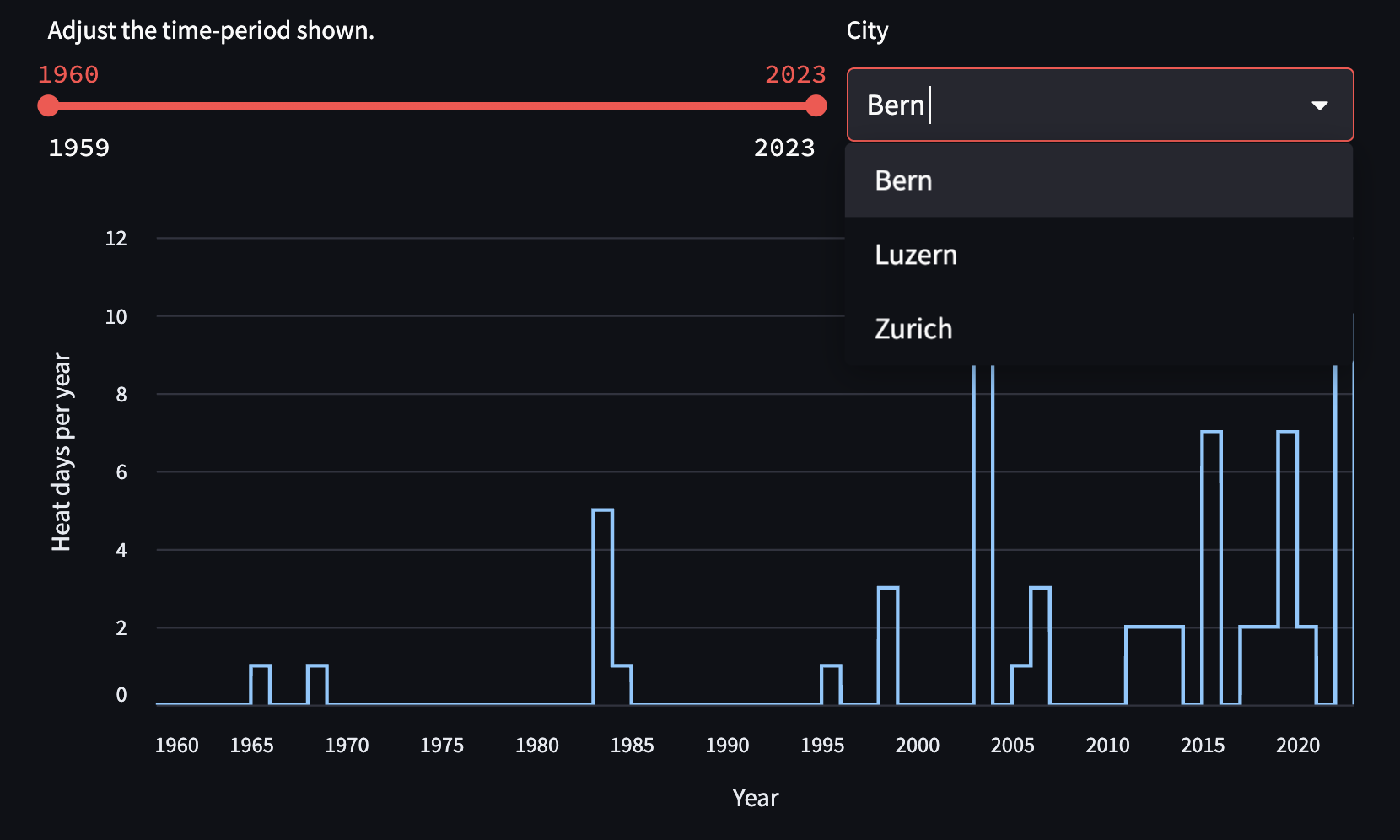
The tasks in theextract_historical_weather_data currently retrieve historical weather information for only one city. To retrieve information about three cities instead of just one, you can use dynamic task mapping. The dynamic task mapping feature of Airflow, based on the MapReduce programming model, automatically generates parallel individual tasks for an arbitrary number of inputs. Compared to static code, this approach offers the benefit of atomicity, improved observability, easier recovery from failures, and easier implementation.
You can find more information about dynamic task mapping in Create dynamic Airflow tasks.
Instead of manually creating a task for each additional city, you’ll use an expand() function to map any number of cities in the following tasks:
- the
get_lat_long_for_citytask in theextract_historical_weather_dataDAG. - the
get_historical_weathertask, also inextract_historical_weather_data.
-
Find the
coordinatesvariable definition (just above theturn_json_into_tabletask definition). This line instantiates the first task you need to map:get_lat_long_for_city. -
Map the task using an
expand()and replace the single city with a list of cities. NOTE: each item must be a city! -
Find the
historical_weathervariable definition (just below thecoordinatesdefinition). This line instantiates the second task you need to map:get_historical_weather. -
Map the task using
expand().For more guidance on implementing dynamic task mapping, see Create dynamic Airflow tasks. -
After completing the exercise, rerun both
extract_historical_weather_dataandtransform_historical_weather_data.
Both the 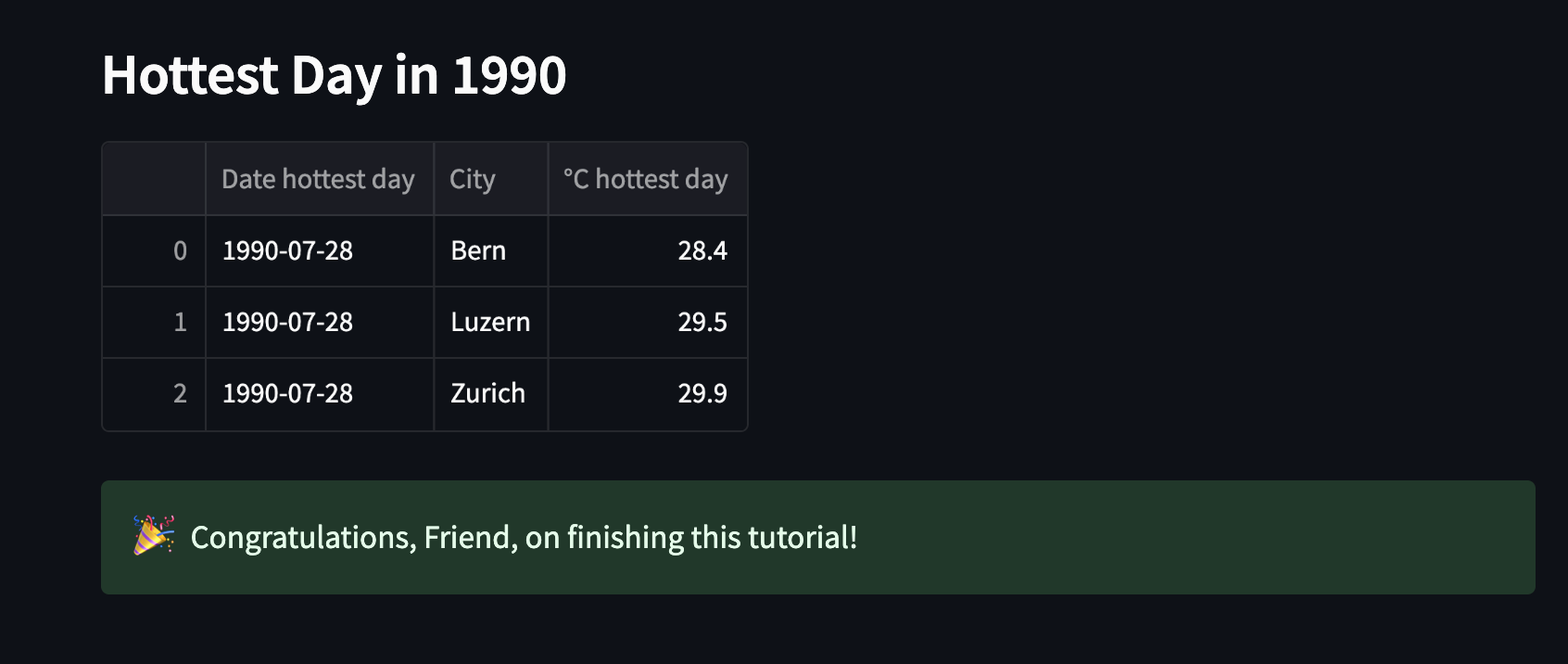
in_table dataframe and the output_df dataframe are printed to the logs of the find_hottest_day_birthyear task. The goal is to have an output as in the screenshot below. If your table does not contain information for several cities, make sure you completed the dynamic task mapping correctly.