

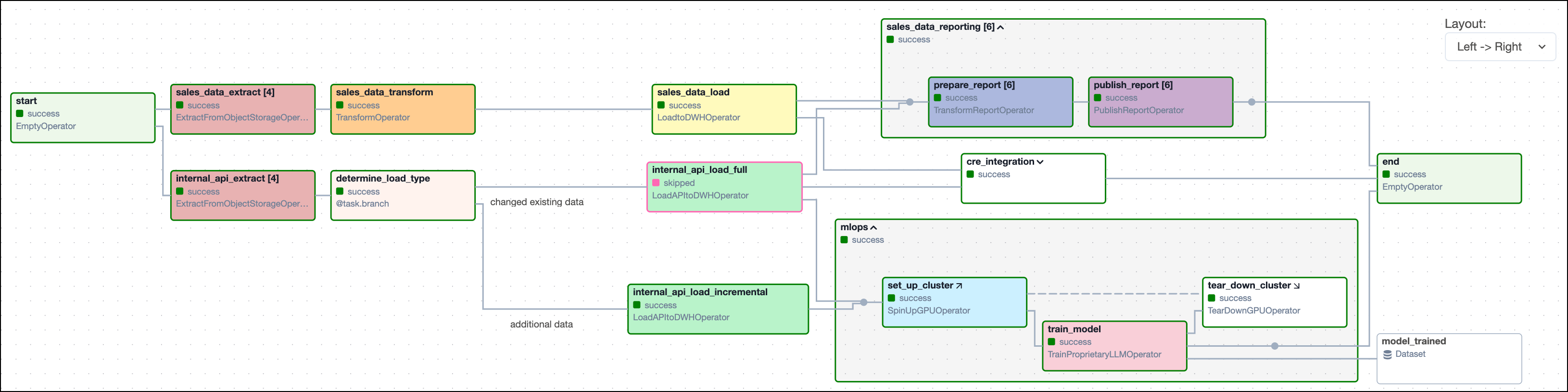
In Apache Airflow®, a DAG is a data pipeline or workflow. DAGs are the main organizational unit in Airflow; they contain a collection of tasks and dependencies that you want to execute on a schedule. A DAG is defined in Python code and visualized in the Airflow UI. DAGs can be as simple as a single task or as complex as hundreds or thousands of tasks with complicated dependencies. The following screenshot shows a complex DAG graph in the Airflow UI. After reading this guide, you’ll be able to understand the elements in this graph, as well as know how to define DAGs and use DAG parameters.Documentation Index
Fetch the complete documentation index at: https://astronomer-preview.mintlify.app/llms.txt
Use this file to discover all available pages before exploring further.
Assumed knowledge
To get the most out of this guide, you should have an understanding of:- What Airflow is. See Introduction to Apache Airflow.
What is a DAG?
A DAG (directed acyclic graph) is a mathematical structure consisting of nodes and edges. In Airflow, a DAG represents a data pipeline or workflow with a start and an end. The mathematical properties of DAGs make them useful for building data pipelines:-
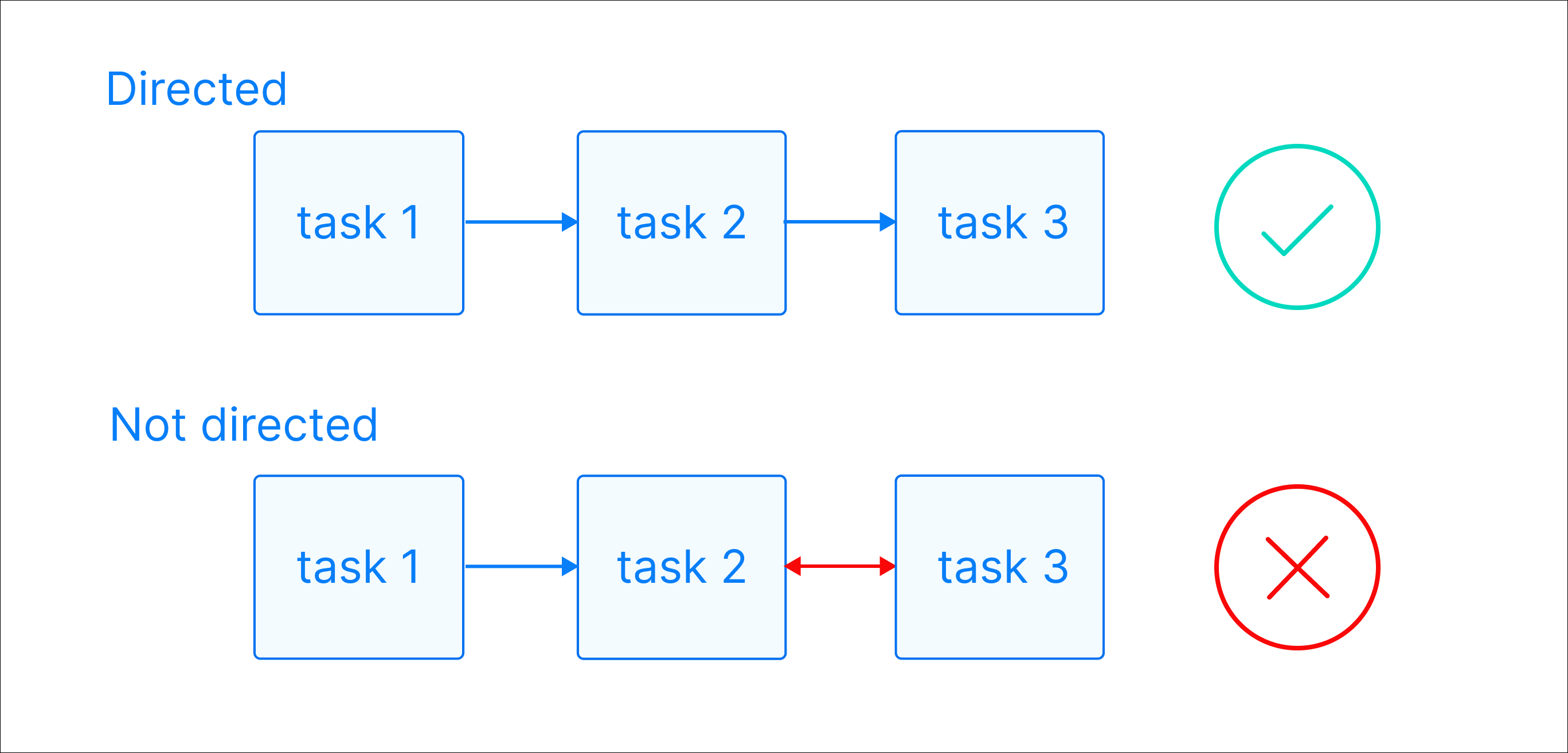
Directed: There is a clear direction of flow between tasks. A task can be either upstream, downstream, or parallel to another task.
-
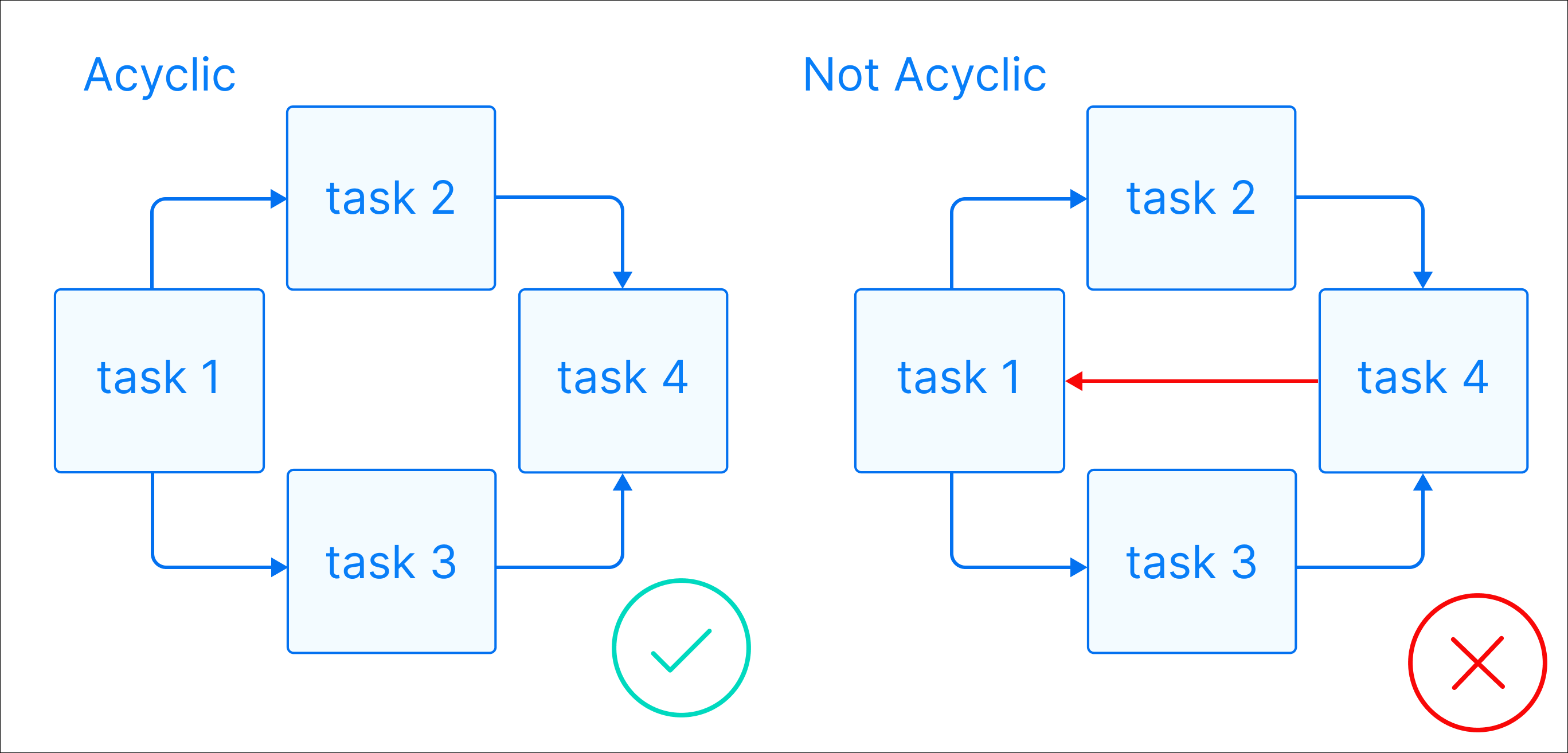
Acyclic: There are no circular dependencies in a DAG. This means that a task cannot depend on itself, nor can it depend on a task that ultimately depends on it.
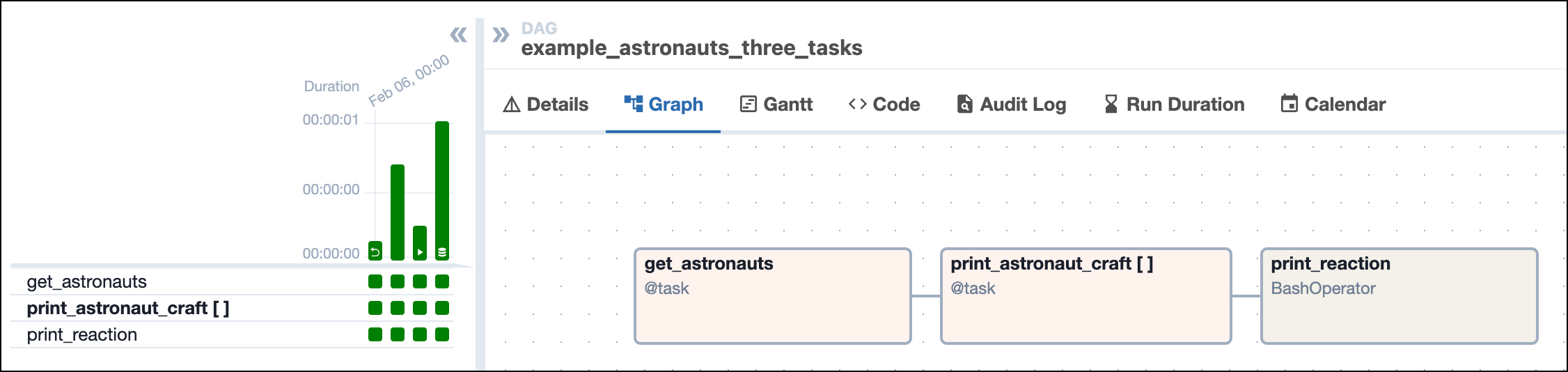
- Graph: A DAG is a graph, which is a structure consisting of nodes and edges. In Airflow, nodes are tasks and edges are dependencies between tasks. Defining workflows as graphs helps you visualize the entire workflow in a way that’s easy to navigate and conceptualize.
What is a DAG run?
A DAG run is an instance of a DAG running at a specific point in time. A task instance is an instance of a task running at a specific point in time. Each DAG run has a uniquedag_run_id and contains one or more task instances. The history of previous DAG runs is stored in the Airflow metadata database.
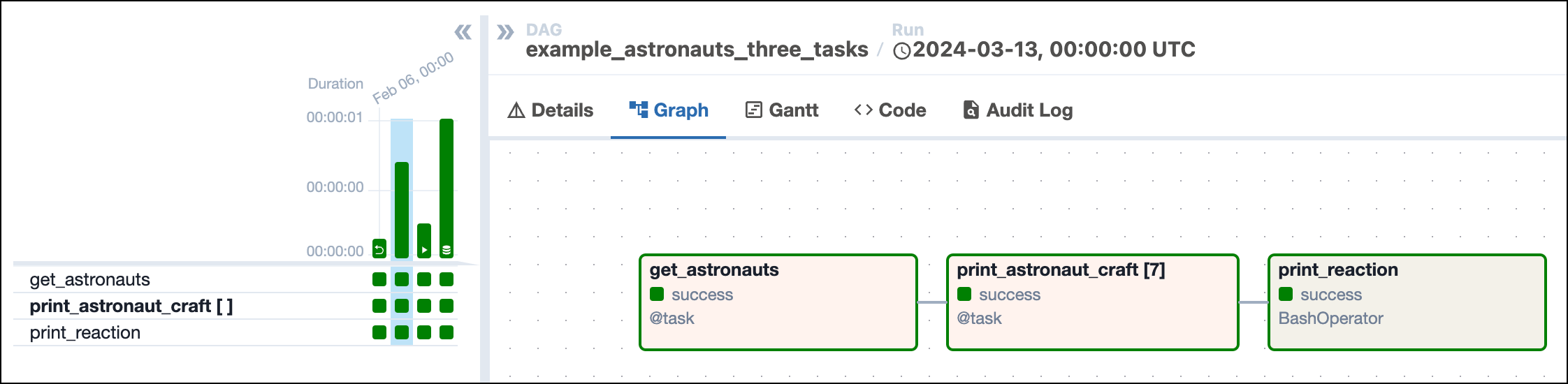
In the Airflow UI, you can view previous runs of a DAG in the Grid view and select individual DAG runs by clicking on their respective duration bar. A DAG run graph looks similar to the DAG graph, but includes additional information about the status of each task instance in the DAG run.
DAG run properties
A DAG run graph in the Airflow UI contains information about the DAG run, as well as the status of each task instance in the DAG run. The following screenshot shows the same DAG as in the previous section, but with annotations explaining the different elements of the graph.![Screenshot of the Airflow UI showing the Grid view with the Graph tab selected. A DAG run with 3 tasks is shown. The annotations show the location of the dag_id and logical date (top of the screenshot), the task_id, task state and operator/decorator used in the nodes of the graph, as well as the number of dynamically mapped task instances in [] behind the task id and the DAG dependency layout to the right of the screen.](https://files.buildwithfern.com/astronomer.docs.buildwithfern.com/docs/a5e5586e1dce95cf8e6ac7260b848b375b4bfa8f7f56c296832fa03c320ebc5f/docs/assets/img/guides/dags_simple_dag_run_graph_annotated.png)
dag_id: The unique identifier of the DAG.logical date: The point in time for which the DAG run is scheduled. This date and time is not necessarily the same as the actual moment the DAG run is executed. See Scheduling for more information.task_id: The unique identifier of the task.task state: The status of the task instance in the DAG run. Possible states arerunning,success,failed,skipped,restarting,up_for_retry,upstream_failed,queued,scheduled,none,removed,deferred, andup_for_reschedule, they each cause the border of the node to be colored differently. See the OSS documentation on task instances for an explanation of each state.
- Backfill: The first DAG run was created using a backfill. Backfilled DAG runs include a curved arrow on their DAG run duration bar.
- Scheduled: The second DAG run, which is currently selected in the screenshot, was created by the Airflow scheduler based on the DAG’s defined schedule. This is the default method for running DAGs.
- Manual: The third DAG run was triggered manually by a user using the Airflow UI or the Airflow CLI. Manually triggered DAG runs include a play icon on the DAG run duration bar.
- Dataset triggered: The fourth DAG run was started by a dataset. DAG runs triggered by a dataset include a dataset icon on their DAG run duration bar.
- Queued: The time after which the DAG run can be created has passed but the scheduler has not created task instances for it yet.
- Running: The DAG run is eligible to have task instances scheduled.
- Success: All task instances are in a terminal state (
success,skipped,failedorupstream_failed) and all leaf tasks (tasks with no downstream tasks) are either in the statesuccessorskipped. In the previous screenshot, all four DAG runs were successful. - Failed: All task instances are in a terminal state and at least one leaf task is in the state
failedorupstream_failed.
Complex DAG runs
When you start writing more complex DAGs, you will see additional Airflow features that are visualized in the DAG run graph. The following screenshot shows the same complex DAG as in the overview but with annotations explaining the different elements of the graph. Don’t worry if you don’t know about all these features yet - you will learn about them as you become more familiar with Airflow.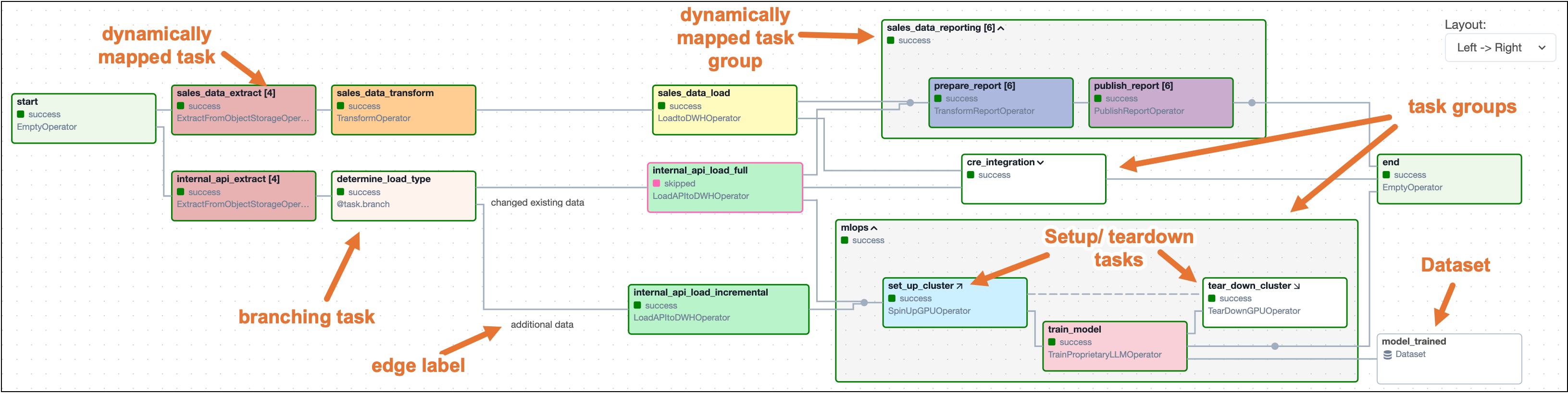 Some more complex features visible in this DAG graph are:
- Dynamically mapped tasks: A dynamically mapped task is created dynamically at runtime based on user-defined input. The number of dynamically mapped task instances is shown in brackets (
[]) behind the task ID. - Branching tasks: A branching task creates a conditional branch in the DAG. See Branching in Airflow for more information.
- Edge labels: Edge labels appear on the edge between two tasks. These labels are often helpful to annotate branch decisions in a DAG graph.
- Task groups: A task group is a tool to logically and visually group tasks in an Airflow DAG. See Airflow task groups for more information.
- Setup/teardown tasks: When using Airflow to manage infrastructure, it can be helpful to define tasks as setup and teardown tasks to take advantage of additional intelligent dependency behavior. Setup and teardown tasks appear with diagonal arrows next to their task IDs and are connected with a dotted line. See Use setup and teardown tasks in Airflow for more information.
- Datasets: Datasets are shown in the DAG graph. If a DAG is scheduled on a dataset, it is shown upstream of the first task of the DAG. If a task in the DAG updates a dataset, it is shown after the respective task as in the previous screenshot. See Airflow datasets for more information.
Write a DAG
A DAG can be defined with a Python file placed in an Airflow project’sDAG_FOLDER, which is dags when using the Astro CLI. Airflow automatically parses all files in this folder every 5 minutes to check for new DAGs, and it parses existing DAGs for code changes every 30 seconds. You can force a new DAG parse using airflow dags reserialize, or astro dev run dags reserialize using the Astro CLI.
There are two types of syntax you can use to structure your DAG:
- TaskFlow API: The TaskFlow API contains the
@dagdecorator. A function decorated with@dagdefines a DAG. Note that you need to call the function at the end of the script for Airflow to register the DAG. All tasks are defined within the context of the DAG function. - Traditional syntax: You can create a DAG by instantiating a DAG context using the
DAGclass and defining tasks within that context.
DAG-level parameters
In Airflow, you can configure when and how your DAG runs by setting parameters in the DAG object. DAG-level parameters affect how the entire DAG behaves, as opposed to task-level parameters which only affect a single task. The DAGs in the previous section have the following basic parameters defined. It’s best practice to always define these parameters for any DAGs you create:dag_id: The name of the DAG. This must be unique for each DAG in the Airflow environment. When using the@dagdecorator and not providing thedag_idparameter name, the function name is used as thedag_id.start_date: The date and time after which the DAG starts being scheduled.schedule: The schedule for the DAG. There are many different ways to define a schedule, see Scheduling in Airflow for more information.catchup: Whether the scheduler should backfill all missed DAG runs between the current date and the start date when the DAG is unpaused. It is a best practice to always set it toFalseunless you specifically want to backfill missed DAG runs. By defaultcatchupis set toTrue.
See also
- Get started with Apache Airflow tutorial for a hands-on introduction to writing your first simple DAG.
- Airflow operators and Introduction to the TaskFlow API and Airflow decorators for more information on how to define tasks in a DAG.
- Intro to Airflow: Get Started Writing Pipelines for Any Use Case webinar for a one-hour webinar introducing Airflow and how to write DAGs.