Documentation Index

Fetch the complete documentation index at: https://astronomer-preview.mintlify.app/llms.txt

Use this file to discover all available pages before exploring further.

Remote Execution is a feature in Airflow 3 that allows you to run your Airflow tasks on any machine, in the cloud or on-premises. When using Remote Execution, only the information that’s essential for running the task, such as scheduling details and heartbeat pings, is available to Airflow system components. Everything else stays within the remote environment, making this a key feature in highly regulated industries. This tutorial covers when to use Remote Execution and how to set it up on Astro with Remote Execution Agents running on AWS EKS or on-premises infrastructure. While this guide focuses on these specific environments, the concepts and steps can be adapted for other Kubernetes clusters, for example running on GCP or Azure.
Remote execution on Astro is only available for Airflow 3.x Deployments on the Enterprise tier or above. See Astro Plans and Pricing.

When to use remote execution

You might want to use Remote Execution in the following situations:
  • Running tasks that need to access and/or use sensitive data that cannot leave a particular environment, such as an on-premises server. This requirement is common in highly regulated industries like financial services and health care.
  • Running tasks that require specialized compute, such as a GPU or TPU machine to train neural networks.
You can accomplish Remote Execution in two ways: This tutorial covers the steps for setting up Remote Execution Agents on Astro to run on AWS EKS and on-premises.

Time to complete

This tutorial takes approximately one hour to complete.

Assumed knowledge

To get the most out of this tutorial, you should have an understanding of:

Prerequisites

Step 1: Create a Remote Execution Deployment

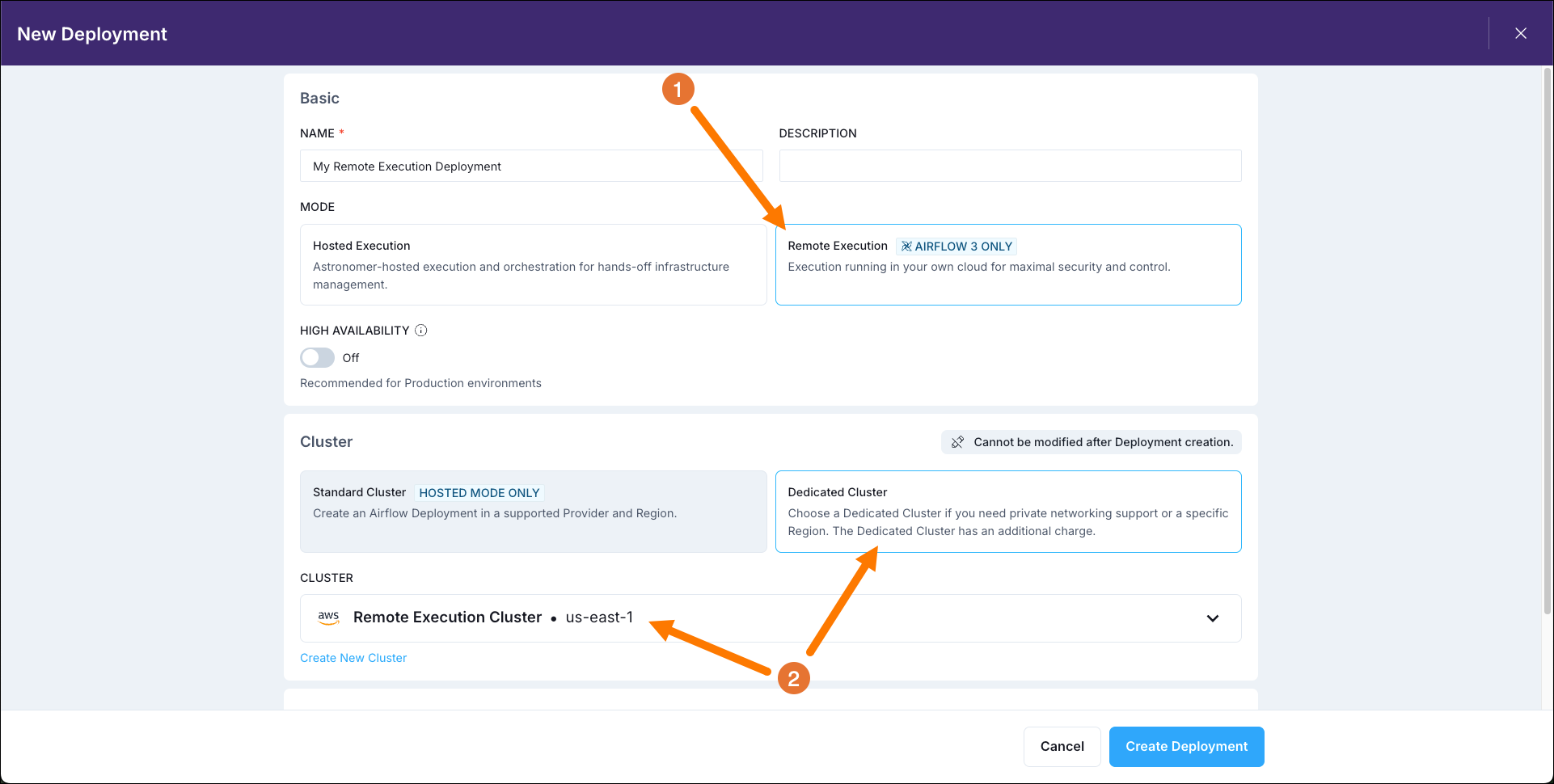
To start registering Remote Execution Agents, you first need to create a dedicated Remote Execution Deployment on Astro.
  1. Make sure you have a dedicated cluster in your Astro Workspace. If you don’t, you can create a new dedicated cluster. When creating a new cluster, you can leave the VPC Subnet range at its default setting (172.20.0.0/19) or customize it for your needs. Note that it can take up to an hour for a new cluster to be provisioned. If you later want to use customer managed workload identity to read logs from Remote Exection Agents running on AWS EKS, you need to create your dedicated cluster on AWS.
  2. Create a Remote Execution Deployment in your Astro Workspace.
    • Select Remote Execution as the execution mode.
    • Select your dedicated cluster.
    Create a Remote Execution Deployment

Step 2: Create an Agent Token

Your Remote Execution Agents will need to authenticate themselves to your Astro Deployment. To do this, you need to create an Agent Token.
  1. In the Astro UI, select the Remote Execution Deployment you created in the previous step and click on the Remote Agents tab.
  2. Select Tokens.
  3. Click on +Agent Token and create a new Agent Token. Create an Agent Token
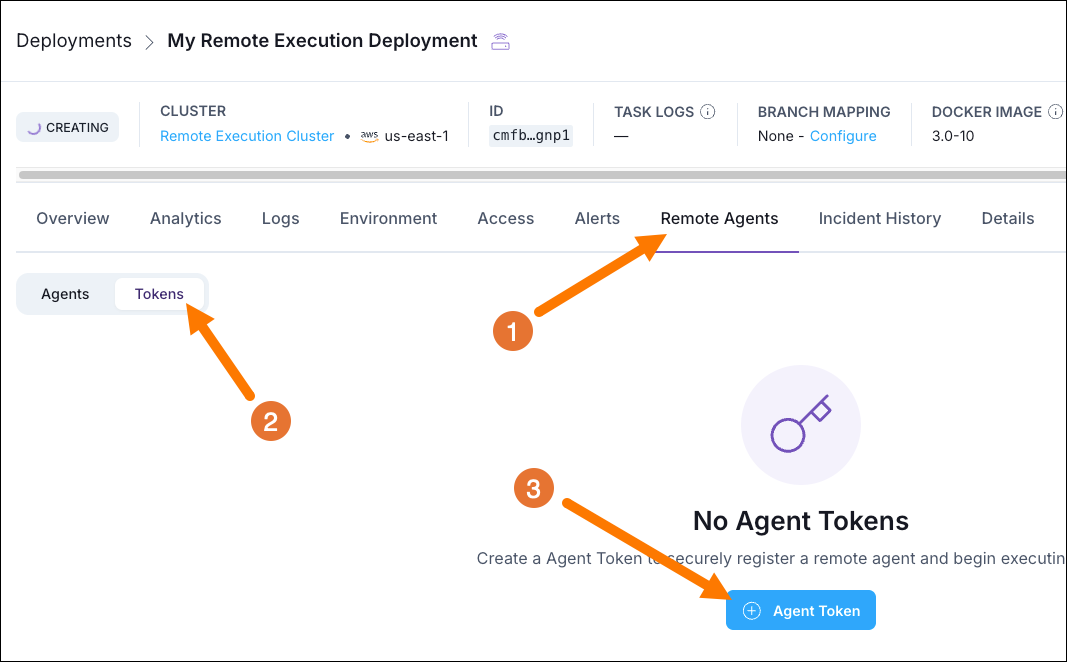
  4. Make sure to save the Agent Token in a secure location as you will need it later.

Step 3: Create a Deployment API Token

Your Remote Execution Agents will also need to fetch the right images from your Astro Deployment. To do this, you need to create a Deployment API Token.
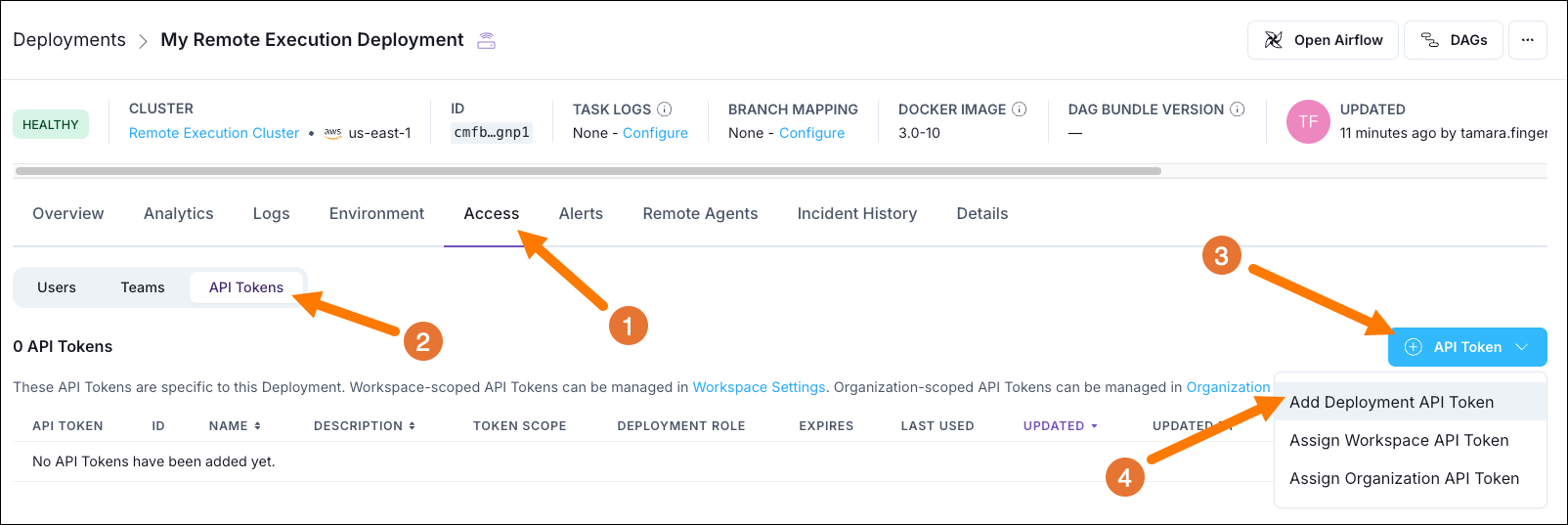
  1. In the Astro UI, select the Remote Execution Deployment you created in Step 1 and click on the Access tab.
  2. Select API Tokens.
  3. Click on + API Token.
  4. Select Add Deployment API Token and create a new Deployment API Token with Admin permissions. Create a Deployment API Token
  5. Make sure to save the Deployment API Token in a secure location as you will need it later.

Step 4: Retrieve your values.yaml file

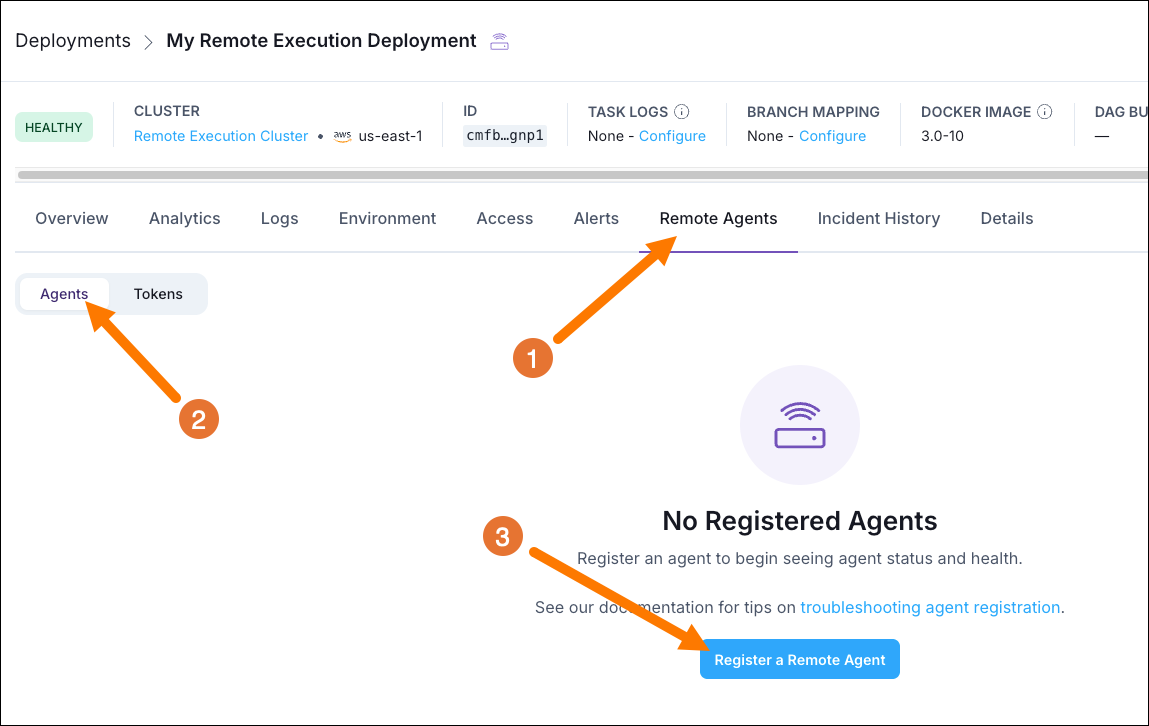
  1. In the Astro UI, select the Remote Execution Deployment you created in Step 1 and click on the Remote Agents tab.
  2. Click on Register a Remote Agent. Register a Remote Agent
  3. Download the values.yaml file you are given.
Note that no Remote Execution Agents show up in the list yet, they will only appear in the Remote Agents tab when they start heartbeating!

Step 5A: Set up your Kubernetes cluster on EKS

This step covers the setup for deploying the Remote Execution Agent on AWS EKS. For a simple on-premises setup see Step 5B.
  1. Authenticate your machine to your AWS account. If your organization uses SSO, use aws configure sso and log in via the browser. Make sure to set the AWS_PROFILE environment variable to the profile (CLI profile name) you used to log in with export AWS_PROFILE=<your-profile-name>. You can verify your profile by running aws sts get-caller-identity.
  2. To create a new EKS cluster, you need to define its parameters in a my-cluster.yaml file. Make sure the workers node group is large enough to support your intended workload and the Agent specifications in your values.yaml file for all 3 Agents. You can use the below example as a starting point, make sure to update <your-cluster-name> and <your-region> with your own values.
    apiVersion: eksctl.io/v1alpha5
    kind: ClusterConfig
    
    metadata:
      name: <your-cluster-name>
      region: <your-region>          # it is recommended to use the same region as your Astro Cluster
      version: "1.33"               
    
    cloudWatch:
      clusterLogging:
        enableTypes: ["api", "audit", "authenticator", "controllerManager", "scheduler"] 
    
    iam:
      withOIDC: true                 # This setting is important for the IRSA role that will interact with S3 to save logs/xcom
    
    nodeGroups:
      - name: workers
        instanceType: m5.xlarge      # 4 vCPUs, 16 GiB RAM - minimum for 3x1CPU + k8s overhead
        desiredCapacity: 2           # Number of nodes to start with
        minSize: 0                   # Minimum number of nodes
        maxSize: 4                   # Maximum number of nodes
        volumeSize: 50               # EBS volume size in GB
        amiFamily: AmazonLinux2023      
        labels: { role: worker }
        tags:
          k8s.io/cluster-autoscaler/enabled: "true"
          k8s.io/cluster-autoscaler/remote-execution-airflow-cluster: "owned"
    
  3. Create the EKS cluster by running the following command. Note the cluster creation can take up to 15-25 minutes.
    eksctl create cluster -f my-cluster.yaml
    
  4. Configure kubectl to use your new EKS cluster by running the following command. Replace <your-cluster-name> with the name of your cluster.
    aws eks update-kubeconfig --name <your-cluster-name>
    
  5. Verify that kubectl is aimed at the right cluster by running:
    kubectl get nodes
    
    The output should look similar to this:
    NAME                           STATUS   ROLES    AGE   VERSION
    ip-123-45-67-89.ec2.internal   Ready    <none>   16m   v1.33.4-eks-99d6cc0
    ip-123-45-67-90.ec2.internal   Ready    <none>   16m   v1.33.4-eks-99d6cc0
    

Step 5B: Set up your local Kubernetes cluster

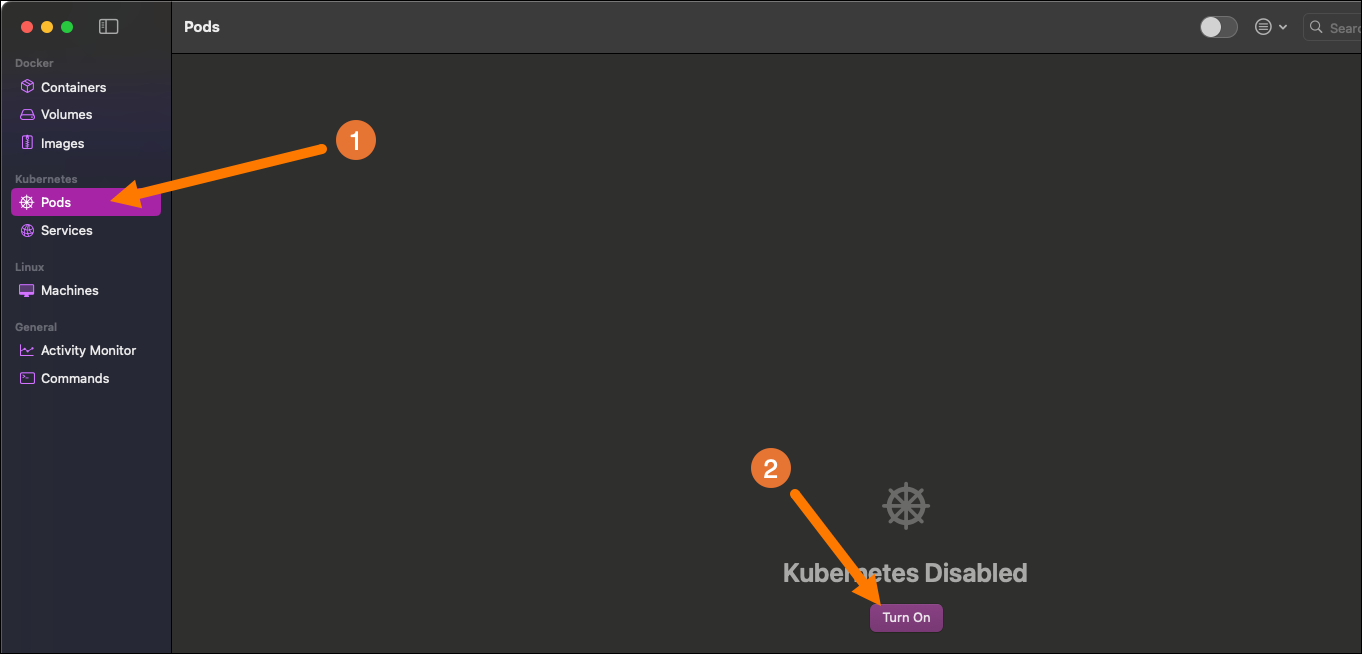
Alternatively, you can deploy the Remote Execution Agent on your on-premises cluster. If you want to test Remote Execution locally, a good option is to use the Kubernetes feature of Orbstack or Docker Desktop. In this step we’ll use Orbstack as an example.
  1. Enable the Kubernetes feature in Orbstack. Enable Kubernetes in Orbstack
  2. Switch to the orbstack context:
    kubectl config use-context orbstack
    

Step 6: Deploy the Remote Execution Agent

  1. Create a new namespace for the Remote Execution Agent by running:
    kubectl create namespace <your-namespace>
    
  2. Create a secret containing the Agent Token named my-agent-token by running the following command. Replace <your-agent-token> with the Agent Token you created in Step 2. Replace <your-namespace> with the namespace you created.
    kubectl create secret generic my-agent-token \
    --from-literal=token=<your-agent-token> \
    --namespace <your-namespace>
    
  3. Create a secret containing the Deployment API Token named my-astro-registry-secret by running the following command. Replace <your-deployment-api-token> with the Deployment API Token you created in Step 3 and replace <your-namespace> with your namespace.
    kubectl create secret docker-registry my-astro-registry-secret \
    --namespace <your-namespace> \
    --docker-server=images.astronomer.cloud \
    --docker-username=cli \
    --docker-password=<your-deployment-api-token>
    
  4. Modify your values.yaml file to add <your-namespace>, as well as the names for your agent token (agentTokenSecretName) and deployment API token (imagePullSecretName).
    resourceNamePrefix: "astro-agent"  # you can choose any prefix you want
    namespace: <your-namespace>
    imagePullSecretName: my-astro-registry-secret
    agentTokenSecretName: my-agent-token
    
  5. Modify your values.yaml file to add your Dag bundle configuration to the dagBundleConfigList section.
    dagBundleConfigList: <your-dag-bundle-config>
    
    Note that you need to store your Dags in a Dag bundle accessible to your Remote Execution Agents. Below is an example of a GitDagBundle configuration working with a Git connection named git_default (set in the commonEnv section later in this tutorial).
    dagBundleConfigList: '[{"name": "gitbundle-1", "classpath": "airflow.providers.git.bundles.git.GitDagBundle", "kwargs": {"git_conn_id": "git_default", "subdir": "dags", "tracking_ref": "main", "refresh_interval": 10}}]'
    
  6. Modify your values.yaml file to add your XCom backend configuration to the xcomBackend section. For this tutorial we’ll use the Object Storage XCom Backend. The credentials are set in the commonEnv section later in this tutorial.
    xcomBackend: "airflow.providers.common.io.xcom.backend.XComObjectStorageBackend"
    
  7. Modify your values.yaml file to set a secrets backend, we’ll use the Local Filesystem Secrets Backend as a placeholder. Note that if you want to install an external secrets backend, you need to provide the relevant provider packages to the worker containers and credentials in commonEnv. For more information on how to interact with secrets backends, see Configure a secrets backend.
    secretBackend: "airflow.secrets.local_filesystem.LocalFilesystemBackend"
    
  8. Modify your values.yaml file to add necessary environment variables to the commonEnv section. Make sure to replace all placeholders with your own values.
    commonEnv:
      - name: ASTRONOMER_ENVIRONMENT
        value: "cloud"
    
      # This is the connection used in the GitDagBundle. If you want to access a private repo you need an access token with read and write permissions.
      - name: AIRFLOW_CONN_GIT_DEFAULT
        value: '{"conn_type": "git", "login": "<your GH login>", "password": "<access_token>", "host": "https://github.com/<account>/<repo>"}'
    
      # Update with your credentials that have access to your XCom S3 bucket!
      - name: AIRFLOW_CONN_AWS_DEFAULT  
        value: '{"conn_type": "aws", "login": "<your-access-key>", "password": "<your-secret-key>", "extra": {"region_name": "<your-region>"}}'
    
      # These two environment variables are needed for the custom XCom backend
      - name: AIRFLOW__COMMON_IO__XCOM_OBJECTSTORAGE_PATH
        value: "s3://aws_default@<your-bucket>/xcom"  # replace the bucket with your XCom bucket. Uses the aws_default connection
      - name: AIRFLOW__COMMON_IO__XCOM_OBJECTSTORAGE_THRESHOLD
        value: "0"  # all XCom will be stored in Object storage
    
      # Add any necessary environment variables for your secrets backend
    
  9. Install the Helm chart by running the following command. Replace <your-namespace> with your namespace.
    helm repo add astronomer https://helm.astronomer.io/ 
    helm repo update
    helm install astro-agent astronomer/astro-remote-execution-agent --namespace <your-namespace> --values values.yaml
    
  10. Verify that the 3 Remote Execution Agent pods are running by running the following command. Replace <your-namespace> with your namespace.
    kubectl get pods -n <your-namespace>
    
    The output should look similar to this:
    NAME                                                  READY   STATUS    RESTARTS   AGE
    astro-agent--dag-processor-7b46c75566-dsdlq           1/1     Running   0          87s
    astro-agent--triggerer-6cb88c8db7-kx9d2               1/1     Running   0          87s
    astro-agent--worker-default-worker-779c98cfb5-7chg2   1/1     Running   0          86s
    
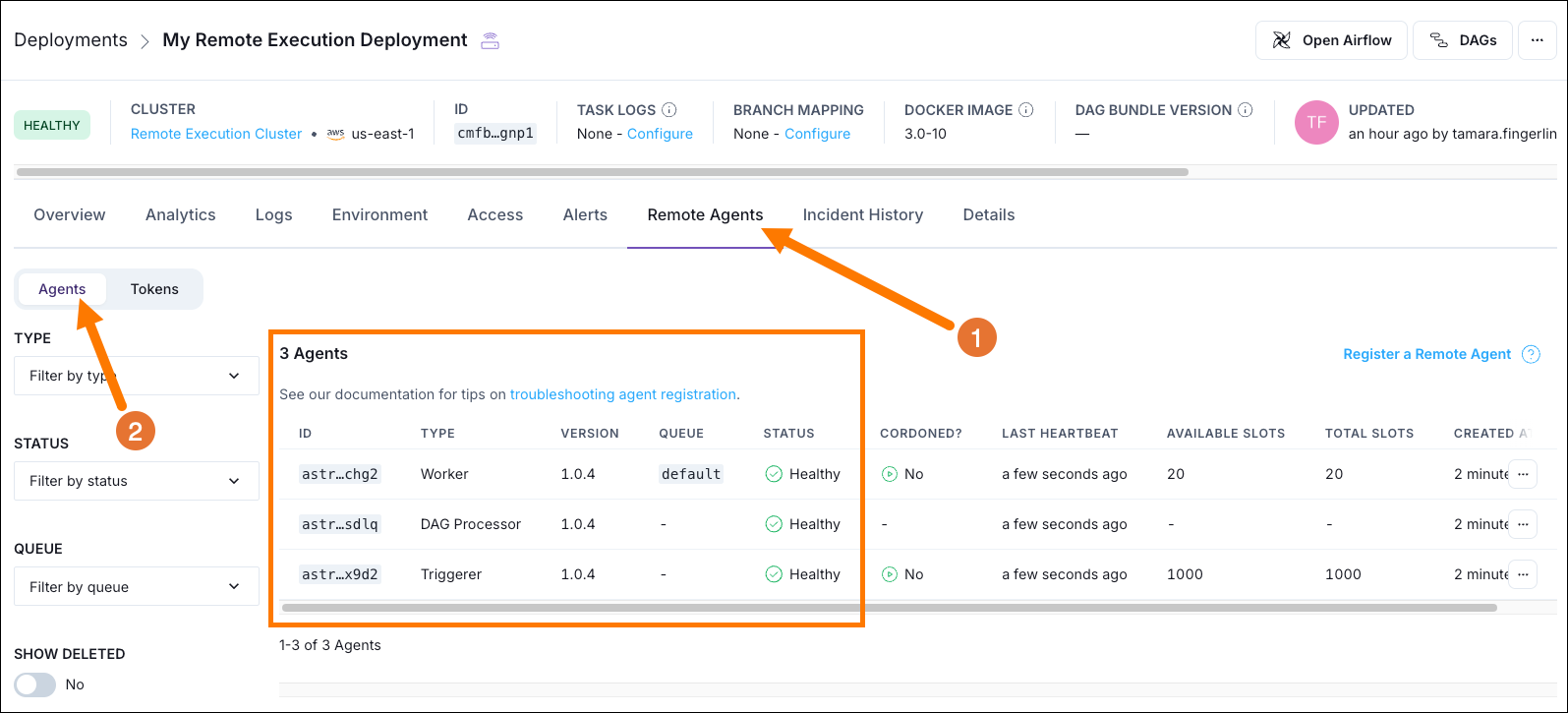
On Astro you can see the 3 Remote Execution Agent pods happily heartbeating to your Astro Deployment. When you open the Airflow UI on this Astro Deployment, you’ll be able to see and interact with all Dags contained in the configured Dag bundles. Remote Execution Agent pods heartbeating You can now run tasks on the remote EKS cluster! In order to be able to use XCom, see Step 7 for more information.
If you ever need to update the helm chart you can use the following command. Replace <your-namespace> with your namespace.
helm upgrade astro-agent astronomer/astro-remote-execution-agent --namespace <your-namespace> --values values.yaml

Step 7: Configure XCom

If you want to use XCom to pass information between tasks running using Remote Execution, you need to configure a custom XCom backend. You already laid the foundation for this in Step 6 when setting the following:
xcomBackend: "airflow.providers.common.io.xcom.backend.XComObjectStorageBackend"
commonEnv:
  # ...
  - name: AIRFLOW_CONN_AWS_DEFAULT  
    value: '{"conn_type": "aws", "extra": {"region_name": "us-east-1"}}'

  - name: AIRFLOW__COMMON_IO__XCOM_OBJECTSTORAGE_PATH
    value: "s3://aws_default@<your bucket>/xcom"
  - name: AIRFLOW__COMMON_IO__XCOM_OBJECTSTORAGE_THRESHOLD
    value: "0"
But in order for the worker pod to be able to use the XCom backend, you need to install the necessary Airflow provider packages on it. To make installation faster we recommend using a constraints file.
  1. Create your constraints.txt file (see GitHub for an example). Make sure that it includes the Airflow Common IO provider and the Amazon provider with the s3fs extra.
  2. Add the constraints file as a configmap to the k8s cluster. Replace <your-namespace> with the namespace you created in Step 6.
    kubectl create configmap constraints-configmap --from-file=constraints.txt -n <your-namespace>
    
  3. Update your values.yaml file to install the necessary provider packages in the workers section. Update the versions as needed. Note that you also need to update the PYTHONPATH environment variable to include the shared packages. Note that your image version likely differs from the one in the example below.
    initContainers:
      - name: install-amazon-provider-s3fs
        image: images.astronomer.cloud/baseimages/astro-remote-execution-agent:3.0-4-python-3.12-astro-agent-1.0.2
        command: 
          - "pip"
          - "install" 
          - "--target"
          - "/shared/packages"
          - "--prefer-binary"
          - "--constraint"
          - "/constraints/constraints.txt"
          - "apache-airflow-providers-amazon[s3fs]==9.9.0"
          - "apache-airflow-providers-common-io==1.6.1"
        volumeMounts:
          - name: shared-packages
            mountPath: /shared/packages
          - name: constraints
            mountPath: /constraints
    
    env:
      - name: PYTHONPATH
        value: "/shared/packages:$PYTHONPATH"
    
  4. Update your values.yaml file to mount the constraints file.
        volumes:
        - name: shared-packages
          emptyDir: {}
        - name: constraints
          configMap:
            name: constraints-configmap
    
        volumeMounts:
        - name: shared-packages
          mountPath: /shared/packages
          readOnly: true
    
  5. Update the helm chart by running the following command. Replace <your-namespace> with your namespace.
    helm upgrade astro-agent astronomer/astro-remote-execution-agent --namespace <your-namespace> --values values.yaml
    
  6. Run a Dag that uses XCom to verify the setup. Remember that you need to push the Dag to your Dag bundle location for it to be accessible to the Remote Execution Agent.
If you’d like to see your task logs displayed in the Airflow UI, see our docs on Task logging for remote Deployments.

Step 8: (optional, AWS only) Use a secrets backend

If you want to use a secrets backend to store your connections and variables, you need to configure the Remote Execution Agent to use it.
  1. First, you need an IAM role to attach this policy to. The IAM role’s trust policy needs to include the EKS OIDC ID. So you need to fetch that first. Replace <YOUR_EKS_CLUSTER_NAME> with the name of your EKS cluster and <YOUR_AWS_REGION> with the region of your EKS cluster.
    OIDC_ISSUER_URL=$(aws eks describe-cluster --name <YOUR_EKS_CLUSTER_NAME> --query "cluster.identity.oidc.issuer" --output text)
    EKS_OIDC_ID=$(echo "$OIDC_ISSUER_URL" | sed -e 's|https://oidc.eks.<YOUR_AWS_REGION>.amazonaws.com/id/||')
    echo $EKS_OIDC_ID
    
  2. Create a new file called my-airflow-trust-policy.json and add the following trust policy. Replace <your-account-id> with your AWS account ID, <your-region> with the region of your EKS cluster, <your-namespace> with the namespace you created in Step 6, and <your-cluster-oidc-id> with the EKS OIDC ID you fetched in the previous substep.
    {
        "Version": "2012-10-17",
        "Statement": [
            {
                "Effect": "Allow",
                "Principal": {
                    "Federated": "arn:aws:iam::<your-account-id>:oidc-provider/oidc.eks.<your-region>.amazonaws.com/id/<your-cluster-oidc-id>"
                },
                "Action": "sts:AssumeRoleWithWebIdentity",
                "Condition": {
                    "StringEquals": {
                        "oidc.eks.<your-region>.amazonaws.com/id/<your-cluster-oidc-id>:sub": "system:serviceaccount:<your-namespace>:*",
                        "oidc.eks.<your-region>.amazonaws.com/id/<your-cluster-oidc-id>:aud": "sts.amazonaws.com"
                    }
                }
            }
        ]
    }
    
  3. Create a new IAM role called RemoteAgentsRole with the trust policy you created in the previous step.
    aws iam create-role \
    --role-name RemoteAgentsRole \
    --assume-role-policy-document file://my-airflow-trust-policy.json
    
  4. Create a new file called my-airflow-secrets-policy.json and add the following policy. Replace <your-region> with the region of your EKS cluster and <your-account-id> with your AWS account ID.
    {
        "Version": "2012-10-17",
        "Statement": [
            {
                "Effect": "Allow",
                "Action": [
                    "secretsmanager:GetSecretValue",
                    "secretsmanager:DescribeSecret",
                    "secretsmanager:ListSecrets"
                ],
                "Resource": "arn:aws:secretsmanager:<your-region>:<your-account-id>:secret:airflow/*"
            }
        ]
    }
    
    Create the policy using the following command.
    aws iam create-policy \
    --policy-name AirflowSecretsManagerAccess \
    --policy-document file://my-airflow-secrets-policy.json
    
  5. Attach the AirflowSecretsManagerAccess policy to the RemoteAgentsRole role.
    aws iam attach-role-policy \
    --role-name RemoteAgentsRole \
    --policy-arn arn:aws:iam::<your-account-id>:policy/AirflowSecretsManagerAccess
    
  6. Update the serviceAccount section in your values.yaml file to annotate the role to your service accounts. Replace <your-account-id> with your AWS account ID.
    serviceAccount:
      workers:
        annotations:
          eks.amazonaws.com/role-arn: arn:aws:iam::<your-account-id>:role/RemoteAgentsRole
    
      dagProcessor:
        annotations:
          eks.amazonaws.com/role-arn: arn:aws:iam::<your-account-id>:role/RemoteAgentsRole
    
      triggerer:
        annotations:
          eks.amazonaws.com/role-arn: arn:aws:iam::<your-account-id>:role/RemoteAgentsRole 
    
  7. Update the commonEnv section in your values.yaml file to configure the secrets backend. Replace <your-role-arn> with the ARN of the IAM role you created in the previous step.
        secretBackend: "airflow.providers.amazon.aws.secrets.secrets_manager.SecretsManagerBackend"
    
        commonEnv:
        - name: AIRFLOW__SECRETS__BACKEND_KWARGS
          value: '{"connections_prefix": "airflow/connections", "variables_prefix": "airflow/variables"}'
        - name: AWS_DEFAULT_REGION
          value: '<your-region>'
    
  8. Since the secrets backend is also used in the Dag processor and Triggerer components and part of the Airflow Amazon provider, you need to install the necessary provider packages on these components as well, like you did for the worker pods when configuring the XCom backend in Step 7. Note that your image version likely differs from the one in the example below.
    dagProcessor:
      # ... other dagProcessor config ...
      
      # Add PYTHONPATH to dagProcessor env
      env:
        - name: PYTHONPATH
          value: "/shared/packages:$PYTHONPATH"
      
      # Add initContainers (replace initContainers: [])
      initContainers:
        - name: install-amazon-provider-s3fs
          image: images.astronomer.cloud/baseimages/astro-remote-execution-agent:3.0-4-python-3.12-astro-agent-1.0.2
          command: 
            - "pip"
            - "install" 
            - "--target"
            - "/shared/packages"
            - "--prefer-binary"
            - "--constraint"
            - "/constraints/constraints.txt"
            - "apache-airflow-providers-amazon[s3fs]==9.9.0"
            - "apache-airflow-providers-common-io==1.6.1"
          volumeMounts:
            - name: shared-packages
              mountPath: "/shared/packages"
            - name: constraints
              mountPath: "/constraints"
      
      # Add volumes (replace volumes: [])
      volumes:
        - name: shared-packages
          emptyDir: {}
        - name: constraints
          configMap:
            name: constraints-configmap
      
      # Add volumeMounts (replace volumeMounts: [])
      volumeMounts:
        - name: shared-packages
          mountPath: /shared/packages
    
    # In values.yaml, under triggerer section
    triggerer:
      # ... other triggerer config ...
      
      # Add PYTHONPATH to triggerer env 
      env:
        - name: PYTHONPATH
          value: "/shared/packages:$PYTHONPATH"
      
      # Add initContainers (replace initContainers: [])
      initContainers:
        - name: install-amazon-provider-s3fs
          image: images.astronomer.cloud/baseimages/astro-remote-execution-agent:3.0-4-python-3.12-astro-agent-1.0.2
          command: 
            - "pip"
            - "install" 
            - "--target"
            - "/shared/packages"
            - "--prefer-binary"
            - "--constraint"
            - "/constraints/constraints.txt"
            - "apache-airflow-providers-amazon[s3fs]==9.9.0"
            - "apache-airflow-providers-common-io==1.6.1"
          volumeMounts:
            - name: shared-packages
              mountPath: "/shared/packages"
            - name: constraints
              mountPath: "/constraints"
      
      # Add volumes (replace volumes: [])
      volumes:
        - name: shared-packages
          emptyDir: {}
        - name: constraints
          configMap:
            name: constraints-configmap
      
      # Add volumeMounts (replace volumeMounts: [])
      volumeMounts:
        - name: shared-packages
          mountPath: /shared/packages
    
  9. Update the helm chart with the new values.yaml file.
    helm upgrade astro-agent astronomer/astro-remote-execution-agent --namespace <your-namespace> --values values.yaml
    
  10. Now your tasks have access to the secrets backend! You can store connections under airflow/connections and variables under airflow/variables.

Step 9: (optional, AWS only) Configure logs in the Airflow UI

When using Remote Execution with a Deployment running on AWS and the Remote Execution Agent running on AWS, you can configure your task logs to be read from an S3 bucket using a customer workload identity.
  1. Create a new IAM policy called AirflowS3Access and attach the following policy. Replace <your-logging-bucket> with the name of your logging bucket. Make sure to record the policy ARN arn:aws:iam::<your-acccoun-id>:policy/AirflowS3Access from the output of the command.
    aws iam create-policy \
    --policy-name AirflowS3Access \
    --policy-document file://my-airflow-s3-policy.json 
    
    This is the policy you need to create in the my-airflow-s3-policy.json file.
    {
        "Version": "2012-10-17",
        "Statement": [
            {
                "Action": [
                    "s3:ListBucket"
                ],
                "Resource": [
                    "arn:aws:s3:::<your-logging-bucket>"
                ],
                "Effect": "Allow",
                "Sid": "ListObjectsInBucket"
            },
            {
                "Action": [
                    "s3:GetObject",
                    "s3:PutObject",
                    "s3:DeleteObject"
                ],
                "Resource": [
                    "arn:aws:s3:::<your-logging-bucket>/*"
                ],
                "Effect": "Allow",
                "Sid": "AllObjectActions"
            },
            {
                "Sid": "AssumeRole",
                "Effect": "Allow",
                "Action": "sts:AssumeRole",
                "Resource": "*"
            }
        ]
    }
    
  2. Attach the AirflowS3Access policy to the RemoteAgentsRole role you created and add to the service account annotations in Step 8. Replace <your-account-id> with your AWS account ID.
    aws iam attach-role-policy \
    --role-name RemoteAgentsRole \
    --policy-arn arn:aws:iam::<your-account-id>:policy/AirflowS3Access
    
  3. Update the commonEnv section in your values.yaml file to configure the logs to be written to S3. Replace <your-logging-bucket> with the name of your logging bucket and <your-deployment-id> with the ID of your deployment.
    commonEnv:
        # ...
      - name: AIRFLOW__LOGGING__REMOTE_LOGGING
        value: "True"
      - name: AIRFLOW__LOGGING__REMOTE_LOG_CONN_ID
        value: "astro_aws_logging"
      - name: AIRFLOW_CONN_ASTRO_AWS_LOGGING
        value: "s3://" # means the credentials are fetched from IRSA
      - name: AIRFLOW__LOGGING__REMOTE_BASE_LOG_FOLDER
        value: "s3://<your-logging-bucket>/<your-deployment-id>"
      - name: AIRFLOW__LOGGING__LOGGING_CONFIG_CLASS
        value: "astronomer.runtime.logging.logging_config"
      - name: ASTRONOMER_ENVIRONMENT
        value: "cloud"
    
  4. Update the helm chart with the new values.yaml file. Upon the next Dag run you should be able to see the logs in your S3 bucket.
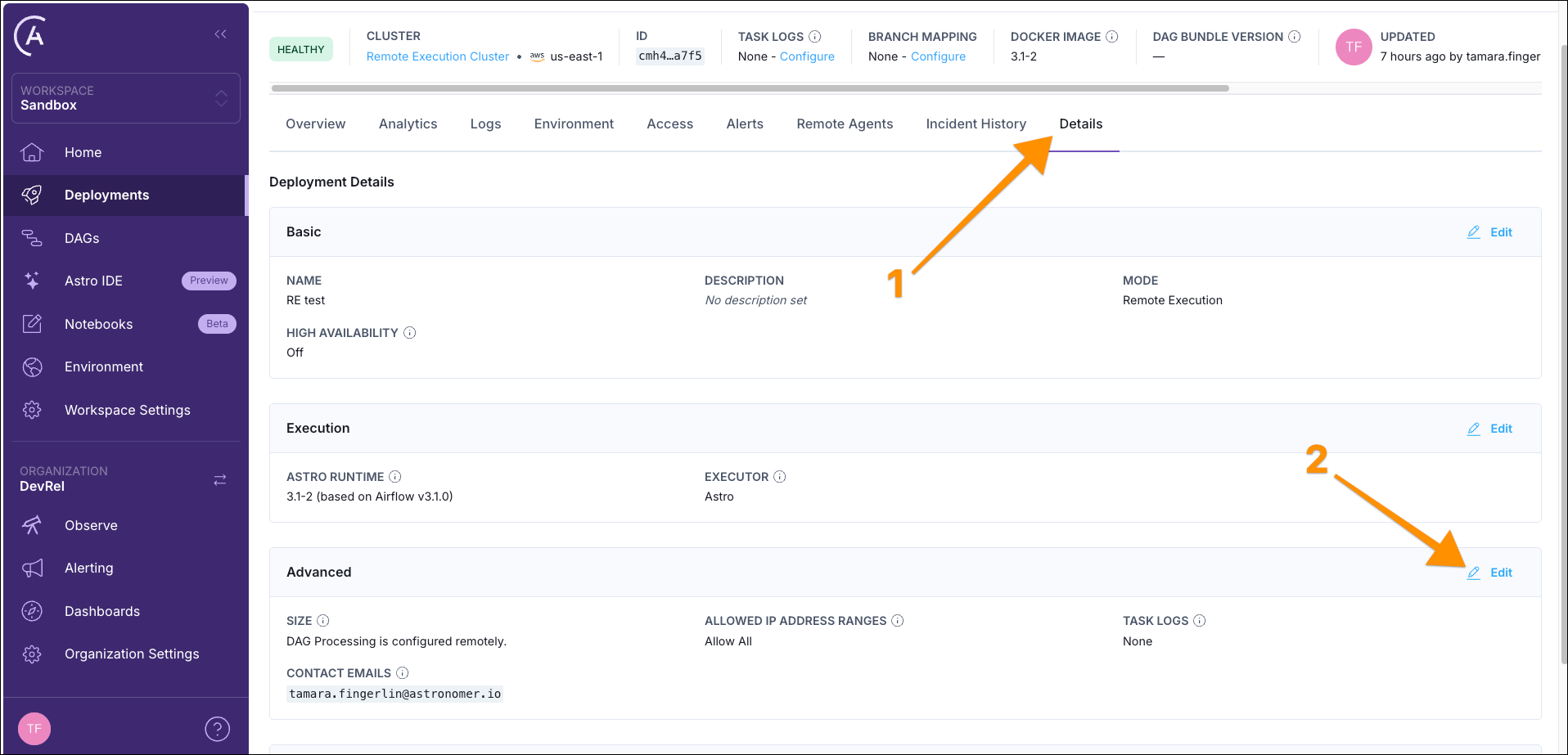
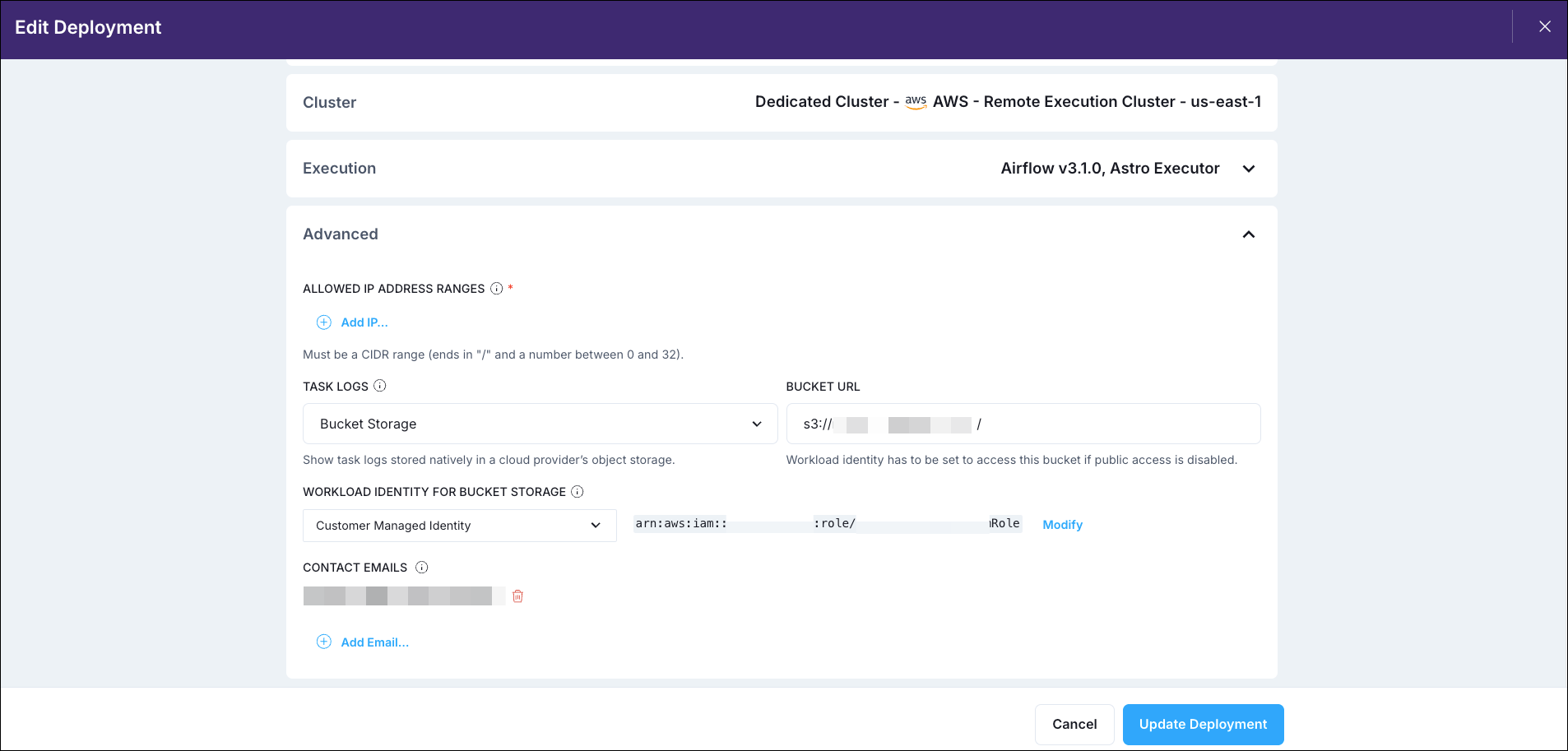
  5. To see the logs in the Airflow UI, you need to configure the Astro Deployment to use the S3 bucket for task logs. In the Astro UI, navigate to your Deployment and click the Details tab. Click Edit in the Advanced section. Astro UI showing where to configure the task logs. Select Bucket Storage in the Task Logs field and add the Bucket URL as s3://<your-logging-bucket>/<your-deployment-id>. Select Customer Managed Identity in the Workload Identity for Bucket Storage field and use your RemoteAgentsRole IAM role ARN for the Workload Identity ARN before running the provided bash script. Astro UI showing the task logs configuration.
  6. Now you should be able to see the task logs in the Airflow UI.