

Documentation Index
Fetch the complete documentation index at: https://astronomer-preview.mintlify.app/llms.txt
Use this file to discover all available pages before exploring further.
Astro Observe uses monitors to continuously assess the health of your data products and pipelines. When a monitor detects a failure, it can automatically alert your team through your notification channels such as email or Slack. Monitors help you rapidly identify and resolve operational issues in your data workflows.
Data product monitors
Only one Data Product monitor can be created per data product.
- Provides a direct link to a lineage view, showing the failing DAG and its failing task.
- Identifies all downstream data products impacted by the failure.
Create a data product monitor
For a new data product
You will be automatically prompted to create a Proactive Failure Monitor as the fourth step in the Data Product creation process.
Configure the monitor by selecting a severity level and notification channel(s) to receive alerts as described in the following steps.
For an existing data product
In the Astro UI, you can create a data product monitor in two ways:
-
Data Product header: On the Data Product page, click Create Monitor in the Monitored field in the header.

-
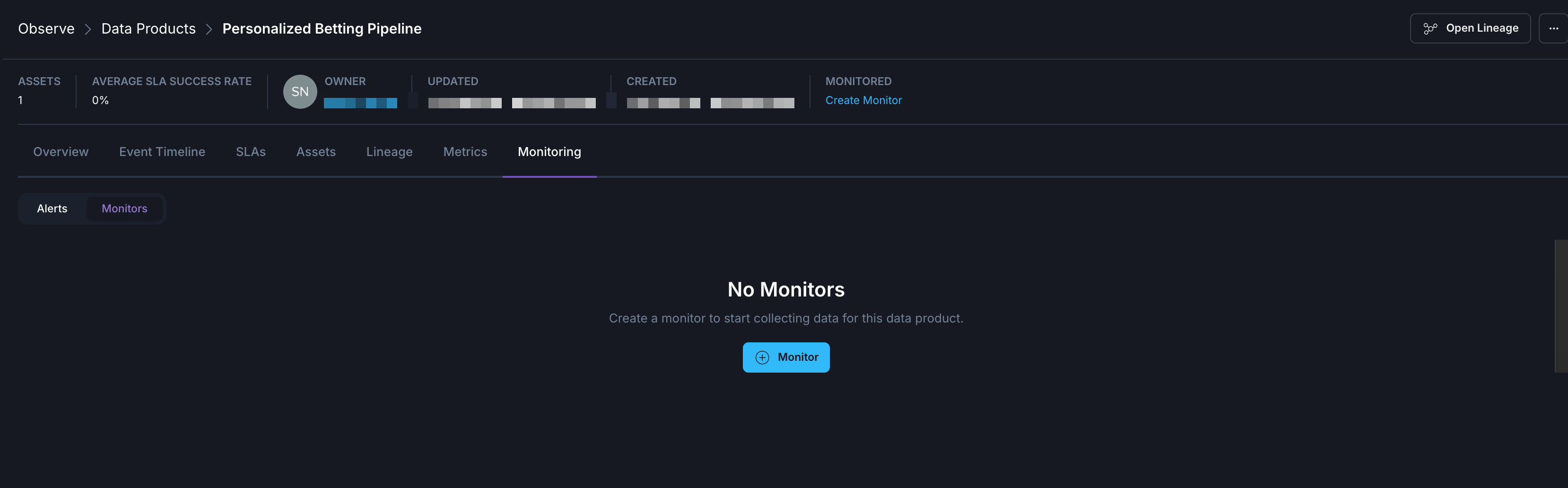
Monitoring tab: On the Data Product page, go to the Monitoring tab, select the Monitors toggle, and click + Monitor.
Data quality monitors
Data quality monitors help you track the health and integrity of your data assets. You can create monitors for tables and columns to detect anomalies in data volume, completeness, and schema changes. To learn more about data quality and configure a connection, see Data Quality.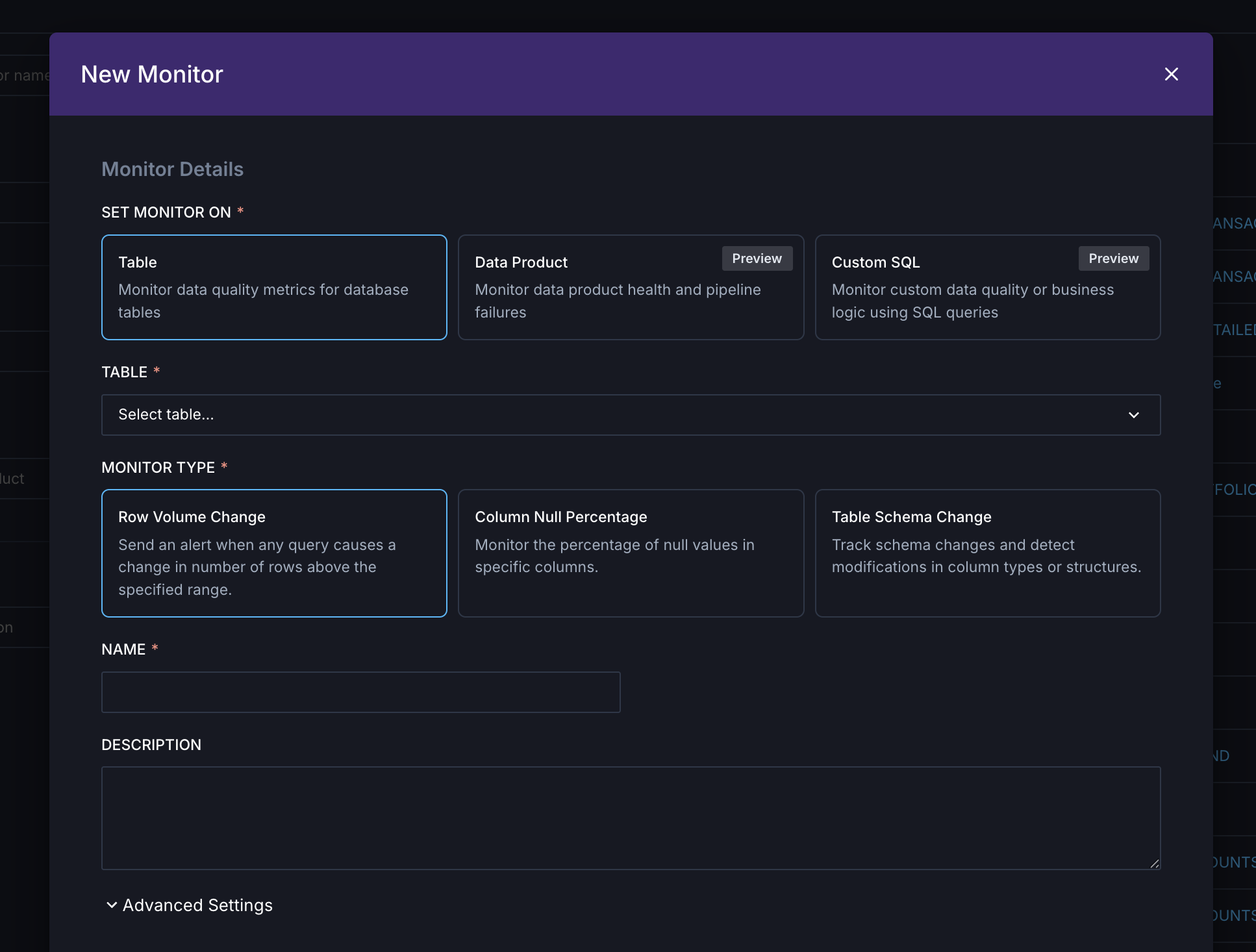
Create a data quality monitor
Follow these steps to create a monitor for a table or column.- From asset catalog
- From monitors page
In the Asset Catalog, find the table you want to monitor. Filter the catalog to the table type you want to see (for example, Snowflake tables).
Tables are sorted by popularity to help you find the most relevant tables to monitor. Popularity rankings are based on query frequency and the number of unique users accessing each table.
Click + Monitor and select the monitor type: Column Null Percentage, Row Volume Change, Schema Change, or Custom SQL. Details about each monitor type are in the section below.
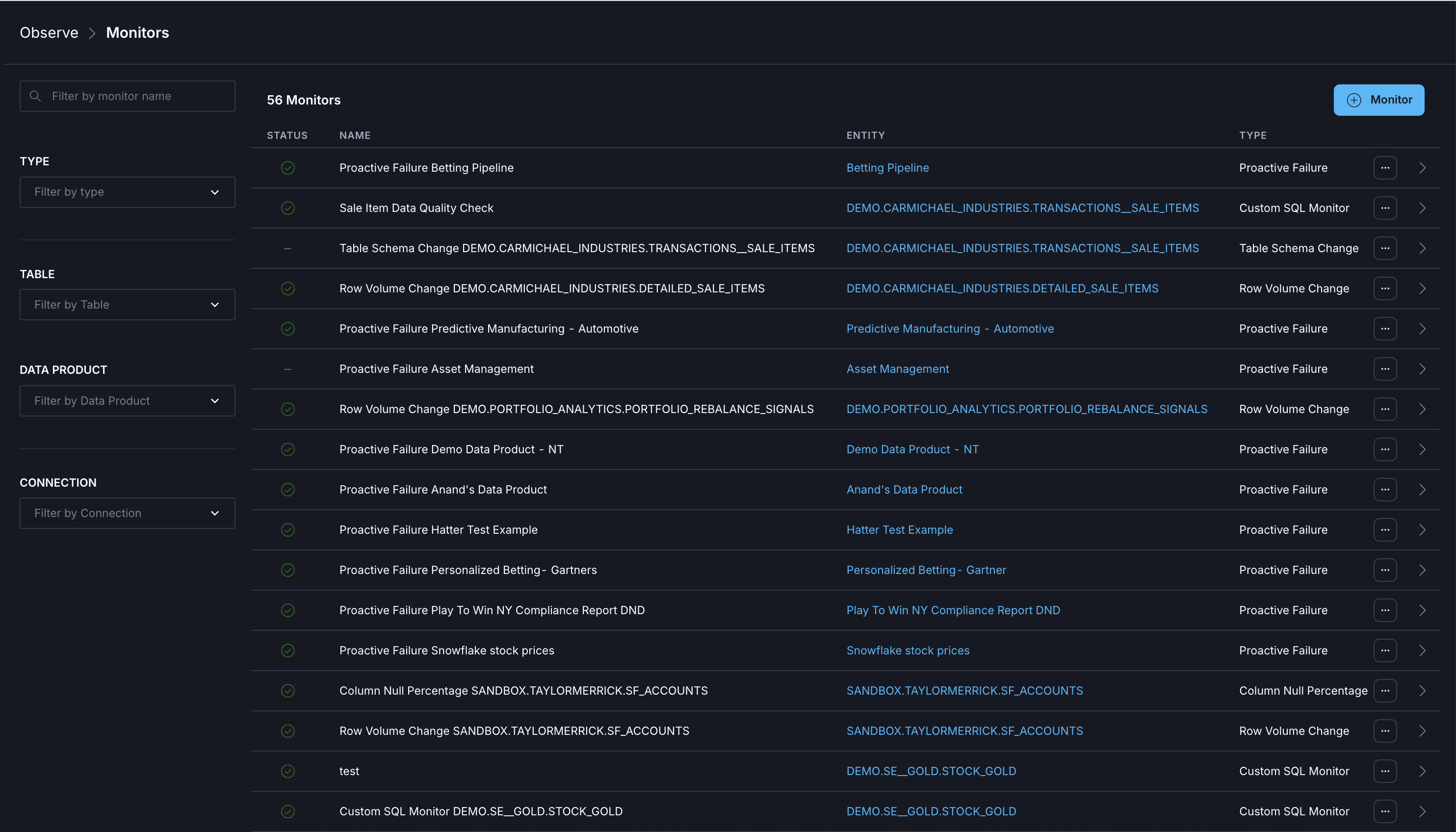
Row Volume Change
The Row Volume Change monitor tracks changes in table row counts over time to identify unexpected fluctuations in data volume. When configuring this monitor:- Specify thresholds based on percentage changes or absolute row-count changes.
- Monitors execute checks according to the schedule you define. If you set the monitor to run every 6 hours, it evaluates whether row counts exceed the configured thresholds within that interval.
Column Null Percentage
The Column Null Percentage monitor tracks the percentage of null values in a specific column to surface completeness problems. When configuring this monitor:- Select the column to monitor and define the null percentage threshold.
- The monitor evaluates the column at the interval you specify. If the null percentage exceeds the threshold, the monitor triggers.
Table Schema Change
The Table Schema Change monitor detects when the structure of a table changes, such as when columns are added, removed, or modified. This helps you identify unexpected schema changes that could impact downstream processes.Custom SQL
The Custom SQL monitor compares the numeric output of a SQL query to a defined threshold. Using this monitor, you can define data quality checks specific to your business requirements (for example, checking for missing records, duplicates, broken joins, or invalid values). Custom SQL monitors can be triggered on a set schedule, manually, or programmatically. When configuring this monitor:Write your SQL query. The SQL can query multiple tables and columns but must return one row and one column with a numeric (scalar) value. Example SQL queries are in the section below.
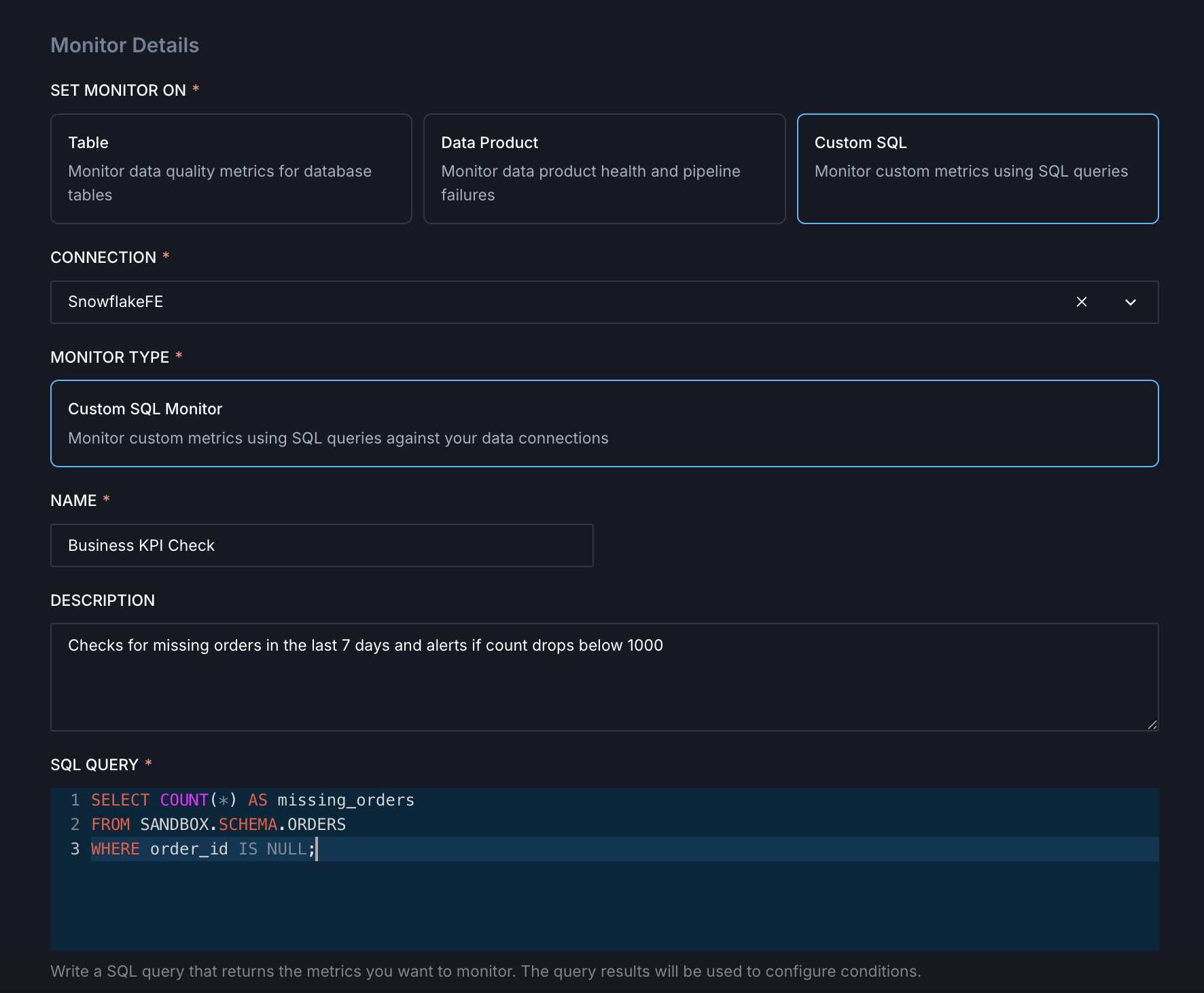
Define the numeric threshold of the returned value that triggers an alert (for example,
missing_orders > 10).- Flagging duplicate records
- Checking for foreign key violations
- Validating business rules (for example, order amount cannot be negative)
- Ensuring data freshness (for example, last update within 1 hour)
Example SQL queries
Trigger Custom SQL monitors with events
In addition to a fixed schedule, Custom SQL monitors can be triggered by events. For example, when a specific Airflow dag completes successfully or when data lands in a Snowflake table. This ensures that checks are evaluated immediately after new data lands, allowing downstream consumers to be notified of data quality issues immediately rather than waiting for the next scheduled check. You can trigger a Custom SQL monitor by calling the following API endpoint:- Runs the configured SQL monitor immediately against the connected data warehouse.
- Evaluates the result against the monitor’s condition (for example,
invalid_rows > 0). - Logs the result in the monitor timeline.
- Sends alerts through configured channels if thresholds are breached.
Custom SQL requirements and limitations
- Read-only queries: Only read queries are allowed. Write queries will return an error.
- Query format: Queries must return a single row and a single column. Otherwise, Observe returns an error.
- Numeric output: Query output must be a numeric value.
- Table references: Tables in queries must use the format
<database>.<schema>.<table>since the default database and schema might not be set. - Joins: You can perform multiple join queries as long as they meet the above criteria.
- Rate limits: To prevent system abuse, the following limitations apply:
- You cannot test the same query more than 3 times in a minute.
- You cannot test more than 10 queries in a minute.
- You cannot manually re-trigger the monitor for the next 5 minutes after a trigger request is initiated.
- Initial trigger: Wait at least 1 minute before manually triggering the Custom SQL monitor after the monitor is created.