

This document covers how to manage Deployment-level environment variables on Astro. For information about creating Workspace-level environment variables that can be shared across multiple Deployments, see Create environment variables in Astro. On Astro, you can create, update, or delete Deployment-level environment variables in the following ways:Documentation Index
Fetch the complete documentation index at: https://astronomer-preview.mintlify.app/llms.txt
Use this file to discover all available pages before exploring further.
- Using the Deployment’s Environment Variables tab in your Deployment’s Environment settings.
- Using your Astro project
Dockerfile.
Using the Astro UI
Setting environment variables using the Astro UI is the quickest and easiest way to manage Deployment-level environment variables on Astro.When you view the Environment Variables page for a Deployment, you’ll see both Deployment-level environment variables (which you can edit on this page) and Workspace-level environment variables (which are managed through the Workspace Environment Manager). Deployment-level environment variables take precedence over Workspace-level environment variables with the same key.
- In the Astro UI, select a Workspace, click Deployments, and then select a Deployment.
- Click the Environment tab.
- Click Environment variables.
- Click Edit Variables.
- Enter an environment variable key and value. For sensitive credentials that should be treated with an additional layer of security, select the Secret checkbox. This permanently hides the variable’s value from all users in your Workspace.
- Click Update Environment Variables to save your changes. Your Airflow scheduler, webserver, and workers restart. After saving, it can take up to two minutes for new variables to be applied to your Deployment.
Edit or delete existing values
After you set an environment variable key, only the environment variable value can be modified. You can modify environment variables that are set as Secret, but the existing secret variable value is never shown. When you modify a secret environment variable, the existing value is erased and you are prompted to enter a new value.- In the Astro UI, select a Workspace, click Deployments, and then select a Deployment.
- Click the Environment tab.
- Click the Environment Variables tab.
- Click Edit Variables.
-
Modify the value of the variable you want to edit.
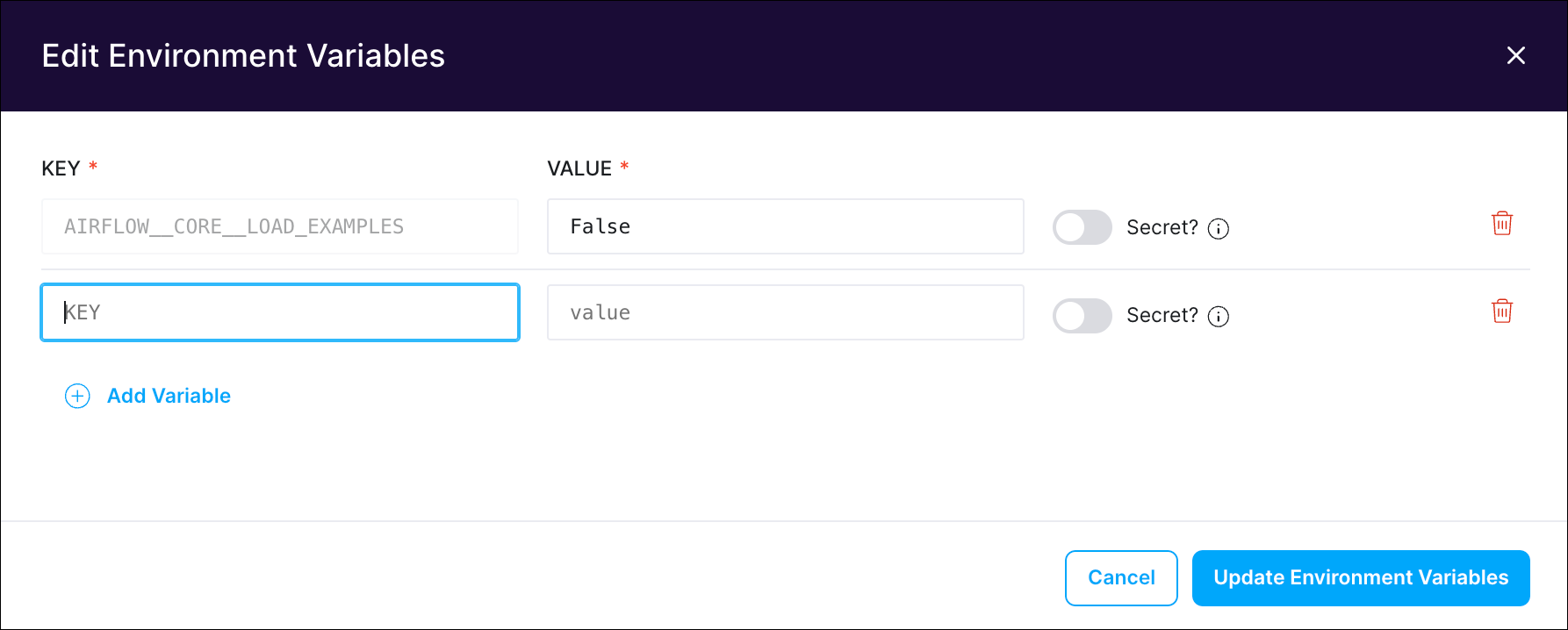
- Click Update Environment Variables to save your changes. Your Airflow scheduler, webserver, and workers restart. After saving, it can take up to two minutes for updated variables to be applied to your Deployment.
Using your Dockerfile
If you want to store environment variables with an external version control tool, Astronomer recommends setting them in yourDockerfile. This file is automatically created when you first initialize an Astro project using astro dev init.
-
Open your Astro project
Dockerfile. -
To add the environment variables, declare an ENV command with the environment variable key and value. For example, the following
Dockerfilesets two environment variables: -
Save your Dockerfile and run
astro deployto deploy your variables to an Astro Deployment. To apply your changes locally, useastro dev restartto rebuild your image. -
(Optional) To verify if the environment variables are applied correctly to Astro Deployment or your local Airflow environment, you can use
os.getenv("AIRFLOW_VAR_MY_VAR")inside of Airflow dags and tasks.
Dockerfile that defines it.
Environment variables set in your Dockerfile are not visible in the Astro UI.
Manage environment variables locally
You can use the Astro CLI to set environment variables on Astro and your local Airflow environment. If you’re developing locally, the best way to manage environment variables is using your Astro project.env file.
-
Open your Astro project
.envfile. -
Use the following format to set your environment variables in the
.envfile:Environment variables should be in all-caps and not include spaces. Alternatively, you can runastro deployment variable list --saveto copy environment variables from an existing Deployment to a file. -
Restart your local environment using
astro dev restart.
- Run
astro dev bash --schedulerto log in to the scheduler container. - Run
printenv | grep <your-env-variable>in the container to print all environment variables that are applied to your environment. - Run
exitto exit the container.
.env file to an Astro Deployment, run the following command:
Use multiple .env files
The Astro CLI looks for.env by default, but if you want to specify multiple files, make .env a top-level directory and create sub-files within that folder, as shown in the example directory below. If you make .env a top-level directory, make sure to specify the specific filepath(s) with the --env flag. For example, to specify dev.env as your environment variable file with the astro dev start command:
See also
- Set Airflow connections using environment variables.
- Set Airflow variables using environment variables.
- Import and export environment variables