Documentation Index
Fetch the complete documentation index at: https://astronomer-preview.mintlify.app/llms.txt
Use this file to discover all available pages before exploring further.
Astro Observe data quality helps you monitor tables to ensure data accuracy, completeness, and integrity across your pipelines. It automatically tracks key metrics such as column null percentages, schema changes, and table row counts to detect anomalies or unexpected shifts in your data.
Configure permissions
Before connecting to Astro Observe, configure the necessary permissions for your data platform.- Snowflake
- Databricks
For Snowflake connections, the Observe role must have access to both the All Snowflake integrations require that the Observe role has access to both
ACCOUNT_USAGE and INFORMATION_SCHEMA system tables. The service user must have a default warehouse configured to support discovery and ongoing data quality monitoring.-- Grant warehouse access (replace COMPUTE_WH with your warehouse)
GRANT USAGE ON WAREHOUSE "COMPUTE_WH" TO ROLE ASTRO_OBSERVE_ROLE;
ALTER USER ASTRO_OBSERVE_USER SET DEFAULT_WAREHOUSE = 'COMPUTE_WH';
-- Metadata and object access:
GRANT USAGE, MONITOR ON DATABASE YOUR_DB TO ROLE ASTRO_OBSERVE_ROLE;
GRANT USAGE, MONITOR ON ALL SCHEMAS IN DATABASE YOUR_DB TO ROLE ASTRO_OBSERVE_ROLE;
-- Read access:
GRANT SELECT ON ALL TABLES IN DATABASE YOUR_DB TO ROLE ASTRO_OBSERVE_ROLE;
GRANT SELECT ON ALL VIEWS IN DATABASE YOUR_DB TO ROLE ASTRO_OBSERVE_ROLE;
GRANT SELECT ON ALL EXTERNAL TABLES IN DATABASE YOUR_DB TO ROLE ASTRO_OBSERVE_ROLE;
-- Optional: access to Snowflake usage views:
GRANT SELECT ON SNOWFLAKE.ACCOUNT_USAGE.QUERY_HISTORY TO ROLE ASTRO_OBSERVE_ROLE;
GRANT SELECT ON SNOWFLAKE.ACCOUNT_USAGE.TABLE_DML_HISTORY TO ROLE ASTRO_OBSERVE_ROLE;
-- Or use:
-- GRANT IMPORTED PRIVILEGES ON DATABASE SNOWFLAKE TO ROLE ASTRO_OBSERVE_ROLE;
Setup key-pair authentication in Snowflake (recommended)
Astronomer recommends key-pair authentication for Snowflake service users. Generate an RSA key pair, then assign the public key to the Observe service user to enable secure authentication.# Create encrypted private key
openssl genrsa 2048 | openssl pkcs8 -topk8 -v2 des3 -inform PEM -out rsa_key.p8
# Create public key
openssl rsa -in rsa_key.p8 -pubout -out rsa_key.pub
Remove the
-----BEGIN PUBLIC KEY----- and -----END PUBLIC KEY----- headers and newlines so the key is a compact single string. Assign the cleaned public key to the service user:ACCOUNT_USAGE and INFORMATION_SCHEMA system tables. The service user must have a default warehouse configured for all discovery and monitoring operations.Set up a connection
After you configure permissions for your data platform, create an Observe connection. Snowflake
Complete the following fields:
- Name: A name for the connection.
- Description: Optional description.
- Connection Type: Select Snowflake.
- Polling Schedule: How frequently Observe polls Snowflake for metrics (examples: every 1 hour, 6 hours, 1 day). Polling frequency is the maximum rate at which Observe updates data quality metrics and monitors; more frequent polling may increase Snowflake compute costs.
- Account Identifier: Your Snowflake account identifier (for example,
FY02423-GP2141). Observe maps assets to a connection by account identifier. - Username: The Snowflake service user (
ASTRO_OBSERVE_USER). - Private Key: Paste your private key for key-pair authentication if using key-pair auth.
Only one Observe connection is allowed per Snowflake account identifier. If you have multiple Snowflake accounts, create a separate connection for each account identifier.
Databricks
Complete the following fields:
- Name: A name for the connection.
- Description: Optional description to help identify the purpose of the connection.
- Connection Type: Select Databricks.
- Polling Schedule: How frequently Observe polls Databricks for metrics (examples: every 1 hour, 6 hours, 1 day). Polling frequency is the maximum rate at which Observe updates data quality metrics and monitors; more frequent polling may increase Databricks compute costs.
- Host: Enter the server hostname for your Databricks warehouse.
- HTTP Path: Enter the HTTP Path for your Databricks warehouse.
- Password: This can be either a personal access token or an OAuth secret from a service principal. Astronomer recommends creating a service principal and using it to generate an OAuth secret.
Your Databricks role must have Account Admin or Workspace Admin permissions in order to generate a Service Principal and secret.
To find Host and HTTP Path for your Databricks warehouse, navigate to SQL Warehouses in Databricks, select the warehouse you want to connect, and click Connection details. Here you will find Host and HTTP Path.
Navigating data quality in Astro Observe
Asset Catalog
Navigate to Asset Catalog, filter by your data platform (for example, Snowflake tables or Databricks tables), and select the desired table.You can sort tables by popularity to quickly identify frequently used tables. Popularity rankings are based on query frequency and the number of unique users accessing each table.
Schema
The Schema tab shows table structure details:- Column names
- Data types
- Completeness status
- Nullability
- Default values
Event Timeline
The Event Timeline tab shows data quality events for a selected timeframe. Events are color-coded by severity: Success, Neutral, and Failure. Click an event to view details, historical patterns, and affected metrics.Data quality
The data quality tab provides visualizations for monitored metrics:- Table Volume: track changes in row counts and percent change over time to identify unexpected fluctuations.
- Completeness: visualize column null percentages against thresholds to surface completeness problems.
Monitors
To create and manage data quality monitors, see Monitors in Astro Observe.Triggered monitor overview
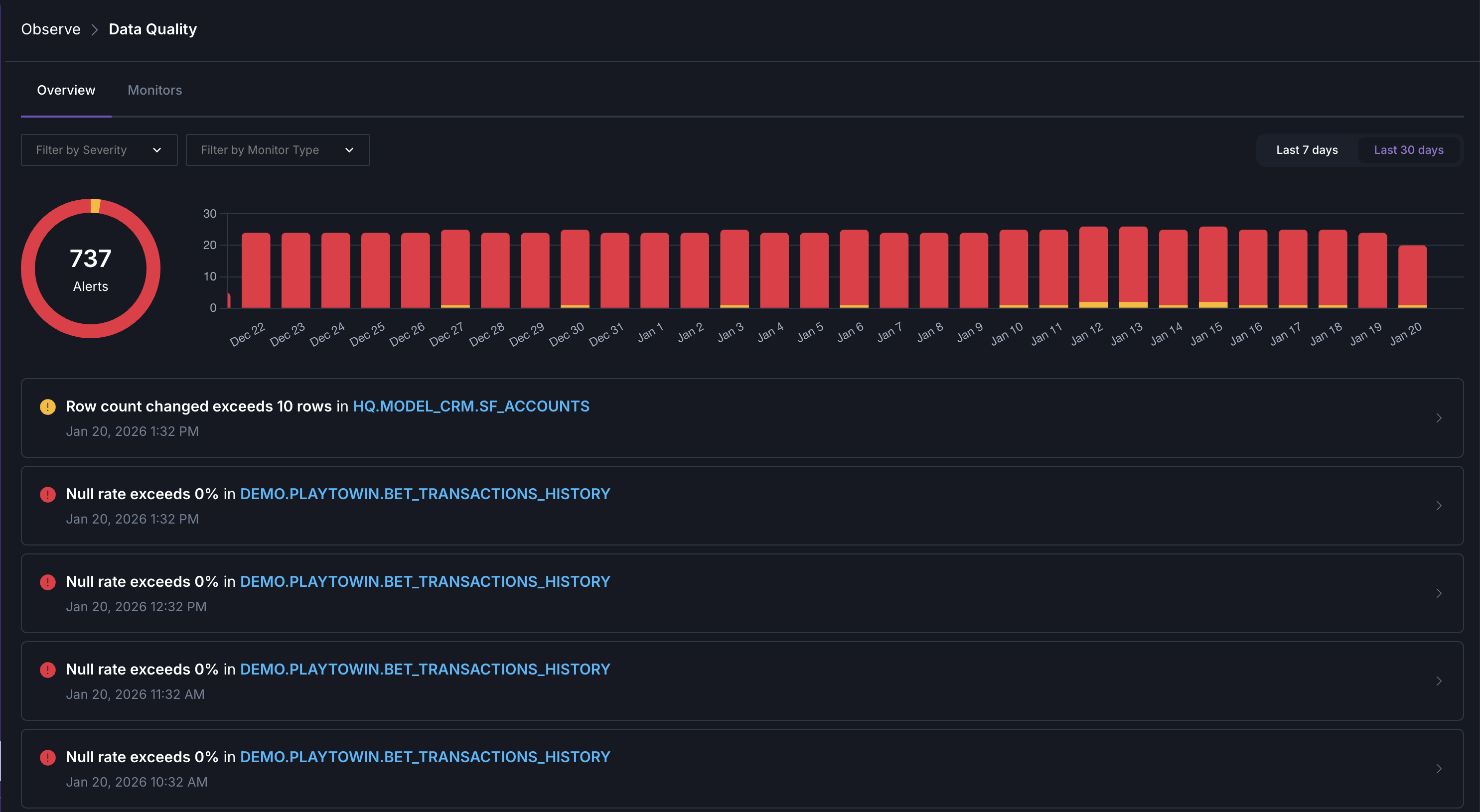
To see a high-level overview of your organization’s data quality, click Data Quality in the navigation. Here you can see a summary of triggered data quality monitors from the last week or month, grouped by severity and check type. Click any triggered monitor to investigate it and see the underlying data that triggered the monitor’s conditions.