

After you create connections and variables in an Airflow environment, you might want to move them between environments for any of the following reasons:Documentation Index
Fetch the complete documentation index at: https://astronomer-preview.mintlify.app/llms.txt
Use this file to discover all available pages before exploring further.
- You are launching a production Airflow environment on Astro based on a locally running Airflow environment.
- You need to replicate a production Airflow environment on your local machine.
- Your team is migrating old Airflow environments to a new location.
From the Airflow UI and metadata database
When you use the Airflow UI to store your Airflow connections and variables, they are stored in Airflow’s metadata database. If your variables are stored in Airflow’s metadata database, you can use the Airflow UI to import and export them in bulk.Using the Airflow UI
To export variables from a local Airflow environment or Astro Deployment, complete the following steps:- In the Airflow UI, go to Admin > Variables.
-
Select the variables you want to export, then click Export in the Actions dropdown menu.
The selected variables are exported to your local machine in a file named
variables.json.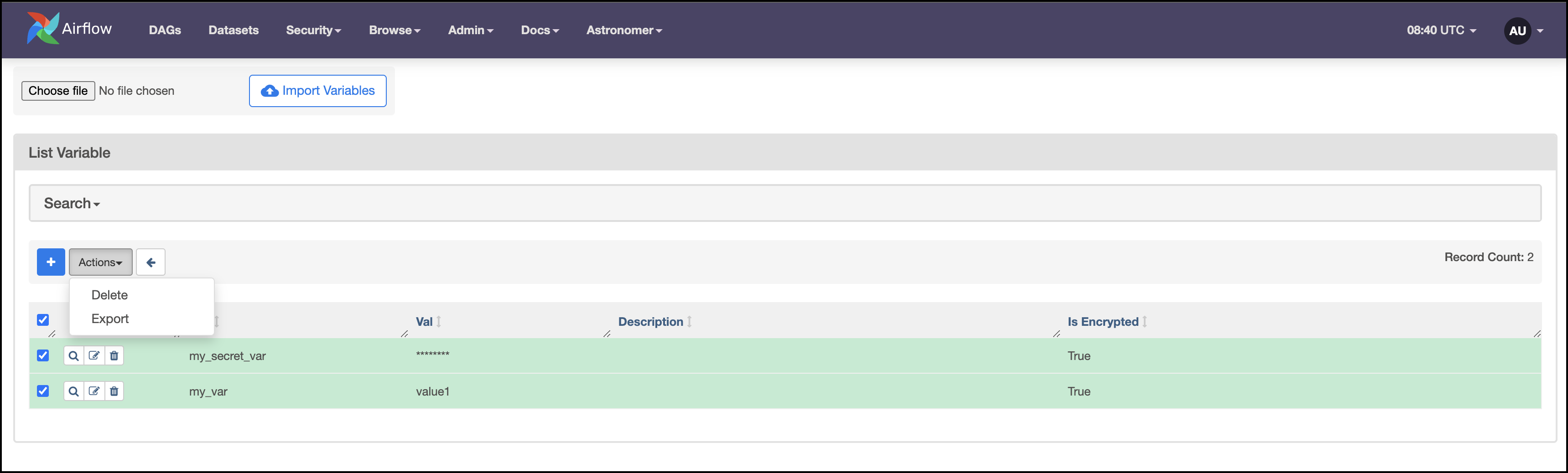
json file, complete the following steps:
-
Either create a new
jsonfile with environment variables or follow the previous steps to export ajsonfile from an existing Airflow environment. Yourjsonfile should look similar to the following: - In the Airflow UI, go to Admin > Variables.
-
Click Choose file and select the file containing your environment variables. Then, click Import Variables.
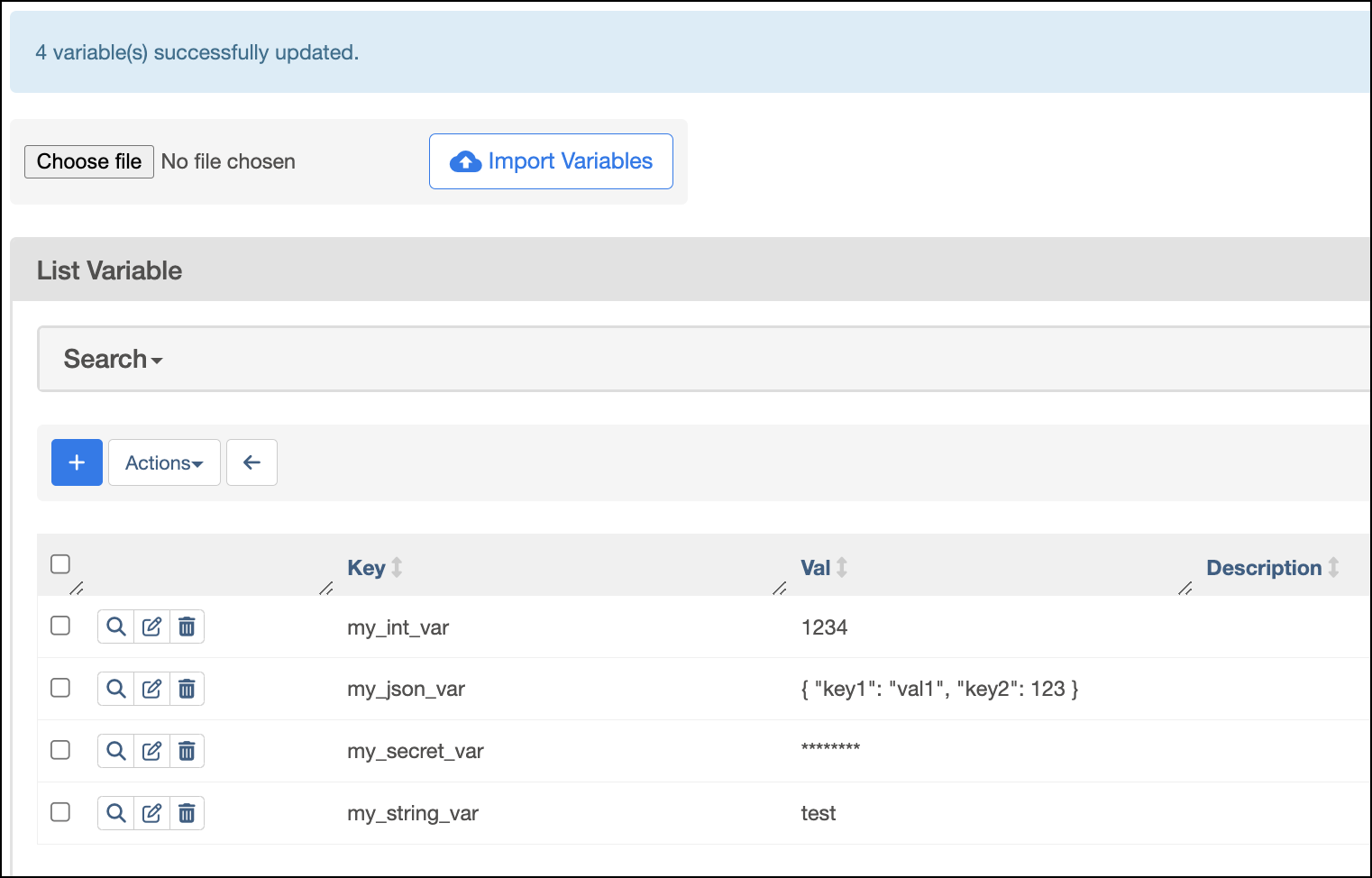
After the variables are updated, the UI will show a confirmation message.
Using the Astro CLI (Local environments only)
Useastro dev object export, astro dev object import, and astro dev run to import and export connections and variables from a local Airflow environment to various formats. For example:
-
To export all Airflow objects including connections, variables, and pools to your Astro project
.envfile in a URI format, run: -
To print only your connections in JSON format to STDOUT, run:
-
To import all Airflow objects from a file named
myairflowobjects.yamlto a locally running Airflow environment, run:
From a secrets backend
If you use a secrets backend to store connections and variables, you need to use your secrets backend’s API to manage connections and variables between environments. Note that importing/exporting from a secrets backend is necessary only in rare circumstances, such as when:- You want to migrate your secrets backend to a different account.
- You want to use your secrets as a reference for another Deployment and then customize it. Astronomer recommends maintaining separate
developmentandproductionsecrets backend. - You want to migrate to a different cloud provider.
- Google secret manager’s Python SDK and REST API reference.
- AWS secret manager’s Python SDK and other SDKs.
- Azure key vault’s SDK and API reference.
- Hashicorp Vault’s Python SDK
From environment variables
This section covers Deployment-level environment variables. For information about Workspace-level environment variables managed through the Environment Manager, see Create environment variables in Astro. Workspace-level environment variables cannot be bulk exported, similar to connections and Airflow variables in the Environment Manager. If you use an.env file to manage your connections and variables as Deployment-level environment variables in a local Astro project, you can import your Airflow objects to another local Airflow Astro project by copying the .env file into the destination project.
The .env file is not pushed to your Deployment when you run astro deploy. However, you can use Astro CLI commands to import the contents of your .env file to an Astro Deployment using astro deployment commands.
If your connections and variables are stored in a local Airflow metadata database, you can also export these to a .env file and then import them to an Astro Deployment as environment variables.
-
To export all Airflow objects from your local Airflow environment, including connections and variables, to an
.envfile in URI format, run: -
To import all Airflow objects from an
.envfile to an Astro Deployment, run:
-
To export variables from your Deployment, run:
This command exports your variables to a local file named
.env. The values of secret environment variables will be redacted.