

Workspaces are collections of Deployments that can be accessed by a specific group of users. You can use Workspaces to group Deployments that share a business use case or trait. Some common ways to implement Workspaces are:Documentation Index
Fetch the complete documentation index at: https://astronomer-preview.mintlify.app/llms.txt
Use this file to discover all available pages before exploring further.
- Using a single Workspace for an entire Organization, with all development and production pipelines hosted together.
- Using a Workspace per team. For example, you might have a Workspace for your Data Science team and a separate Workspace for your Data Engineer team, with each team’s Workspace hosting both production and development pipelines.
- Using a Workspace per project. For example, you might have a Workspace called “Sales Analytics Project” that hosts both production and development pipelines.
Create a Workspace
- In the Astro UI, open the Workspace selection menu, select Manage Workspaces.
- Click the Add Workspace button
Workspace view
To to enter your Workspace, click the Workspace in the Overview tab. When you click into a Workspace and see a list of that Workspace’s Deployments, you are in the Workspace view of the Astro UI. The Workspace view contains several pages for managing your Workspace which are accessible from a sidebar on the left of the screen:- Home: View the status of your Deployments and select recently accessed Deployments.
- Deployments: Create new Deployments and see key metrics about existing Deployments in the Workspace. For more information, see Create a Deployment.
- Dags: View metrics about individual dags across your Workspace. For more information, see Deployment metrics.
- Workspace Settings: Update Workspace details, including Workspace user permissions, the Workspace name, and the Workspace description.
Update general Workspace settings
- In the Astro UI, select a Workspace.
- Click Workspace Settings and then click the Details tab.
-
Click Edit Details, then update the following settings as needed:
- Name: The name of your Workspace
- Description: The description of your Workspace
- CI/CD Enforcement Default: Determines whether new Deployments in the Workspace enforce CI/CD deploys by default. This default can be overridden at the Deployment level. See Enforce CI/CD deploys.
Delete a Workspace
- In the Astro UI, select a Workspace.
- Click Workspace Settings.
-
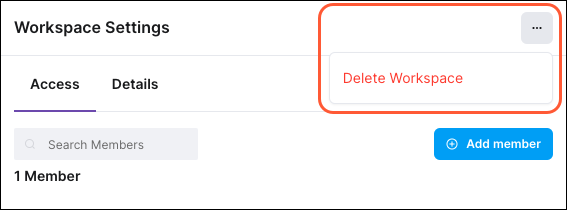
Click the option menu at the top of the page and select Delete Workspace. This option isn’t available when there are active Deployments in the Workspace.
-
In the confirmation dialog, enter
deleteand then click Yes, Continue.