Documentation Index
Fetch the complete documentation index at: https://astronomer-preview.mintlify.app/llms.txt
Use this file to discover all available pages before exploring further.
An auth system determines how users can log in to Astro Private Cloud. By default, Astro Private Cloud allows users to create an account and authenticate using one of the following methods:
- Google OAuth
- GitHub OAuth
- Local username/password
Integrating an external identity provider (IdP) greatly increases the security of your platform. When you integrate your IdP into Astro Private Cloud:
- Users no longer need to repeatedly login and remember credentials for their account.
- You have complete ownership over credential configuration and management on Astro Private Cloud.
- You can enforce multi-factor authentication (MFA) for users.
In addition to the default methods, Astronomer provides the option to integrate any IdP that follows the Open Id Connect (OIDC) protocol. This includes (but is not limited to):
After you integrate your IdP, you can invite users that already have an account on your IdP to Astro Private Cloud. For a more advanced integration, you can configure SCIM so that you can manage users directly from your IdP and import batches of users into Astro Private Cloud as Teams.
Microsoft Entra ID
Okta
Auth0
AWS Cognito
Local auth
General OIDC
Step 1: Register an application using App Registrations on Azure
-
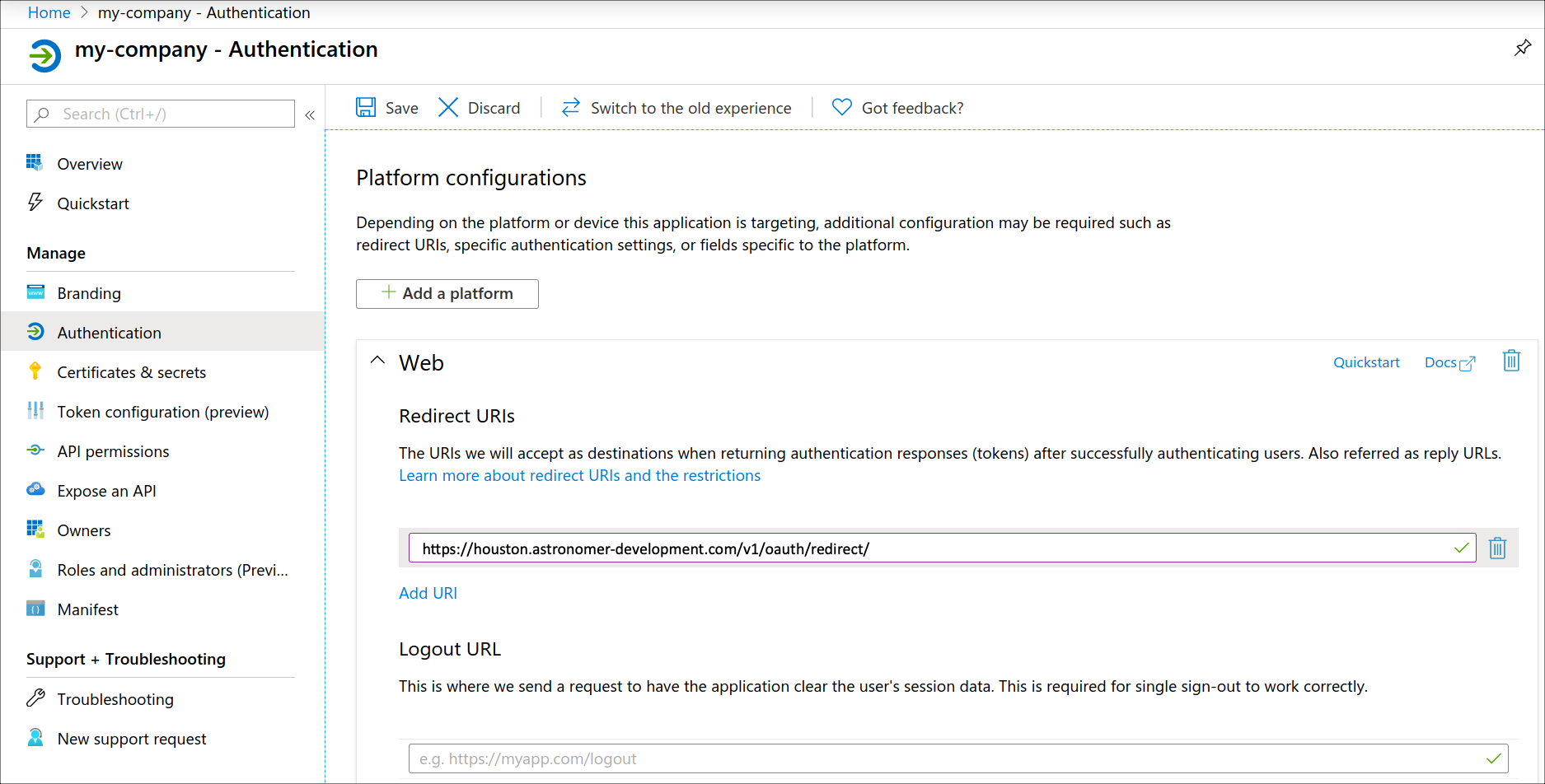
In Microsoft Entra ID, click App registrations > New registration.
-
Complete the following sections:
- Name: Any
- Supported account types: Accounts in this organizational directory only (Astronomer only - single tenant)
- Redirect URIs:
- Web /
https://houston.BASEDOMAIN/v1/oauth/redirect/.
- Web /
https://houston.BASEDOMAIN/v1/oauth/callback/.
Replace BASEDOMAIN with your own. For example, if your base domain is example.com, your redirect URIs should be https://houston.example.com/v1/oauth/redirect/ and https://houston.example.com/v1/oauth/callback/.
-
Click Register.
-
Click Authentication in the left menu.
-
In the Web area, confirm the redirect URI is correct.
-
In the Implicit grant and hybrid flows area, select Access tokens and ID tokens.
-
Click Save.
Step 2: (Optional) Create a client secret
Complete this setup only if you want to import Microsoft Entra ID groups to Astro Private Cloud as Teams.
-
In your Microsoft Entra ID application management left menu, click Certificates & secrets.
-
Click New client secret.
-
Enter a description in the Description field and then select an expiry period in the Expires list.
-
Click Add.
-
Copy the values in the Value and Secret ID columns.
-
Click API permissions in the left menu.
-
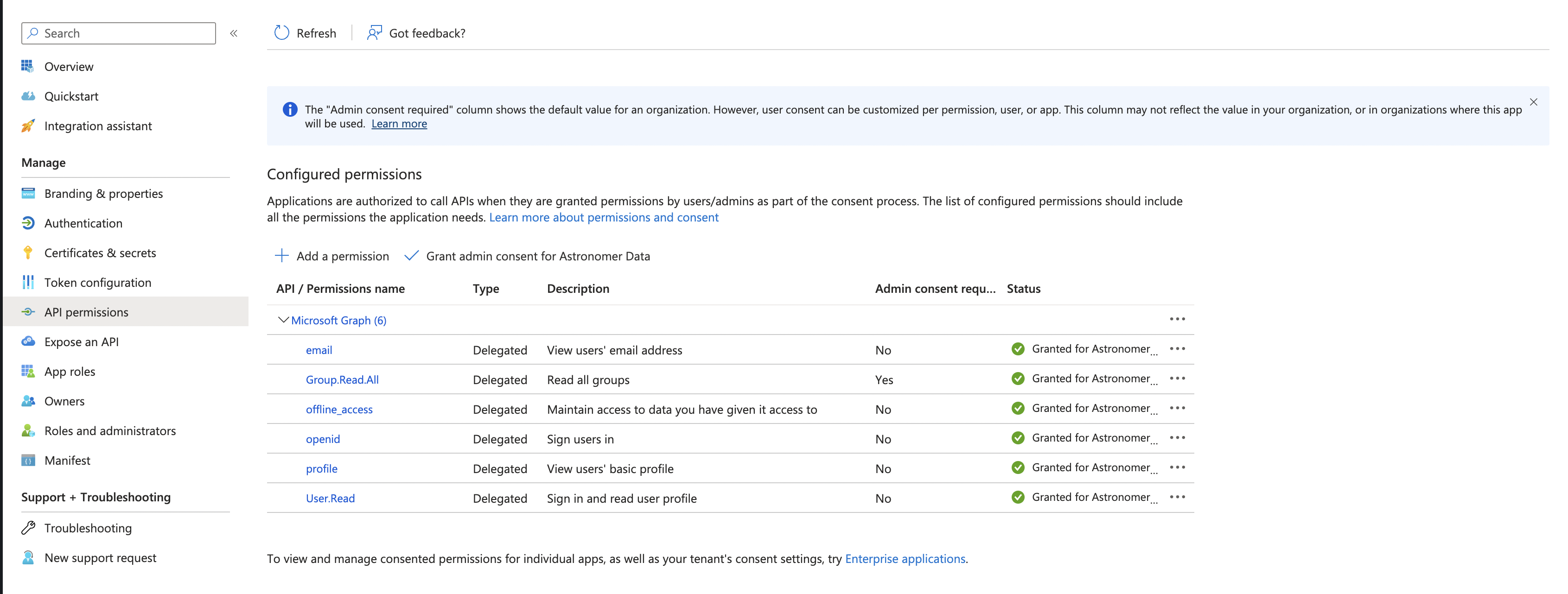
Click Microsoft Graph and add the following minimum permissions for Microsoft Graph:
emailGroup.Read.AllopenidprofileUser.Read
For each of these permissions, select Grant Admin Consent for Astronomer Data. Your Microsoft Graph permissions should look similar to the following image:
-
Click Token configuration in the left menu.
-
Click Add groups claim and select the following options:
- In the Select group types to include in Access, ID, and SAML tokens area, select every option.
- In Customize token properties by type area, expand ID, Access, and SAML and then select Group ID for each type.
-
Click Add.
-
Base64 encode the client secret retrieved from Microsoft with Linux or macOS terminal with the following command:
echo '<oauth-client-secret-value> | base64
-
Create a Kubernetes Secret in the
astronomer Namespace, or whichever Namespace where Houston is deployed, using the following YAML as an example:
# Required configuration for all secrets
kind: Secret
apiVersion: v1
metadata:
     name: oauth-client-secret
type: Opaque
# Specify a key and value for the data you want to encrypt
data:
    client_secret:  "<encoded-client-secret-value>"
- Apply the Kubernetes Secret with
kubectl apply -n astronomer -f <filename>.yaml
Step 3: Enable Microsoft Entra ID in your values.yaml file
Add the following values to your values.yaml file:astronomer:
houston:
# Add/extend astronomer.houston.secret section if using IDP Group Sync
#secret:
# - envName: "AUTH__OPENID_CONNECT__MICROSOFT__CLIENT_SECRET"
# secretName: "oauth-client-secret"
# secretKey: "client_secret"
config:
auth:
openidConnect:
flow: "code"
google:
enabled: false
microsoft:
enabled: true
clientId: <your-client-id>
discoveryUrl: https://login.microsoftonline.com/<tenant-id>/v2.0/.well-known/openid-configuration
baseDomain: login.microsoftonline.com
authUrlParams:
audience: <your-client-id>
github:
enabled: false
-
If you haven’t already, create an Okta account.
-
In your Okta account, create a new web app for Astronomer.
-
In Okta, under General Settings > Application, set
Login redirect URIs to https://houston.BASEDOMAIN/v1/oauth/redirect/, where BASEDOMAIN is the domain where you’re hosting your APC installation.
-
Under Allowed grant types, select
Implicit (Hybrid).
-
Save the
Client ID generated for this Okta app for use in the next steps.
-
Optional. To ensure that an Okta tile appears for Astronomer, set
Initiate Login URI to https://houston.BASEDOMAIN/v1/oauth/start?provider=okta.
Step 2: Integrate Okta with Astro Private Cloud
Add the following to your values.yaml file in your astronomer directory:astronomer:
houston:
# Add/extend astronomer.houston.secret section if using IDP Group Sync
#secret:
# - envName: "AUTH__OPENID_CONNECT__OKTA__CLIENT_SECRET"
# secretName: "oauth-client-secret"
# secretKey: "client_secret"
config:
auth:
openidConnect:
okta:
enabled: true
clientId: "<okta-client-id>"
discoveryUrl: "https://<okta-base-domain>/.well-known/openid-configuration"
If you manage your identity provider through Auth0, follow these steps to configure the identity provider for Astro.Step 1: Create an Auth0 tenant domain
Follow the Auth0 documentation to create a tenant. You can use the default domain name or your own unique tenant-name. Your full tenant domain looks something like astronomer.auth0.com.Your full tenant domain may differ if you’ve created it outside of the United States.
Step 2: Create a connection between Auth0 and your identity management provider
Follow steps in the Auth0 connection guide for your identity provider to create an integration between your tenant and identity provider.
- Go to
https://manage.auth0.com/dashboard/us/<tenant-name>/applications.
- Under Applications, select Default App.
- Open the Connections tab. You should see your new connection here. Enable your new connection, and disable any connections that you won’t be using.
- Open the Settings tab.
- Under Allowed Callback URLs, add
https://houston.<your-astronomer-base-domain>/v1/oauth/redirect/.
- Under Allowed Logout URLs, add
https://app.<your-astronomer-base-domain>/logout.
- Under Allowed Origins (CORS), add
https://*.<your-astronomer-base-domain>.
- Go to
https://manage.auth0.com/dashboard/us/<tenant-name>/apis.
- Click
+ Create API.
- Under Name, enter
astronomer-ee.
- Under Identifier, enter
astronomer-ee.
- Leave the value under Signing Algorithm as
RS256.
Step 4: Enable Auth0 in your values.yaml file
Add the following to your values.yaml file in your astronomer directory:astronomer:
houston:
# Add/extend astronomer.houston.secret section if using IDP Group Sync
#secret:
# - envName: "AUTH__OPENID_CONNECT__AUTH0__CLIENT_SECRET"
# secretName: "oauth-client-secret"
# secretKey: "client_secret"
config:
auth:
openidConnect:
auth0:
enabled: true
clientId: "<default-app-client-id>"
discoveryUrl: https://<tenant-name>.auth0.com
You can find yourclientIDvalue athttps://manage.auth0.com/dashboard/us/<tenant-name>/applicationslisted next to ‘Default App’.
Step 1: Create a user pool in Cognito
Start by creating a user pool in Cognito. You can either review the default settings or step through them to customize.Make sure that you create an App client, which is the OpenID client configuration that Astro Private Cloud uses to authenticate against. You do not need to generate a client secret, as Astro Private Cloud is a public client that uses implicit flow.After Auth0 creates the pool and app client, open App integration >App client settings and configure the following settings:
- Select an identity provider to use (either the built-in cognito user pool or a federated identity provider).
- Set the callback URL parameter to
https://houston.BASEDOMAIN/v1/oauth/redirect/.
- Enable
Implicit grant in Allowed OAuth Flows. Leave the other settings disabled.
- Enable
email, openid, and profile in Allowed OAuth Scopes.
Then, switch to the Domain name tab and select a unique domain name to use for your hosted Cognito components.Step 2: Edit your Astro Private Cloud configuration
Add the following values to your values.yaml file in the astronomer/ directory:astronomer:
houston:
config:
auth:
openidConnect:
cognito:
enabled: true
clientId: <client_id>
discoveryUrl: https://cognito-idp.<AWS-REGION>.amazonaws.com/<COGNITO-POOL-ID>/.well-known/openid-configuration
authUrlParams:
response_type: token
General settings tab of the Cognito portal. Your client ID is found in the App clients tab.After you save your values.yaml file with these values, push it to your platform. See Apply a config change.To let users authenticate to Astro Private Cloud with a local username and password, follow the steps below.
-
Enable
local auth in your values.yaml file:
astronomer:
  houston:
    config:
      auth:
        local:
          enabled: true
-
Push the configuration change to your platform. See Apply a config change.
Astro Private Cloud supports a generic OIDC configuration to accommodate all OIDC-compliant providers. If there are no specific setup instructions for your OIDC provider in this document, you can add the following configuration to your values.yaml file.For example:astronomer:
houston:
# Add/extend astronomer.houston.secret section if using IDP Group Sync
#secret:
# - envName: "AUTH__OPENID_CONNECT__CUSTOM__CLIENT_SECRET"
# secretName: "custom-oauth-secret"
# secretKey: "client_secret"
config:
auth:
openidConnect:
clockTolerance: 0 # A field that can optionally be set to adjust for clock skew on the server.
custom:
enabled: true
discoveryUrl: <provider-discovery-url> # Note this must be a URL that with an https:// prefix
clientId: <provider-client-id>
authUrlParams: # Additional required params set on case-by-case basis
Running behind an HTTPS proxy
Integrating an external identity provider with Astro Private Cloud requires that the platform’s Houston API component is able to make outbound HTTPS requests to those identity providers in order to fetch discovery documents, sign keys, and ask for user profile information upon login/signup.
If your install is configured without a direct connection to the internet you will need to configure an HTTPS proxy server for Houston.
To configure the proxy server used we need to set the GLOBAL_AGENT_HTTPS_PROXY Environment Variable for the Houston deployment.
To do so, add the following to the Houston section of the values.yaml file in your astronomer directory:
astronomer:
  houston:
    config:
      auth:
        openidConnect:
          custom:
            enabled: true
            displayName: My Oauth Provider
            clientId: ...
            discoveryUrl: ...
    env:
      - name: GLOBAL_AGENT_HTTPS_PROXY
        value: http://my-proxy:3129
This setup must be completed only during a scheduled maintenance window. There should be no active users on your installation until the setup has been finalized.
-
In your
values.yaml file, set the astronomer.houston.config.auth.openidConnect.flow value to "code":
astronomer:
  houston:
    config:
      auth:
        # Local database (user/pass) configuration.
        local:
          enabled: true
        openidConnect:
          # Valid values are "code" and "implicit"
          flow: "code"
-
Configure the section of your
values.yaml file specific to your identity provider with each of the following values:
enabled: Set this value to true under the section for your own identity provider.clientId: Your Client ID and Client secretdiscoveryURL: Your base Discovery URLauthUrlParams: Additional parameters to append to your discovery URL. At a minimum, you must configure audience. Refer to your identity provider’s documentation for information on how to find this value (Auth0 maintains this information in their glossary, for example).
For example, a custom configuration of Okta might look like the following.
astronomer:
  houston:
    secret:
      - envName: "AUTH__OPENID_CONNECT__OKTA__CLIENT_SECRET"
        secretName: "oauth-client-secret"
        secretKey: "client_secret"
    config:
      auth:
        okta:
          enabled: true
          clientId: ffhsdf78f734h2fsd
          discoveryUrl: "https://<your-idp-url>.okta.com/oauth2/default/.well-known/openid-configuration"
          authUrlParams:
            audience: "GYHWEYHTHR443fFEW"
- Push your configuration changes to your platform as described in Apply a config change.
To finalize your configuration, configure the following key values in your identity provider’s settings:
- Grant Code: Set to “Code” or “Auth Code” depending on your identity provider.
- Sign-in Redirect URI: Set to
https://houston.<BASE_DOMAIN>/v1/oauth/callback/. Be sure to include the trailing /.
Step 3: Confirm your installation
When you complete this setup, you should be able to see the differences in login flow when logging in at <BASE_DOMAIN>.astronomer.io:
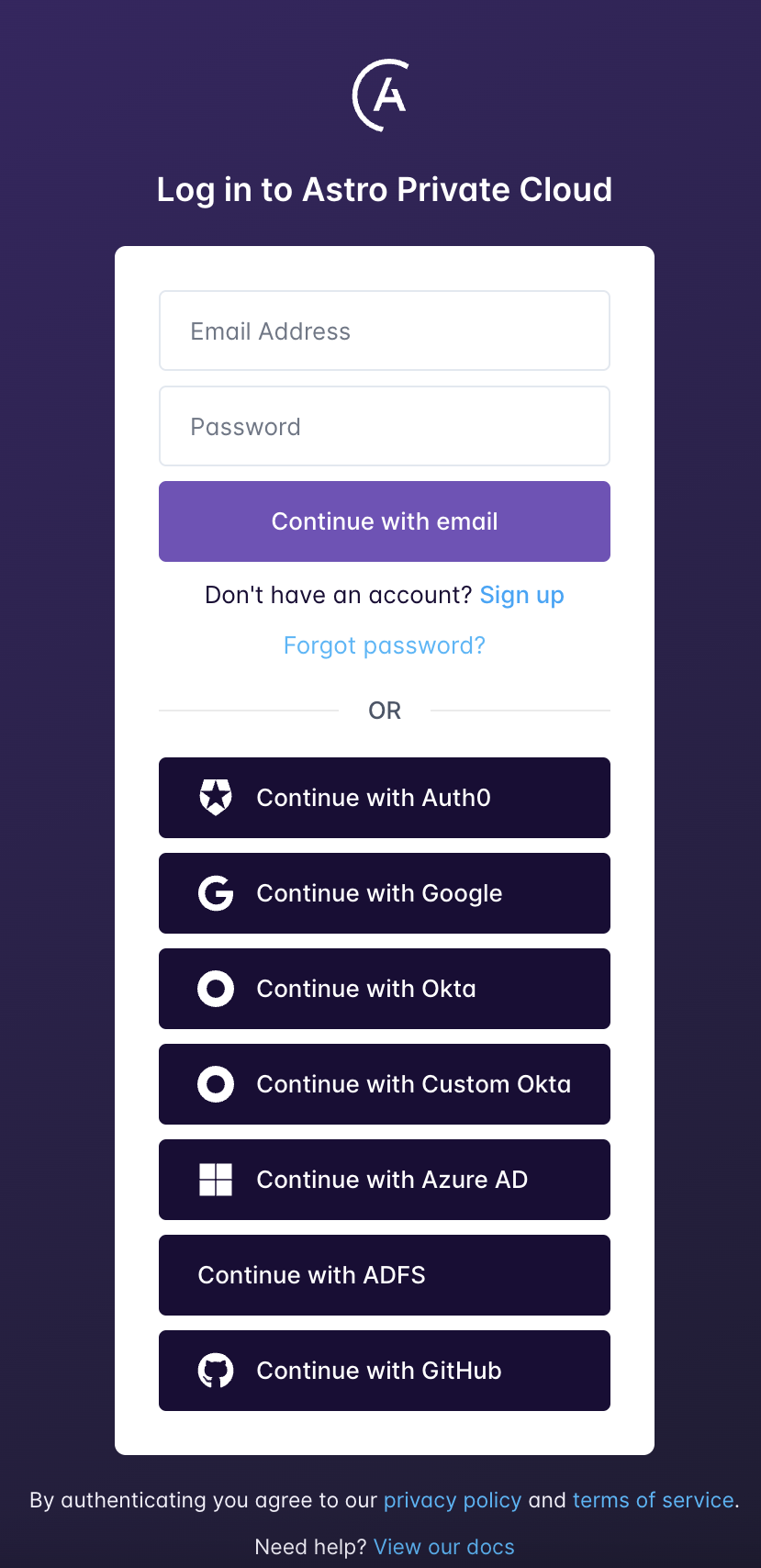 You can see the name you configured in
 AUTH__OPENID_CONNECT__CUSTOM__DISPLAY_NAME when authenticating using the Astro CLI.
Manage users and Teams with SCIM
Astro Private Cloud supports integration with the open standard System for Cross-Domain Identity Management (SCIM). Using the SCIM protocol with Astro Private Cloud allows you to automatically provision and deprovision users and Teams based on templates that define permission and accesses. It also centralizes user management so that you can configure Astro Private Cloud user permissions directly from your identity provider (IdP).
SCIM works because the IdP pushes updates about users and teams to Astro Private Cloud. This means your Astro Private Cloud platform must be connected to the internet and exposed on port 443 to receive those updates. If you run Astro Private Cloud without exposing it to the internet, there might be solutions withMicrosoft Entra IDandOktafor routing SCIM traffic, depending on your combination of cloud provider and IdP. ContactAstronomer supportfor more information.
-
In Okta Admin dashboard, go to Applications > Applications.
-
Click Browse App catalog
-
Search for
SCIM 2.0, then select the option that includes Basic Auth. The configuration page for the SCIM integration appears.
-
Complete the General Settings page, then click Next.
-
Complete the Sign-On Options page and click Done.
-
Return to the Applications menu and search for the integration you just created. Click the integration to open its settings.
-
Click Provisioning, then click Configure API integration.
-
Tick the Enable API integration checkbox, then configure the following values:
- SCIM connector base URL:
https://astro-apc-host/v1/scim/v2/okta
- Authentication mode: Basic Auth
- Username:
<your-provisioning-account-username>
- Password:
<your-provisioning-account-password>
-
Click General, then click Edit. Give your application a name and configure any other required general settings.
-
Go to Push Groups page and create a rule for Group Push. See Group Push.
-
On the Assignments tab, ensure that the right users and groups in your org are assigned to the app integration. See Use the Assign Users to App action.
-
Follow the steps in Store and encrypt identity provider secrets to store your provisioning account credentials as a Kubernetes secret. Make sure to Base64 encode the credentials, as it is a requirement for Kubernetes secrets. This can be done using the Linux or macOS terminal with
echo '<your-provisioning-account-username>:<your-provisioning-account-password> | base64. Your secret configuration should look similar to the following:
# Required configuration for all secrets
kind: Secret
apiVersion: v1
metadata:
     name: okta-provisioning-secret
type: Opaque
# Specify a key and value for the data you want to encrypt
data:
    okta_provisioning_account_secret: "<encoded-oauth-client-secret-value>"
-
Add the following lines to your
values.yaml file:
astronomer:
  houston:
    secret:
      - envName: "SCIM_AUTH_CODE_OKTA"
        secretName: "okta-provisioning-secret"
        secretKey: "okta_provisioning_account_secret"
-
Push the configuration change. See Apply a config change.
See Add SCIM provisioning to app integrations for more information about configuring SCIM within Okta.
-
Generate a random string to use as an authentication secret. See random.org for accessible randomization tools.
-
Follow the steps in Store and encrypt identity provider secrets to store your string as a Kubernetes secret. Your secret configuration should look similar to the following:
# Required configuration for all secrets
kind: Secret
apiVersion: v1
metadata:
     name: scim-provisioning-secret
type: Opaque
# Specify a key and value for the data you want to encrypt
data:
    scim_provisioning_secret: "<your-generated-string>"
-
In your
values.yaml file, add the following configuration:
astronomer:
  houston:
    secret:
      - envName: "SCIM_AUTH_CODE_MICROSOFT"
        secretName: "scim-provisioning-secret"
        secretKey: "scim_provisioning_secret"
-
Push the configuration change. See Apply a config change.
-
Log in to the Microsoft Entra ID portal.
-
In the left menu, select Enterprise applications, then click New application > Create your own application.
-
Enter a name for your application and select Integrate any other application you don’t find in the gallery.
-
Click Create to create an app object. Microsoft Entra ID opens the application management menu for your new application.
-
In the application management menu for your new application, go to Manage > Provisioning and click Get Started.
-
Click Provisioning Mode > Automatic.
-
In the Tenant URL field, enter
https://BASEDOMAIN/v1/scim/v2/microsoft. This is the Astro Private Cloud SCIM endpoint URL.
-
Paste the
scimAuthCode that you generated in Step 1 into the Secret Token field.
-
Click Test connection in the Microsoft Entra ID application management menu to confirm your connection to the SCIM endpoint.
-
Create mappings for your Astronomer users and roles. See Tutorial - Customize user provisioning attribute-mappings for SaaS applications in Microsoft Entra ID.
-
Click Manage > Provisioning > Settings.
-
In the Scope setting list, select Sync only assigned users and groups.
-
Click the Provisioning status toggle to turn provisioning status on.
-
Click Save.

