Documentation Index
Fetch the complete documentation index at: https://astronomer-preview.mintlify.app/llms.txt
Use this file to discover all available pages before exploring further.
On Astronomer, each Airflow deployment is equipped with a PostgreSQL database that serves as Airflow’s underlying metadata database and the scheduler’s source of truth.
On Astronomer Software, a Postgres metadata database will be created for each individual Airflow Deployment and hosted within your wider platform database.
This guide will cover guidelines for the following:
- Risks associated with and use cases for database Access
- Access to Airflow’s database in local development
- Decode Astronomer’s metadata Secret
- Access to Airflow’s database on Astronomer
- Example DAG that incorporates a query to the database
Airflow’s “Ad-Hoc Query” feature used to be a common way to test DB connections and query the Airflow metadata database via the Airflow UI but was deprecated in 1.10 for security reasons.
Risk associated with database access
As noted above, every Airflow Deployment’s metadata database on Astronomer is hosted within the Platform database your team initiated during the install process for Astronomer Software. Given its importance to the scheduler’s performance, it’s worth noting the risks associated with accessing Airflow’s database.
We strongly recommend users do not write to the database directly as it can compromise both the integrity of your Airflow Deployment and both of our team’s ability to support a user in the case of an issue.
Use cases
Keeping the above risk in mind, pulling from and reading the database safely can be a great way to gather metadata from your Airflow Deployment that isn’t otherwise exposed on Astronomer and Airflow (yet).
A few examples of what you can query for:
- Completed Task Count
- Tasks started per hour, per week
- Task duration
Read below for DB access guidelines both locally and on Astronomer.
Local access to the Airflow database
To successfully query from your Airflow Deployment’s database, you’ll need to set up your local Postgres connection.
1. Find the airflow_db connection Object
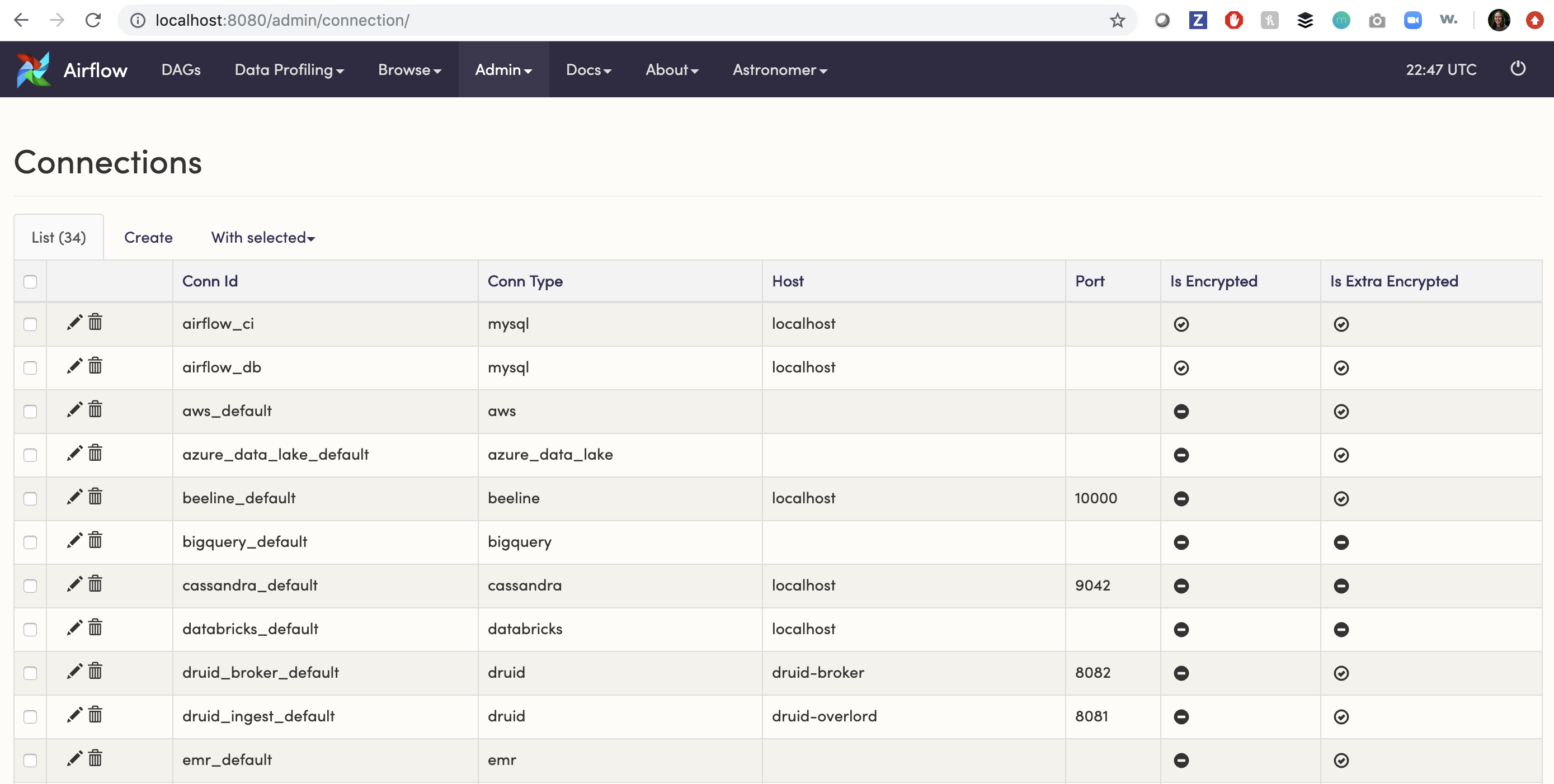
On the Airflow UI, navigate over to Admin > Connections.
The airflow_db connection is generated by default.
 2. Edit the connection
In the
2. Edit the connection
In the airflow_db connection object:
-
Change the
Conn Type to Postgres
-
Add the following connection information:
host: postgres
schema: postgres
login: postgres
password: postgres
port (optional): 5432
Your connection should look something like:
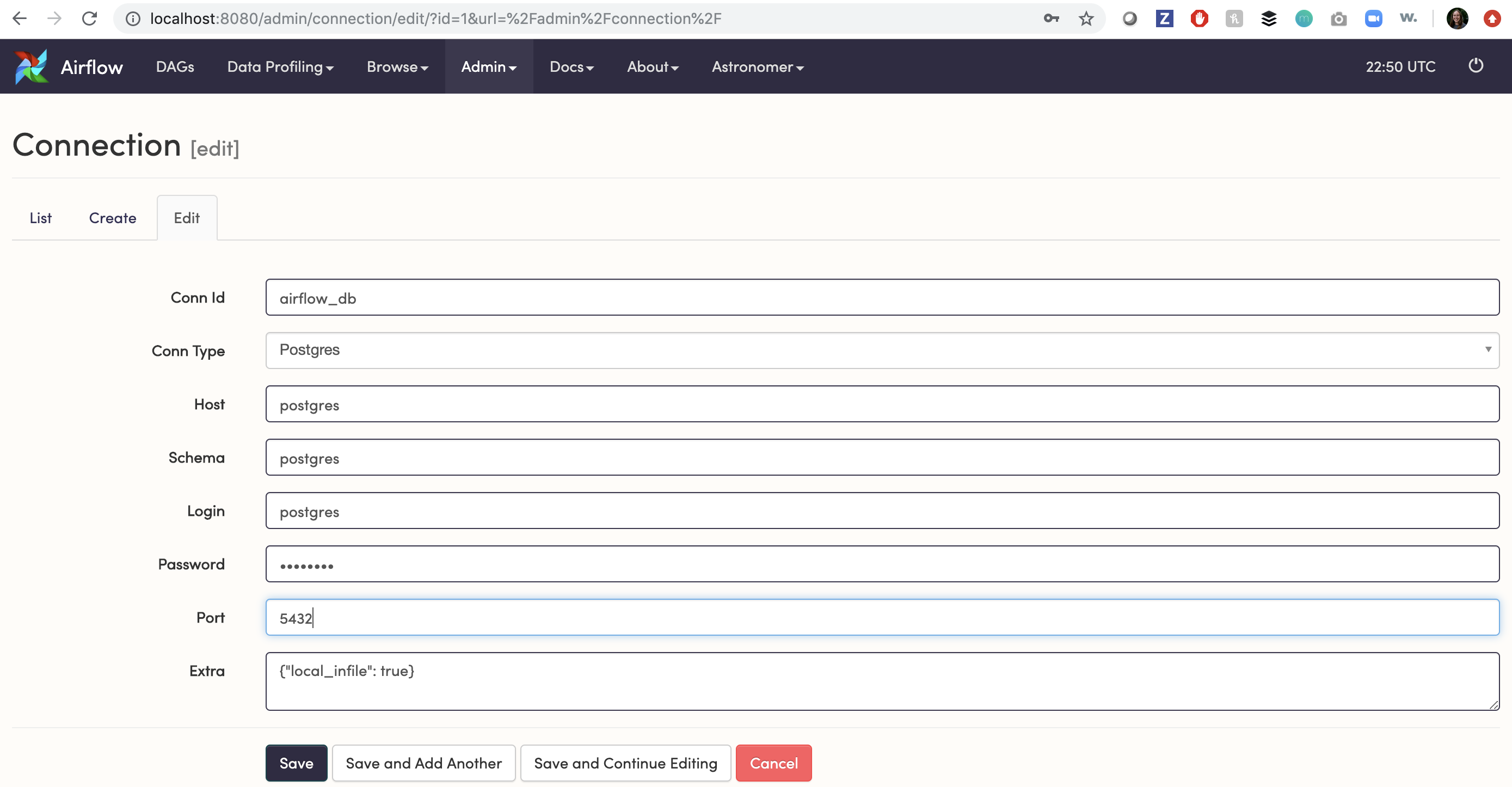 The port will be set to 5432 by default but if you’ve set a custom port, you’ll need to update that here as well.
3. Connect to
The port will be set to 5432 by default but if you’ve set a custom port, you’ll need to update that here as well.
3. Connect to airflow_db in your DAG
Here’s an example DAG, where postgres_conn_id is set to airflow_db:
from airflow import DAG
from airflow.operators.python import PythonOperator
from airflow.providers.postgres.hooks.postgres import PostgresHook
from datetime import datetime, timedelta

def get_dag_ids():
    postgres_hook = PostgresHook(postgres_conn_id="airflow_db")
    records = postgres_hook.get_records(sql="select dag_id from dag")
    print(records)

with DAG(
    "connect_dag",
    start_date=datetime(2019, 1, 1),
    max_active_runs=1,
    schedule=None,
    # catchup=False # enable if you don't want historical dag runs to run
) as dag:

    t1 = PythonOperator(
        task_id="get_dag_nums",
        python_callable=get_dag_ids,
    )
dag_ids stored inside dag table within Airflow’s metadata database.
Connect to the DB using a PostgreSQL client
With the connection information above, you should also be able to connect to the Airflow database from any PostgreSQL client.
Using psql, a terminal-based front-end to PostgreSQL, run:
psql -h localhost -U postgres -p 5432 -W
psql command.
To do so, run:
docker exec -it <postgres_container_id> /bin/bash

psql -U postgres
Access to the Airflow database on Astronomer
The easiest way to pull from Airflow’s metadata database on Astronomer is to leverage the AIRFLOW_CONN_AIRFLOW_DB environment variable, which we set here.
This environment variable, which we set by default, silently enables users to leverage the airflow_db connection. It’s worth noting that the connection itself in the Airflow UI will NOT reflect the correct credentials (Conn Type, Host, Schema, Login, Password, Port).
To pull from the Airflow database, follow the steps below. Note that you do not have to set this Environment Variable yourself and you do not have to populate the airflow_db connection in the Airflow UI.
1. Leave your airflow_db Connection as is
Your airflow_db connection by default will look like the following:
Conn Id: airflow_db
Conn Type: MySQL
Host: mysql
Schema: airflow
Login: root
airflow_db in your DAG
You can use the same example DAG outlined above where postgres_conn_id is set to airflow_db.
3. Verify the connection in your task logs
To verify a successful connection, you can inspect the corresponding task log -
Dependencies all met for <TaskInstance: example_dag.get_dag_nums 2020-05-07T19:02:38.022685+00:00 [queued]>

--------------------------------------------------------------------------------
Starting attempt 1 of 1

--------------------------------------------------------------------------------
Executing <Task(PythonOperator): get_dag_nums> on 2020-05-07T19:02:38.022685+00:00
Started process 429 to run task
Running %s on host %s <TaskInstance: example_dag.get_dag_nums 2020-05-07T19:02:38.022685+00:00 [running]> desolate-spectrum-3088-worker-866745d995-rn576
[2020-05-07 19:02:54,033] {base_hook.py:87} INFO - Using connection to: id: airflow_db. Host: desolate-spectrum-3088-pgbouncer.astronomer-desolate-spectrum-3088.svc.cluster.local, Port: 6543, Schema: desolate-spectrum-3088-metadata, Login: desolate_spectrum_3088_airflow, Password: XXXXXXXX, extra: XXXXXXXX
[('example_dag',)]
Done. Returned value was: None
Conn Id: airflow_db
Host: desolate-spectrum-3088-pgbouncer
Schema: desolate-spectrum-3088-metadata
Login: desolate_spectrum_3088_airflow
Password: XXXXXXXX
Port: 6543
metadata) in your deployment’s Kubernetes namespace. For users with kubectl access to the cluster who want to properly populate the airflow_db connection in the Airflow UI with the proper credentials, follow our instructions below.
This is entirely optional and is not required, as theAIRFLOW_CONN_AIRFLOW_DBEnvironment Variable is pre-set on Astronomer and will allow users to reference theairflow_dbconnection in a DAG even though the connection itself isn’t populated in the Airflow UI.
Prerequisites
- Access to your Kubernetes cluster with permissions to:
- List Namespaces
- List Pods
- List Kubernetes Secrets
- Kubectl
- Kubectx (optional)
Pull Credentials via Kubectl
1. Switch into your Kubernetes Cluster
The rest of this guide will assume the use of kubectx - a command line tool that allows you to easily switch between Kubernetes clusters and Namespaces.
To start, switch into the Kubernetes cluster that hosts Astronomer Software.
2. List the namespaces in your cluster
To list the namespaces on your Kubernetes cluster, run:
3. Confirm your Deployment’s corresponding namespace
Find the Kubernetes namespace that corresponds to the Airflow deployment whose database you’d like credentials to and run:
Then, run:
You should see something like:
$ kubectl get pods
NAME                                                READY   STATUS    RESTARTS   AGE
quasaric-sun-9051-flower-7bbdf98d94-zxxjd           1/1     Running   0          93d
quasaric-sun-9051-2346-pgbouncer-c997bbd9d-dgsjr    2/2     Running   0          2d
quasaric-sun-9051-2346-redis-0                      1/1     Running   0          93d
quasaric-sun-9051-2346-scheduler-59f856bd5-d7gl4    1/1     Running   0          3h
quasaric-sun-9051-2346-statsd-5c7d7b6777-x7v4x      1/1     Running   0          93d
quasaric-sun-9051-2346-webserver-56fb447559-gjg8n   1/1     Running   0          3h
quasaric-sun-9051-2346-worker-0                     2/2     Running   0          3h
metadata Kubernetes Secret in the Kubernetes namespace where your Airflow Deployment lives.
To list those Secrets, run:
Which prints out something like the following:
$ kubectl get secret
NAME                                                              TYPE                                  DATA   AGE
default-token-fk86l                                               kubernetes.io/service-account-token   3      93d
geocentric-instrument-2346-airflow-result-backend                 Opaque                                1      93d
geocentric-instrument-2346-broker-url                             Opaque                                1      93d
geocentric-instrument-2346-env                                    Opaque                                0      92d
geocentric-instrument-2346-fernet-key                             Opaque                                1      93d
geocentric-instrument-2346-metadata                               Opaque                                1      93d
geocentric-instrument-2346-pgbouncer-config                       Opaque                                2      93d
geocentric-instrument-2346-pgbouncer-stats                        Opaque                                1      93d
geocentric-instrument-2346-redis-password                         Opaque                                1      93d
geocentric-instrument-2346-registry                               kubernetes.io/dockerconfigjson        1      93d
geocentric-instrument-2346-scheduler-serviceaccount-token-w29bn   kubernetes.io/service-account-token   3      93d
geocentric-instrument-2346-airflow-worker-token-gqr4w      kubernetes.io/service-account-token   3      93d
metadata Secret.
kubectl get secret <metadata secret name> -o yaml
connection string.
apiVersion: v1
data:
  connection: cG9zdGdyZXNxbDovL2dlb2NlbnRyaWNfaW5zdHJ1bWVudF8yMzQ2X2FpcmZsb3c6VTJvN3F2VnVsWnZ5cXl2V1hXbTBSSGh1UHlqdk1IT3BAZ2VvY2VudHJpYy1pbnN0cnVtZW50LTIzNDYtcGdib3VuY2VyOjY1NDMvZ2VvY2VudHJpYy1pbnN0cnVtZW50LTIzNDYtbWV0YWRhdGE=
kind: Secret
metadata:
  creationTimestamp: "2019-05-02T09:06:11Z"
  labels:
    chart: airflow
    release: geocentric-instrument-2346
    workspace: 484c967e-4ec1-4b36-8536-1525813028e1
  name: geocentric-instrument-2346-metadata
  namespace: astronomer-cloud-geocentric-instrument-2346
  resourceVersion: "47818384"
  selfLink: /api/v1/namespaces/astronomer-cloud-geocentric-instrument-2346/secrets/geocentric-instrument-2346-metadata
  uid: a84029d3-0e6d-12e8-b31a-42010a96009f
type: Opaque
connection string from the beginning of that output and decode it:
echo "<connectionstring>" | base64 --decode
postgresql://geocentric_instrument_2346_airflow:U2o7qvVulZvyqyvWXWm0RHhuPyjvMHOp@geocentric-instrument-2346-pgbouncer:6543/geocentric-instrument-2346-metadata
login:password@host:port/schema
In this example, that’d be:
- Host: quasaric-sun-9051-pgbouncer
- Schema: quasaric-sun-9051-metadata
- Login: quasaric_sun_9051_airflow
- Password: U2o7qvVulGvyqyvAXWm0RPhuPvjvlHOp
- Port: 6543
airflow_db connection in the Airflow UI.
If you want to store this connection and access it programmatically, you’re also free to store it in a secret backend.
