Documentation Index
Fetch the complete documentation index at: https://astronomer-preview.mintlify.app/llms.txt
Use this file to discover all available pages before exploring further.
No versions of Astronomer Certified (AC) are currently supported by Astronomer. Astronomer stopped releasing new versions of AC with the release of Apache Airflow 2.4. Astronomer recommends creating all new Deployments with Astro Runtime, as well as migrating existing Deployments from AC to Astro Runtime as soon as your organization is ready. SeeMigrate to RuntimeandRuntime image architecture.
Prerequisites
The machines where you install Astronomer Certified must be Debian-based. CentOS and Windows Server are currently unsupported. Once you’ve decided which machine you’ll be installing Astronomer Certified on, ensure that the following OS-level packages are installed on the machine:- sudo
- python3
- python3-dev
- python3-venv
- python3-psycopg2
- gcc
- postgresql
- systemd
- PostgreSQL: 9.6, 10, 11, 12, 13
- MySQL: 5.7, 8
- SQLite: 3.15.0+
MySQL 5.7 is compatible with Airflow, but is not recommended for users running Airflow 2.0+, as it does not support the ability to run more than 1 scheduler. If you’d like to leverage Airflow’s newHighly-Available Scheduler, make sure you’re running MySQL 8.0+.
Step 1: Set Up Airflow’s metadata database
In Airflow, the metadata database is responsible for keeping a record of all tasks across DAGs and their corresponding status (queued, scheduled, running, success, failed, etc). To set up the metadata database:-
Create a database user named
airflow:This will prompt you for a password. Create one, and make a note of it for later. -
Create a database named
airflowand set theairflowuser as the owner:
To make the database server accessible outside of your localhost, you may have to edit your
/var/lib/postgresql/data/pg_hba.conffile and restart Postgres. Editing this file will vary for each individual database setup. Before editing this file, consider the security implications for your team.- The database is compatible with Airflow as described in Prerequisites.
- A user named
airflowhas ownership access to the database.
AIRFLOW__CORE__SQL_ALCHEMY_CONN environment variable in step 2F, replace the connection string with one that corresponds to your database.
Step 2: Create a system user to run Airflow
Airflow can run as any user, but for this setup we configure a new user calledastro. Run the following command to add this user to your machine:
Step 3: Create an Astro project directory
You also need to configure anAIRFLOW_HOME directory (not to be confused with the user’s home directory) where you’ll store your DAGs and other necessary files. We recommend using the path /usr/local/airflow as your project directory and /usr/local/airflow/dags as your DAG directory, but any path can be chosen as long as the astro user has write access to it. To do this, run the following commands:
Step 4: Create a virtual environment
To isolate your Airflow components from changes to the system, create a virtual environment in a directory namedastro/airflow-venv using the following command:
Step 5: Install Astronomer Certified
To install the AC Python wheel onto your machine, run one of the following commands depending on your chosen Airflow Version and Executor:-
For Local Executor:
-
For Celery Executor:
postgres, celery, and redis dependencies so that all libraries for those tools are also installed. If your environment requires extra functionality, specify additional dependencies in a comma-delimited list:
Step 6: Configure a process supervisor
To ensure that Airflow is always running when your machine is on, we recommend implementing a process supervisor. Systemd is used in this example, though any process supervisor works here. To use systemd as a process supervisor:-
Create a systemd unit file using the following command:
-
Using a text editor, create and edit a file at
${AIRFLOW_HOME}/sys-configto contain these environment variables and values:If you want to configure environment variables for a single Airflow service, we recommend doing so in thesys-configfile for the machine on which the service is running. -
Add the following to your systemd unit file:
Step 7: Configure Airflow for database access
To connect your Airflow environment to the metadata database you created in Step 1, add the following environment variables to yoursys-config file depending on your chosen executor:
-
For Local Executor:
-
For Celery Executor:
createuser command in Step 1. If your password contains %, /, or @ then you will need to url-escape; replace % with %25, / with %2F, and @ with %40.
When you’ve finished configuring environment variables, run the following command to add your environment variables to your astro user’s shell environment:
Optional: Configure a secret backend for database access
Your Airflow user password is stored in yoursys-config file (owned by root:root and 0600 permissions) on your nodes. If you’d rather use an existing credential store, such as HashiCorp Vault, you can instead specify a command to obtain the connection string when the service starts up. For example:
Step 8: Set up the scheduler
In Airflow, the scheduler is responsible for reading from the metadata database to check on the status of each task and decides the order in which tasks should be completed. To get your scheduler running:-
Enable the scheduler by running the following command:
-
Edit the override file for the machine by running the following command:
-
In the override file, add the following lines:
Note If you’re running Airflow 1.10, the command specified here will instead be
airflow upgradedb. -
Start the service by running:
Step 9: Set up the webserver
The webserver is a core Airflow component that is responsible for rendering the Airflow UI. To configure it on its own machine, follow the steps below.-
Enable the webserver by running the following:
-
Start the webserver by running the following:
For added security and stability, we recommend running the webserver behind a reverse proxy and load balancer such asnginx. For more information on this feature, read theApache Airflow documentation.
Step 10: Set up workers (Celery only)
Workers are an essential component for running Airflow with the Celery executor. To set up Celery workers on your machine:-
Create a new systemd unit file specifically for your Celery workers by running the following command:
-
In the unit file, add the following lines:
You don’t need to edit this unit file for Airflow versions earlier than 2.0.
-
Enable the worker service by running the following command:
-
Start the service by running the following command:
Step 11: Create an Airflow user
To log in to the Airflow UI, you need to first create an Airflow user:-
Switch to your system
astrouser using the following command:All Airflow CLI commands must be run from yourastrouser. -
Create a new
adminAirflow user with the following command:
Step 12: Confirm the installation
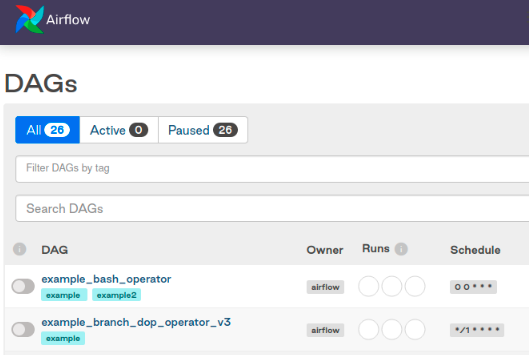
To confirm that you successfully installed Apache Airflow, openhttp://localhost:8080 in your web browser. You should see the login screen for the Airflow UI.
Log in with your admin user. From there, you should see Airflow’s primary ‘DAGs’ view: